Passwords are obsolete technology. In an era of token grabbers and sophisticated phishing sites, a simple character string—even a complex one—is a vulnerability waiting to be exploited.
To protect your server empire and Nitro assets, you must upgrade to Passkeys. This is the new gold standard for authentication: passwordless, biometric, and cryptographically unphishable. This guide dissects how to deploy Passkeys and physical Security Keys (YubiKey, Titan) to bulletproof your Discord account.
1. The Technology: Passkeys vs. Security Keys
Understanding the difference is the first step to hardening your defenses.
- Passkeys ( The Software Sentinel):A digital credential stored on your device (phone/PC) or password manager. It uses biometrics (FaceID, TouchID, Windows Hello) to authenticate.
- The Killer Feature: It replaces the password entirely. You log in with your face or fingerprint. It is impossible to “phish” because the key never leaves your device.
- Security Keys (The Hardware Vault):A physical USB or NFC device (e.g., YubiKey, Google Titan).
- The Killer Feature: It requires physical possession. Even if a hacker has your login details, they cannot enter without plugging in the physical key.
2. Deployment Protocol: Setting Up Your Defense
Mobile Operations (iOS / Android)
- Tap your Avatar (Bottom Right) > Gear Icon (Settings).
- Navigate to Account > Security Keys.
- Tap Add.
- Note: If you already have 2FA enabled, you may be asked to verify via a TOTP code first.
- Your OS will prompt you to save the Passkey. You can store it in your OS Keychain (iCloud/Google) or a third-party manager like 1Password.
- Critical Step: Name the key (e.g., “iPhone 15 Pro”) and tap Finish.
- Download Backup Codes. Do not skip this.
Desktop Operations (PC / Mac)
- Click User Settings (Gear Icon) > My Account.
- Locate the Password and Authentication section.
- Click Register a Security Key.
- Follow the OS prompt (Windows Hello or macOS TouchID) to create the Passkey.
- Download Backup Codes.
⚠️ CRITICAL WARNING: The Backup Code Lifeline
If you lose your device/key and do not have your Backup Codes, Discord Support cannot recover your account. They are cryptographically locked out.
- Action: Save these codes to a cloud drive and write them down physically.
3. The Login Experience: Frictionless Entry
Once configured, the login flow changes from “Typing” to “Verifying.”
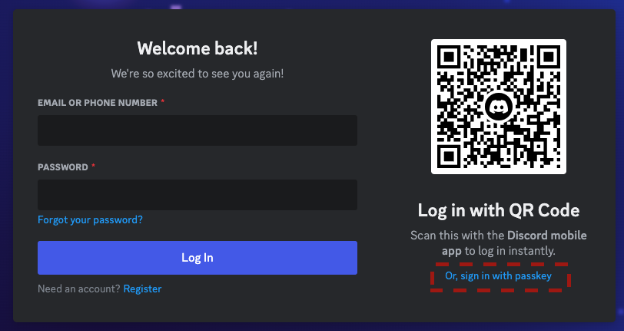
- Via Passkey:The login screen will prompt you to use a Passkey. Click “Sign in with a Passkey,” scan your face/fingerprint, and you are in. No password required.
- Via Hardware Key:Usually utilized as a 2FA layer. Enter your username/password, then tap the physical key when prompted to complete the handshake.
4. Insight Matrix: Authentication Tier List
| Method | Convenience | Security Level | Phishing Resistance |
| Password Only | Medium | Critical Risk | Zero |
| Password + SMS | Low | Low | Low (SIM Swapping) |
| Password + Auth App | Medium | High | Medium |
| Passkey (Biometric) | Elite | Maximum | Immune |
| Hardware Key (USB) | Low | Maximum | Immune |
5. Troubleshooting & Recovery
If the biometrics fail or the key doesn’t trigger:
- Force Fallback: Log in using your standard Password + TOTP (Authenticator App) code.
- The “Re-Sync”:
- Go to your Password Manager (Google/Apple/1Password) and delete the Discord entry.
- Go to Discord Settings and delete the registered key.
- Re-register the Passkey from scratch.
- The Nuclear Option: If you are locked out, use one of your Backup Codes to bypass the check, then immediately generate a new set of codes.
6. FAQ Vortex: Advanced Intel
Q: Can I use Passkeys on any device?
A: You need modern OS support: Windows 10/11, macOS Ventura+, iOS 16+, or Android 9+.
Q: Which allows for faster recovery: Passkey or Hardware Key?
A: Passkeys. Since Passkeys sync via the cloud (iCloud Keychain / Google Password Manager), if you buy a new phone and sign in to your Apple/Google ID, your Passkey is restored automatically. A physical Hardware Key, if lost, is gone forever.
Q: Can I use both?
A: Yes. You can register up to 16 keys. The best practice is to have a Passkey on your phone for daily use and a YubiKey stored in a safe as a master backup.
Q: What if I lose my device AND my backup codes?
A: Game Over. You will lose the account. Discord enforces strict privacy and cannot disable 2FA/Passkeys for you.
Secure the perimeter.
Don’t wait for a breach. Register a Passkey today. It takes 30 seconds and renders 99% of hacking attempts useless.