 By Discord Media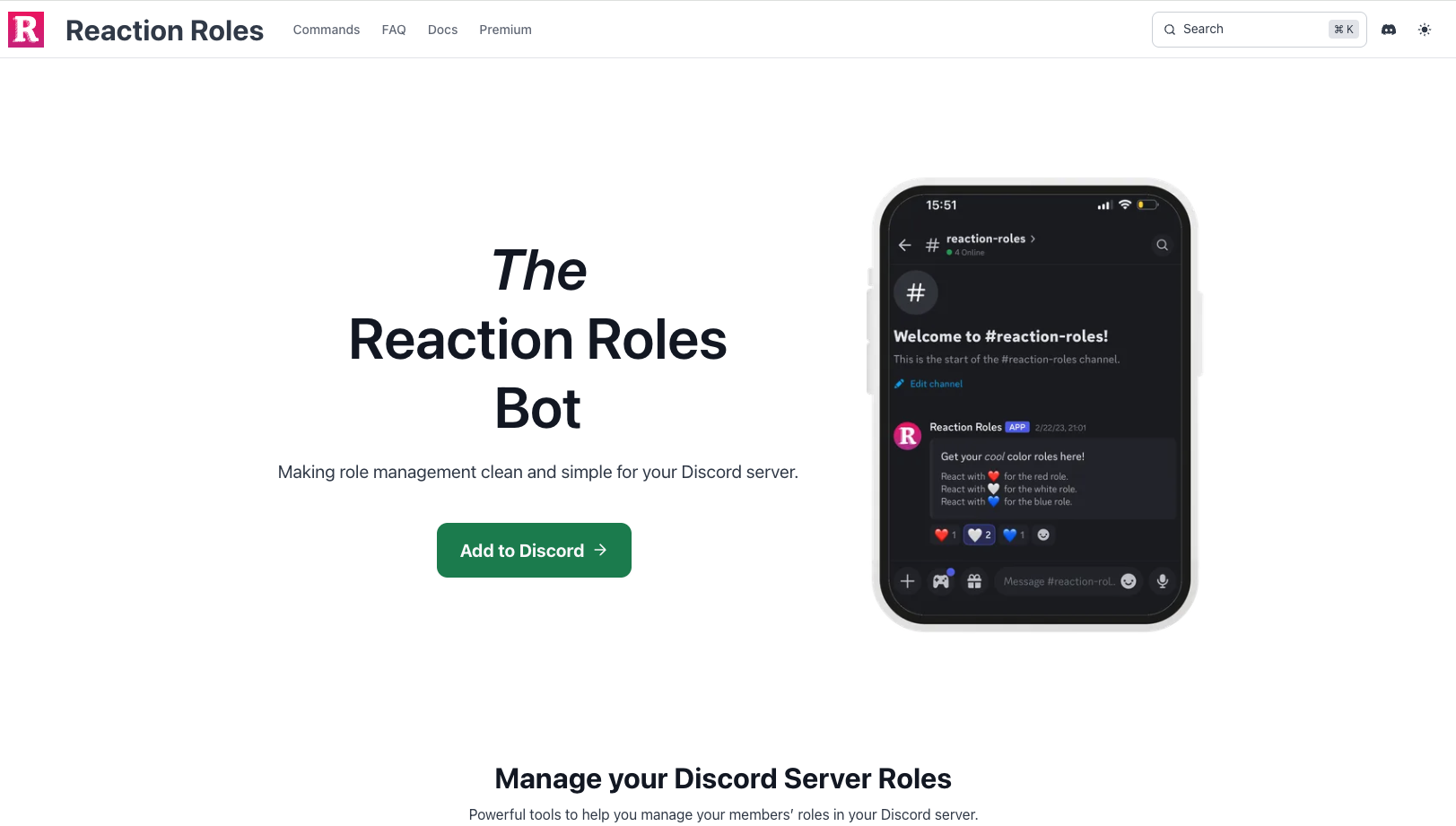
Stop manually assigning roles. In the modern Discord ecosystem, manual role management is an operational failure. Reaction Roles is the definitive “Vending Machine” for your server. It allows users to self-select their identity (Age, Gender, Interests, Region) by simply clicking an emoji or button. While monolithic bots like Carl-bot offer this as a sub-feature, Reaction Roles dominates by doing one thing perfectly: Zero-Friction Access Control.
The Pivot: Simplicity vs. Complexity
Why use a dedicated bot?
- The Problem: Setting up roles in MEE6 or Carl-bot involves navigating complex dashboards filled with music, moderation, and leveling clutter.
- The Solution: Reaction Roles is purpose-built. It has no bloat.
- The UX: It supports Buttons (Discord’s modern UI), which are significantly more intuitive for mobile users than tiny emoji reactions.
1. Core Functionality: The Distribution Models
This bot offers four distinct logic modes for role assignment.
A. Standard (Toggle)
- Logic: Click to add; click again to remove.
- Use Case: Opt-in channels. “Click 🔔 for Event Notifications.” “Click 🔞 for NSFW access.”
B. Unique (Radio Button)
- Logic: Selecting Option A automatically removes Option B.
- Use Case: Mutually exclusive traits. “Team Red vs. Team Blue.” You cannot be on both.
C. Verify (One-Way)
- Logic: Click to add. Clicking again does not remove it.
- Use Case: The “Gatekeeper.” Users click “✅ Agree” to accept rules and gain the
@Memberrole. They cannot accidentally remove their access later.
D. Limited (Scarcity)
- Logic: First-come, first-served.
- Use Case: “First 10 people to click get the
@VIProle.” Perfect for contests.
2. The Command Codex
Reaction Roles supports both Slash Commands and a Web Dashboard.
| Command | Usage | Tier | Impact |
| Genesis | /create | Core | Launches the interactive setup wizard. |
| Modify | /edit | Admin | Tweaks existing panels without deleting them. |
| inject | /add message_id:[ID] | Elite | Attaches reaction logic to a message sent by another bot (e.g., Sapphire). |
| Config | /settings | Admin | Adjusts language and admin permissions. |
3. Deployment Strategy: The Golden Rule
The #1 Failure Point: Discord’s Hierarchy System.
Most admins invite the bot and immediately fail.
- The Hierarchy Check:
- Go to Server Settings > Roles.
- Find the
Reaction Rolesbot role. - Action: Drag it to the TOP of the list (above the roles it needs to assign).
- Why: A bot cannot assign a role that is physically higher than its own role in the list.
- The “Ghost” Panel (Pro Strat):
- Don’t let Reaction Roles write the message. Its default design is plain.
- Step 1: Use a design bot (like Discohook or Sapphire) to send a beautiful, branded Embed.
- Step 2: Copy that message’s ID.
- Step 3: Use
/add message_id:[ID]to attach the buttons to your beautiful design.
FAQ Vortex: Tactical Solutions
Q: I clicked the reaction, but nothing happened.
A: Check the Hierarchy. 99% of the time, the role you are trying to give is positioned above the bot’s role in Server Settings. Drag the bot higher.
Q: Can I use custom server emojis?
A: Yes, but the bot must have access to them. If the emoji is from another server, the bot cannot see it unless it is also in that server (or has Nitro-like privileges). Stick to default emojis or local custom emojis for stability.
Q: Button vs. Reaction: Which is better?
A: Buttons. They are larger, have text labels (“Click to Verify”), and are less likely to be rate-limited by Discord. Use Reactions only for simple “Polls.”
Zenith CTA
Automate your entrance. Don’t be the doorman; build the door. Invite Reaction Roles, fix your hierarchy, and let your users define themselves.