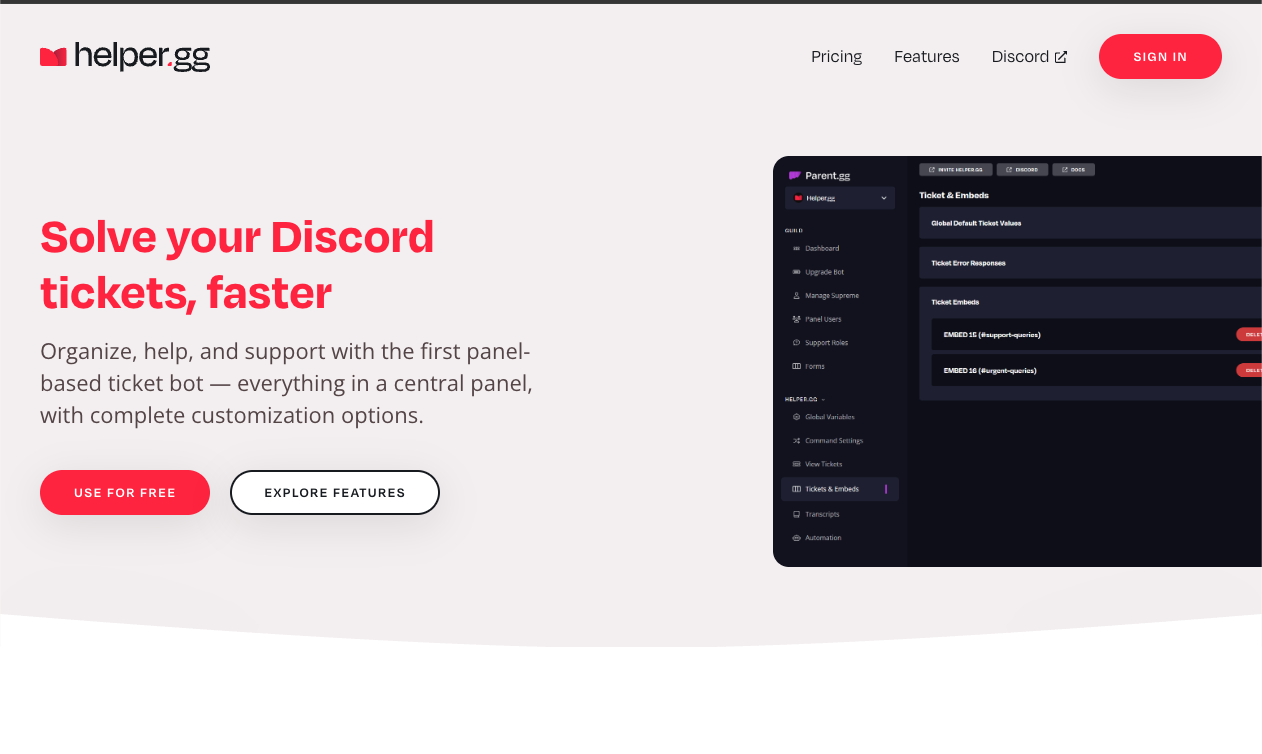
Helper.gg is a premium ticket bot designed to create professional “Customer Support” channels within Discord.
While bots like Ticket Tool are popular for their simplicity, Helper.gg stands out for its Superior Design and Enterprise-Grade Features.
In Australia and the US, where Discord is increasingly used for official business support (e.g., hosting providers, esports leagues), Helper.gg is the top choice because it looks and feels like a professional helpdesk software (like Zendesk), not just a “chat bot.”
🏢 Why Helper.gg? (The Pro Choice)
It bridges the gap between community management and professional customer service.
1. The Cleanest Dashboard
Its Web Dashboard is designed for power users. It provides a drag-and-drop interface for managing tickets, viewing logs, and customizing messages without typing awkward commands.
2. Beautiful Transcripts
When a ticket is closed, Helper.gg generates a HTML Transcript. This is a downloadable file that looks like a clean webpage, preserving the entire chat history, images, and timestamps. It is invaluable for keeping records of disputes or support cases.
3. Translation & Branding
For global companies, Helper.gg offers built-in translation tools (Premium) and allows deep customization to remove bot branding, making the support experience feel native to your company.
⚙️ Key Features
🎫 Ticket Panels
You can create multiple types of panels.
- Drop-down Menus: Instead of just one button, users can select a category from a menu (e.g., “Billing,” “Tech Support,” “Report User”).
- Forms: (Premium) You can ask users to fill out a form (e.g., “What is your Order ID?”) before the ticket opens.
🗂️ Smart Organization
- Auto-Rename: Automatically renames tickets to standard formats like ticket-001 or support-username to keep your channel list tidy.
- Category Sorting: Move open tickets to an “In Progress” category and closed ones to an “Archived” category automatically.
💻 Web Panel
Admins can reply to Discord tickets directly from the Helper.gg website. This allows support staff to handle tickets without even opening the Discord app.
💻 Essential Command List
Helper.gg uses Slash Commands (/), but daily management is often done via the Dashboard.
🎫 User & Staff Commands
| Command | Description |
| /ticket | Manually opens a new ticket. |
| /close | Closes the current ticket (triggers transcript generation). |
| /rename [Name] | Renames the current ticket channel. |
| /add @User | Adds a specific user to the private ticket. |
| /remove @User | Removes a user from the ticket. |
🛠️ Admin Commands
| Command | Description |
| /panel | Posts the configured Ticket Panel to the channel. |
| /transcript | Manually generates a log of the current channel. |
🚀 Setup Tutorial: The Professional Configuration
To get the most out of Helper.gg, skip the commands and use the website.
Step 1: Invite & Login
- Visit Helper.gg and click “Invite.”
- Log in to the Dashboard (Web Panel) with your Discord account.
Step 2: Create a Panel
- Go to “Ticket Panels” > “Create Panel.”
- Message: Write a professional greeting (e.g., “Welcome to Support. How can we help?”).
- Support Team Roles: Select the roles (e.g., @Admin, @Support Staff) that can see and reply to tickets. Crucial: If you skip this, your staff won’t see the tickets!
Step 3: Deploy the Panel
- Go to your desired Discord channel (e.g., #support).
- Type /panel.
- Select the panel you just created from the list.
- The bot will post the embed with the button.
Step 4: Configure Categories
In the Dashboard, set the “Parent Category”.
- Tell the bot to create new tickets in a specific Discord Category (folder). This keeps your server organized.
❓ FAQ: Helper.gg vs. Ticket Tool
Q: Should I use Helper.gg or Ticket Tool?
A: It depends on your goal.
- Ticket Tool: Best for casual gaming servers. Fast, free, simple.
- Helper.gg: Best for Businesses, Paid Communities, and Esports. If you need detailed logs, professional branding, or form inputs, Helper.gg is superior.
Q: Can I customize the transcript?
A: Yes.
The HTML transcripts are clean and easy to read. Premium plans allow you to store them indefinitely or customize the branding.
Q: Why doesn’t the channel delete when I close it?
A: It’s a safety feature.
By default, /close might just archive the ticket (remove user access) but keep the channel visible for admins. You can change this in the Dashboard settings to “Close and Delete” if you prefer instant deletion.
Q: Who can see the tickets?
A: Only three groups:
- The User who opened it.
- The Staff Roles you selected in the Dashboard.
- Server Admins (Administrator permission).
Everyone else is locked out.
🌟 Admin Tip: The “Form” Feature
If you are running a serious support line, upgrade to Premium to use Forms.
Instead of a user just clicking “Open” and saying “Hi,” a Form forces them to answer:
- What is your issue?
- What is your Account ID?
This saves your staff huge amounts of time by gathering info upfront.
Next Step for You: Invite Helper.gg, log in to the Dashboard, and create your first “Support Panel” to professionalize your server instantly!