 By Discord Media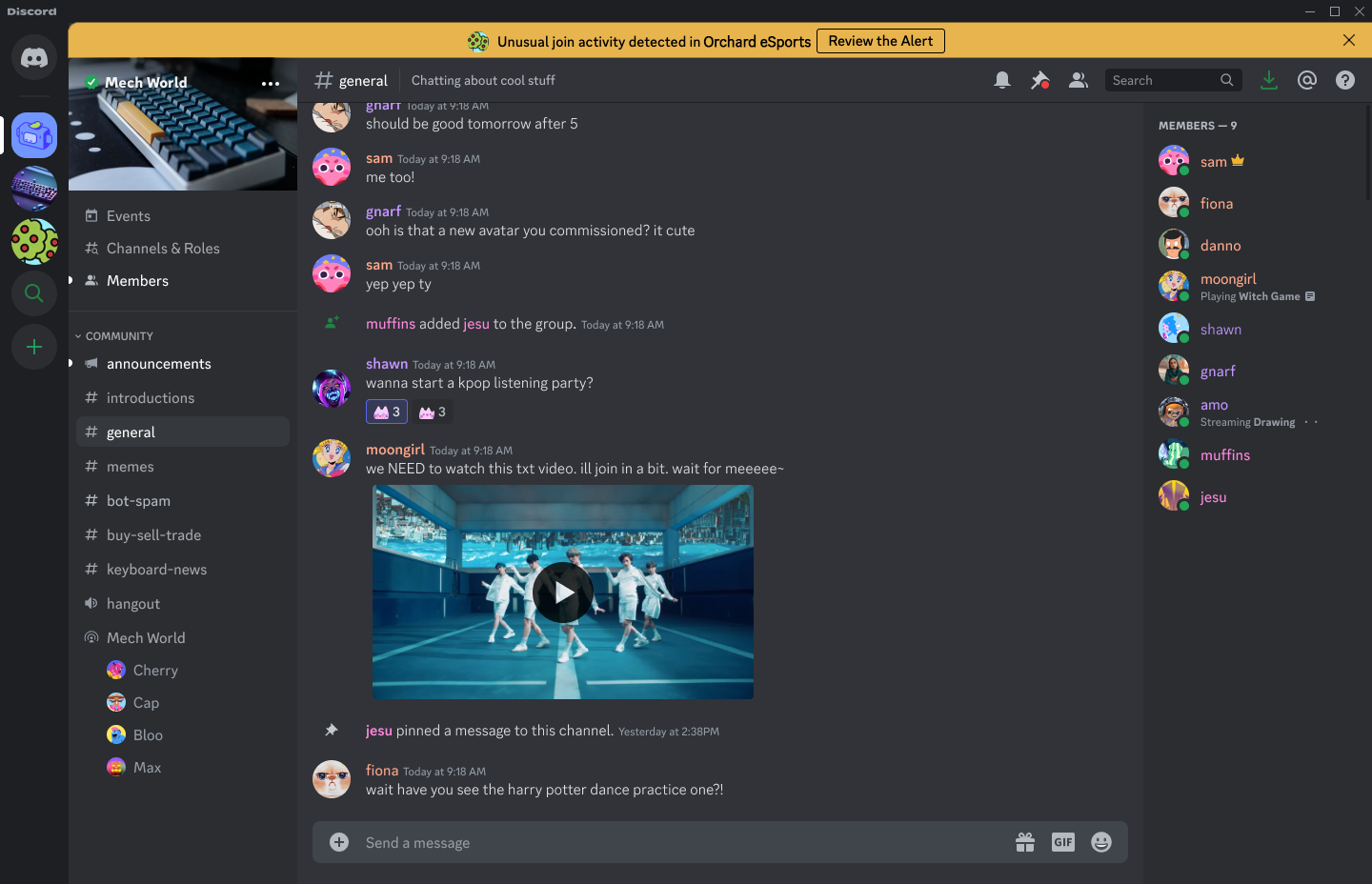
When a raid hits your server, reaction time is the difference between a minor nuisance and a dead community.
“Activity Alerts” and “Security Actions” are not just moderation tools; they are your automated sentries and kinetic countermeasures against bot swarms and spam waves.
This is your tactical briefing on how to interpret these signals and execute the “Kill Switch” protocols to lock down your ecosystem instantly.
1. The Early Warning System: Activity Alerts
An Activity Alert is Discord’s heuristic system flagging anomalous behavior before it spirals out of control. It monitors for statistical spikes that indicate an attack.
- The Triggers: Sudden influxes of new accounts (Join Floods) or massive volumes of messages (Spam Waves).
- The Notification:
- Desktop: A red banner appears at the top of your member list or channel header.
- Mobile: A high-priority Push Notification (even if you are offline).
- AutoMod: If configured, it logs the specific threat in your designated Alert Channel.
2. The Countermeasures: Security Actions
When an alert fires, you don’t just watch—you act. Security Actions allow you to deploy server-wide restrictions with two taps, effectively quarantining the threat.
A. Pause Invites (The Drawbridge)
- Function: Disables all existing invite links and prevents new joins for a set duration.
- Use Case: During a “Join Raid” where hundreds of bots are flooding the entrance.
- Result: The flood stops instantly. Legitimate users can wait; bots will fail to connect.
B. Pause DMs (The Quarantine)
- Function: Prevents server members from sending Direct Messages to other members unless they are already friends.
- Use Case: During “DM Spam” attacks where bots join and immediately DM your members with phishing links (Nitro scams, crypto drainers).
- Result: Protects your community’s private inboxes from being harvested.
3. Operational Protocol: The Response Workflow
When the alarm sounds, execute this loop:
- Receive Intel: Tap the Activity Alert banner to see the specific threat data.
- Execute Lockdown:
- Go to Server Settings > Security Actions.
- Enable Pause Invites and/or Pause DMs.
- Set Duration: Choose a window (e.g., 1 hour, 24 hours) to allow the attack to pass.
- Investigate: Check the Members tab or Audit Logs to identify and ban the bad actors.
- Resolve: Once the threat is neutralized, mark the alert as “Resolved” to clear the banner for your other moderators.
4. The Insight Matrix: Defense Tier List
| Action | Target Threat | Impact on Users | Duration Options |
| Activity Alert | Detection | None (Info only) | Instant Notification |
| Pause Invites | Join Raids / Bot Swarms | New users cannot join | 30m / 1h / 24h |
| Pause DMs | Phishing / Spam DMs | Strangers cannot DM each other | 24h recommended |
5. FAQ Vortex: Strategic Intelligence
Q: Will “Pause DMs” stop my friends from messaging me?
A: No. This restriction only applies to DMs between server members who are not friends. Established connections remain open.
Q: Can I automate these Security Actions?
A: Partially. Discord’s AutoMod can handle message filtering, but the “Pause Invites” lockdown is generally a manual trigger to ensure human judgment prevents false positives.
Q: How do I turn off the lockdown if the raid ends early?
A: You can manually lift the restrictions at any time by returning to Server Settings > Security Actions and toggling the switches to OFF.
Q: Does “Pause Invites” delete my invite links?
A: No. It temporarily disables them. Once the pause expires or is lifted, the links become active again. You do not need to generate new URLs.
Secure your perimeter.
Don’t wait for the raid to happen. Familiarize yourself with the Security Actions menu today so your muscle memory takes over when the red banner appears.
PART 2: Schema Markup Generation (JSON-LD)
HTML