Skyra is an open-source, all-in-one Discord bot designed for administration, entertainment, and developer utilities.
While it shares the “multipurpose” category with giants like MEE6 or Dyno, Skyra stands out for its massive customizability and developer-centric features. It allows for granular control over moderation logs, execution of code snippets, and deep server configuration, making it the favorite choice for “techie” admins who want total control over their server’s behavior.
🛠️ Why Skyra? (The Engineer’s Preference)
Skyra has a cult following in developer communities, particularly in North America and tech hubs.
1. Open Source Transparency
Unlike commercial “black box” bots where you can’t see the code, Skyra is Open Source. Written in modern TypeScript, its development is transparent on GitHub. This builds immense trust among programmers who value security and the ability to audit what they are inviting into their server.
2. The “One Bot to Rule Them All” Philosophy
For admins tired of managing 10 different bots, Skyra aims to do it all. From heavy moderation and anti-spam to leveling systems and games, it cleans up your member list by replacing multiple specialized bots.
📊 Key Features & Mechanics
Skyra’s feature set is vast, but it excels in three main areas:
1. Advanced Moderation
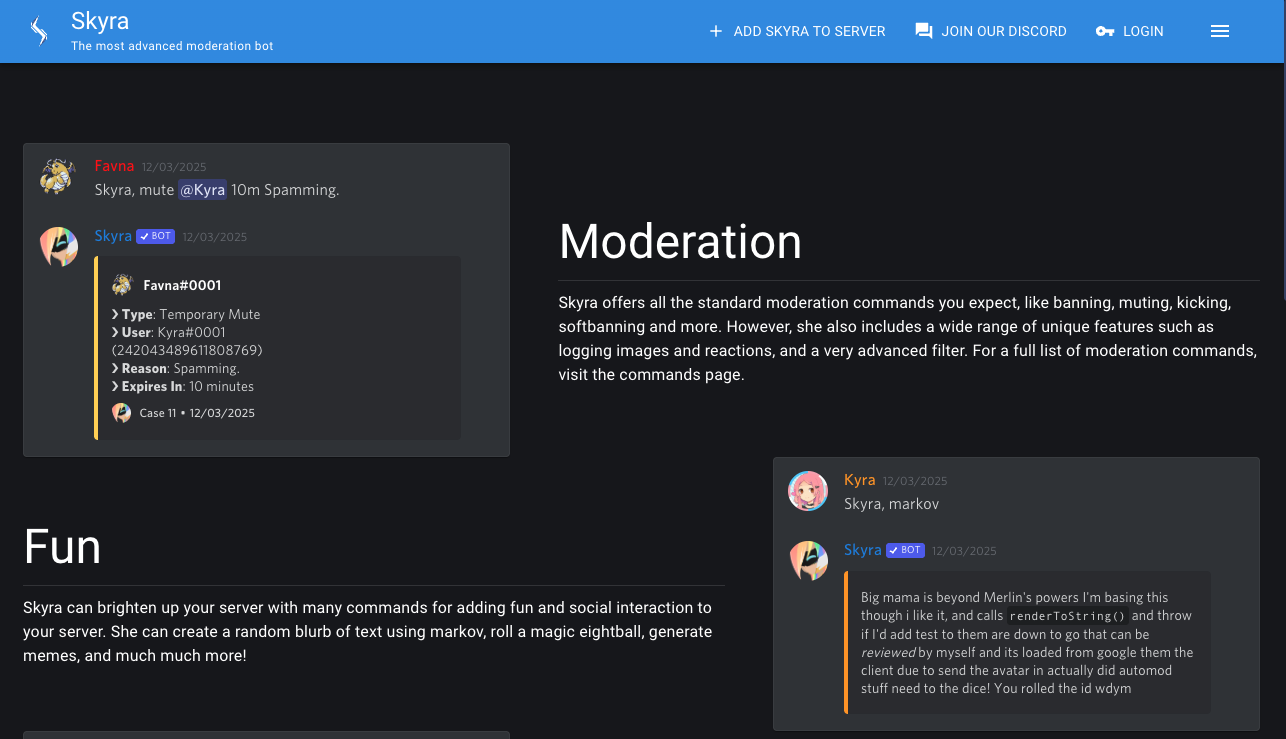
It offers powerful Anti-Raid and spam detection filters. Admins can set up detailed moderation logs, timed mutes, and soft bans with precision not found in simpler bots.
2. Developer Tools
- Code Eval: Run simple code snippets directly in chat.
- Documentation Search: Instantly fetch docs for MDN (Web Dev), Discord.js, and more using commands. Perfect for coding help channels.
3. Localization (i18n)
Skyra supports dozens of languages. You can switch the bot’s response language to Japanese, Spanish, German, etc., making it ideal for international communities.
💻 Essential Command List
Skyra uses Slash Commands (/) as the primary method, though the default prefix s! still exists for legacy use.
🛡️ Moderation
| Command | Description |
| /moderation ban [User] [Reason] | Bans a user. Can set a duration for temp-bans. |
| /moderation mute [User] [Time] | Mutes a user for a set time (e.g., 1h, 30m). |
| /moderation purge [Amount] | Deletes a bulk amount of messages. Supports filters (e.g., “only delete images”). |
🛠️ Developer & Utility
| Command | Description |
| /tools mdn [Query] | Searches MDN Web Docs (JavaScript/CSS definitions). |
| /info user [User] | Displays detailed user info (Join date, Roles, ID). |
| /info server | Displays server stats (Member count, Region, Boost level). |
⚙️ Configuration
| Command | Description |
| /conf get | Shows the current server configuration settings. |
| /conf set [Key] [Value] | Modifies a specific setting via command (Advanced). |
🚀 Setup Tutorial: Getting Started
Because Skyra is complex, using the Web Dashboard is highly recommended over text commands.
Step 1: Invite the Bot
Visit the Skyra Official Website and click “Add to Discord.”
- Permissions: Ensure you grant “Administrator” or specific moderation permissions (Ban Members, Manage Messages) for full functionality.
Step 2: Configure Language (Dashboard)
- Log in to the Skyra Dashboard.
- Select your server.
- Go to General > Language.
- Select your preferred language (e.g., en-US or ja-JP).
Step 3: Setup Moderation Logs (Crucial)
- Navigate to Channels or Moderation.
- Set the “Action Logs” channel.
- Skyra will now post a detailed embed whenever a mod action (Ban, Kick, Mute) occurs, providing a paper trail for your staff.
❓ FAQ: Common Questions
Q: It’s too complicated. Where do I start?
A: Stick to the defaults.
You don’t need to configure everything. Just set the Language and Mod Logs. Enable other modules (like Leveling or Starboard) only when you need them.
Q: Does it play music?
A: Generally, no.
Skyra focuses on utility. For high-quality music, use a dedicated music bot like FredBoat or Vexera alongside Skyra.
Q: The s! prefix isn’t working.
A: Use Slash Commands (/).
Discord is moving away from prefixes. Type /help to see the full menu. If Slash Commands don’t appear, check the bot’s “Use Application Commands” permission.
Q: I accidentally muted myself.
A: Ask the Server Owner.
Skyra’s mute role is powerful. If you lock yourself out, only someone with higher permissions (like the Owner) can manually remove the role or use the bot to unmute you.
Q: Is Skyra safe?
A: Yes.
As an open-source project, its code is scrutinized by the community. It is considered one of the safest bots available.
🌟 Pro Tip: Dynamic Welcome Messages
Skyra excels at welcoming users with data. In the Social > Welcome dashboard settings, you can use placeholders:
- “Welcome {{user.username}}! You are member #{{server.memberCount}}.”
This creates a professional, dynamic greeting that instantly tells new users, “This server is active and tracked.”
Next Step for You: Invite Skyra, go to the dashboard, and set up your Action Logs channel immediately to secure your server’s history!