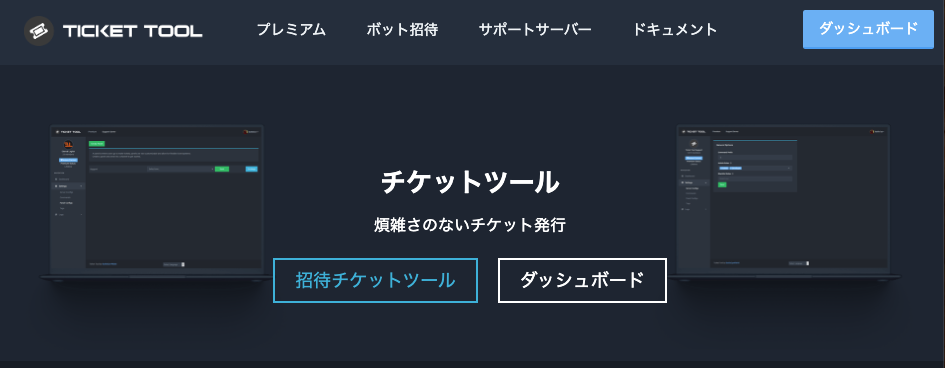
Introduction: What is Ticket Tool?
Ticket Tool is a powerful Discord bot that creates a private text channel, or “ticket,” between your support staff and a user who needs help.
Trusted by over 3.9 million servers, it’s the most popular solution for managing support, inquiries, and moderation reports professionally. Instead of flooding DMs, Ticket Tool organizes all requests into clean, manageable channels.
Key Features of Ticket Tool
- Easy to Use: Operates from a simple web dashboard and intuitive commands.
- Highly Customizable: You can customize nearly every aspect of the bot.
- Ticket Panels: Create professional-looking “Open a Ticket” messages with buttons.
- Transcript Function: Automatically saves a log (transcript) of a ticket’s conversation when it’s closed.
- Ticket Forms: Ask users questions before a ticket is created to get all necessary info upfront.
- Custom Tags: Create “canned responses” for common questions to speed up support.
- 24/7 Uptime: Highly reliable and stable.
How to Set Up Ticket Tool (Step-by-Step Guide)
Setting up your first ticket panel is fast and easy.
- Step 1: Invite the Bot
- Use the official invite link to add Ticket Tool to your server. Grant it all the permissions it asks for—they are necessary for it to function (e.g., manage channels, manage roles).
- Step 2: Create a “Support Team” Role
- In your
Server Settings > Roles, create a new role called “Support Team” (or “Mod,” “Staff,” etc.). This is the role that will be able to see and respond to tickets.
- In your
- Step 3: Go to the Web Dashboard
- Open a new tab and log in to the Ticket Tool Dashboard (
tickettool.xyz). - Click “Manage” on the server you just added the bot to.
- Open a new tab and log in to the Ticket Tool Dashboard (
- Step 4: Create a “Panel”
- On the dashboard, go to “Panel Configs” and click the green “Create Panel” button.
- Fill out the pop-up with the information you want (e.g., Panel Name: “Support,” Support Team Roles: “Support Team”).
- Step 5: Send the Panel to Your Server
- Click the blue “Send” button on the panel you just created.
- Choose the channel where you want your “Open a Ticket” message to appear.
- Click the final green “Send” button to confirm.
Where should I send the panel?
We recommend creating a dedicated, read-only channel named #support or #open-a-ticket. This keeps your server clean and makes it easy for users to find.
That’s it! Your “Create Ticket” button is now live in your server.
Ticket Tool Command List (Essentials)
Ticket Tool uses slash commands (/) and a default prefix ($).
General Commands
| Command | Usage | Description |
$help | $help | Shows the help menu. |
$debug | $debug | Provides troubleshooting info about your server. |
$ping | $ping | Checks the bot’s latency. |
$panel | $panel [ID] | Sends a specific panel to the current channel. |
$id | $id {@user} | Gets the ID of a user, role, or channel. |
Ticket Commands (Staff Only)
| Command | Usage | Description |
$close | $close | Closes the current ticket channel. |
$open | $open | Re-opens a closed ticket. |
$delete | $delete | Deletes the ticket channel (cannot be undone). |
$rename | $rename [name] | Renames the ticket channel. |
$transcript | $transcript | Manually saves a transcript of the ticket. |
$add | $add {@user} | Adds another user or role to the ticket. |
$remove | $remove {@user} | Removes a user or role from the ticket. |
$claim | $claim | [Premium] Assigns the ticket to you. |
$unclaim | $unclaim | [Premium] Unclaims the ticket. |
Troubleshooting & Common Issues
- “I can’t create a ticket!”
- Check that the bot has all the required permissions (Manage Channels, Manage Roles).
- Make sure you have set up a “Category” for tickets in your panel config on the dashboard.
- “Channel limit reached!”
- Your server has hit Discord’s 500-channel limit. You need to delete old channels. Consider using the “Thread Style” ticket system (a setting in the panel config) to avoid this.
- “Bot is not responding to commands!”
- Run
$debugto check for permission errors. - Make sure the bot has “Read Messages” and “Send Messages” permissions in that channel.
- Make sure you don’t have a role that is on the “Blacklist” in the bot’s settings.
- Run
Frequently Asked Questions (FAQ)
Q: How do I change the bot’s prefix?
A: You can change the prefix ($) in the server settings on the web dashboard.
Q: How do I let my staff team see tickets?
A: Go to your “Panel Config” on the dashboard and add your “Support Team” role to the “Support Team Roles” option.
Q: How do I ping my staff when a new ticket is made?
A: In your “Panel Config,” find the “Ticket Message” option. You can add a role mention (e.g., <@&ROLE_ID>) to this message.
Q: How do I set a transcript channel?
A: In the “Panel Config” on the dashboard, select your desired channel under the “Transcript Channel” option.
Q: How do I limit how many tickets a user can open?
A: You can set a “Ticket Limit” in the server settings on the dashboard.
Q: How do I add or remove a user from a ticket?
A: Use the $add @User or $remove @User commands inside the ticket channel.
Q: What is the “claim” feature?
A: This is a Premium feature. It allows a staff member to “claim” a ticket, which assigns it to them and lets other staff know it’s being handled.
Q: How much is the Premium plan?
A: The Premium plan is $8/month and can be used on multiple servers.
Conclusion
Ticket Tool is an essential bot for any server that needs to manage support or user inquiries. Its powerful customization, easy-to-use dashboard, and reliable performance make it the best way to professionalize your support system. By installing Ticket Tool, you can create a more organized and user-friendly environment for your community.