“I want to make a server, but which type should I choose?”
“What is the difference between a normal server and a Community server?”
If you are setting up a new space on Discord, you might be confused by the different options. Is a Community server just for famous YouTubers? Is a Friend server too basic?
The short answer: Discord has two main modes. Friend Servers (Standard) are for small, private groups where you invite people manually. Community Servers are for larger groups (like fanbases or support hubs) and unlock powerful moderation and organization tools.
Here is a breakdown of the differences, how to switch modes, and which one is right for you.
🏢 The Two Main Server Types
1. Friend Server (Standard)
This is the default state of any new server you create. It is designed for small groups, close friends, or private gaming sessions.
- Best for: Gaming squads, study groups, family chats, or small friend circles.
- Privacy: High. Only people with an invite link can join.
- Features: Basic channels (Voice/Text), Roles, and simple permissions. It keeps things simple and intimate.
2. Community Server
This is a mode you enable in the settings. It transforms your server into a public-facing hub designed for growth and management.
- Best for: Content creators, official game communities, local clubs, or large hobby groups.
- Privacy: Can be invite-only OR public (if listed in Server Discovery).
- Exclusive Features:
- Server Insights: Analytics on member growth and activity.
- Onboarding: A fancy welcome screen that lets new members pick their own roles and channels.
- Raid Protection: Advanced AutoMod tools to stop spammers.
- Announcement Channels: Special channels that other servers can “follow.”
📊 Comparison: Friend vs. Community
Use this table to decide which one fits your needs.
| Feature | Friend Server (Standard) | Community Server |
| Setup Difficulty | Very Easy | Intermediate |
| Target Size | < 100 Members | 100 – 500,000+ Members |
| Join Method | Private Invite Links | Invites or Server Discovery |
| Analytics | None | Server Insights (Graphs/Stats) |
| Safety Tools | Basic | Advanced (AutoMod, Raid Protection) |
| Welcome Screen | Simple System Message | Custom Onboarding Flow |
⚙️ How to “Enable Community” (Switch Types)
You can turn any standard server into a Community server for free. You don’t need to make a new one.
- Open your Server Settings (Click the server name in the top left).
- Scroll down to the Community tab in the sidebar.
- Click Enable Community.
- Follow the setup wizard (Discord will require you to turn on “Scan media content from all members” for safety).
Pro Tip: You can switch back to a standard server anytime if the Community features feel too complicated.
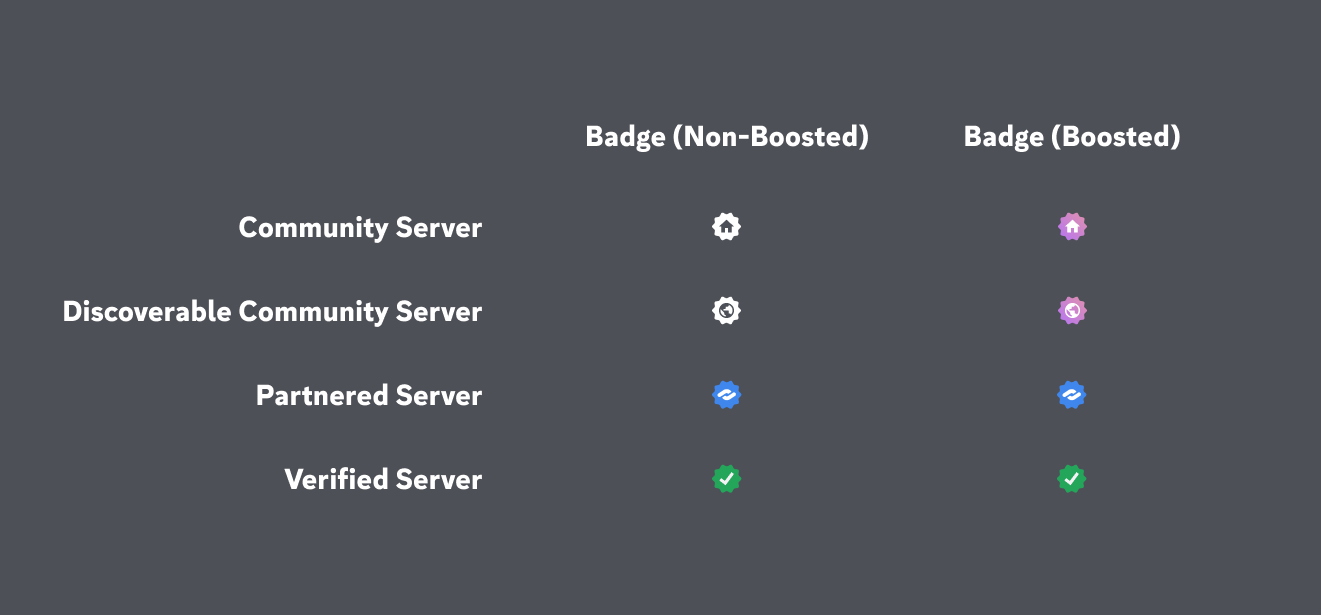
🏅 Understanding Server Badges
How do you know what kind of server you are currently in? Look for these badges next to the server name:
- Community Badge: Indicates the server has enabled Community settings.
- Verified Badge (Green Checkmark): This is an official server representing a real-world brand, game studio, or music artist.
- Partner Badge (Infinity Symbol): This server has been recognized by Discord for being an active, high-quality community (requires application).
- Discoverable: These servers appear in Discord’s public “Server Discovery” list, meaning anyone can join without an invite.
❓ Frequently Asked Questions (FAQ)
Q: Which one should I start with?
A: Start with a Friend Server.
If you are just figuring things out, keep it simple. You can hit the “Enable Community” button later once you grow past 50 members or need better moderation tools.
Q: Does “Community Server” mean anyone can join?
A: Not automatically.
Enabling Community gives you the tools for a public server, but it doesn’t automatically post your server on the public list. You have to apply for “Server Discovery” separately to let strangers join without an invite.
Q: Can I use bots on a Friend Server?
A: Yes.
Bots (like Music bots or Dice rollers) work perfectly fine on both types of servers.
Q: Is a Community Server more expensive?
A: No.
Both types are 100% free. “Server Boosting” (paying for better audio/emojis) is an optional paid feature that applies to both types equally.
🌟 Summary
Choosing the right server type sets the tone for your group.
- Stick to Standard if you just want to game with your buddies on Friday night.
- Enable Community if you are building a brand, managing a club, or want access to cool tools like Welcome Screens and Analytics.
Next Step: Open your Server Settings right now. If you are running a growing server, click the “Enable Community” button to check out the new moderation tools available to you!