“Why do you sound like a robot?”
“The lag is terrible today!”
If your voice chat is stuttering or your friends sound like they are underwater, the culprit is often the Voice Region.
The short answer: Discord automatically selects the best server location for you. However, if you are having connection issues or talking to friends across the world, manually changing the specific Voice Channel Region or Call Region can instantly fix audio lag.
Here is your complete guide on how to change regions for Servers and Direct Calls, and when you should do it.
🌎 What Is a Voice Region?
A Voice Region is the physical location of the server hosting your call.
- The Rule of Thumb: The closer the server is to you, the lower your Ping (latency). Lower ping means clearer audio and less delay.
- The “Automatic” Setting: By default, Discord sets this to “Automatic.” It detects where the majority of users in the channel are located and picks the best central server.
Why change it?
Sometimes “Automatic” gets it wrong, or there is a temporary outage in your local region (e.g., US East). Switching to a different region manually can bypass these issues.
🛠️ How to Change Region in a Server (Admins Only)
Note: In modern Discord, regions are usually set per Voice Channel, not for the whole server globally.
Step-by-Step Guide:
- Right-click (or long-press on mobile) the specific Voice Channel you want to fix.
- Select Edit Channel.
- Stay on the Overview tab.
- Scroll down to Region Override.
- Click the dropdown menu (it usually says “Automatic”).
- Select a specific region (e.g., “US Central” or “Japan”).
- Save Changes.
Result: Everyone in that channel will briefly disconnect and reconnect to the new location.
📞 How to Change Region in Direct Messages (DM Calls)
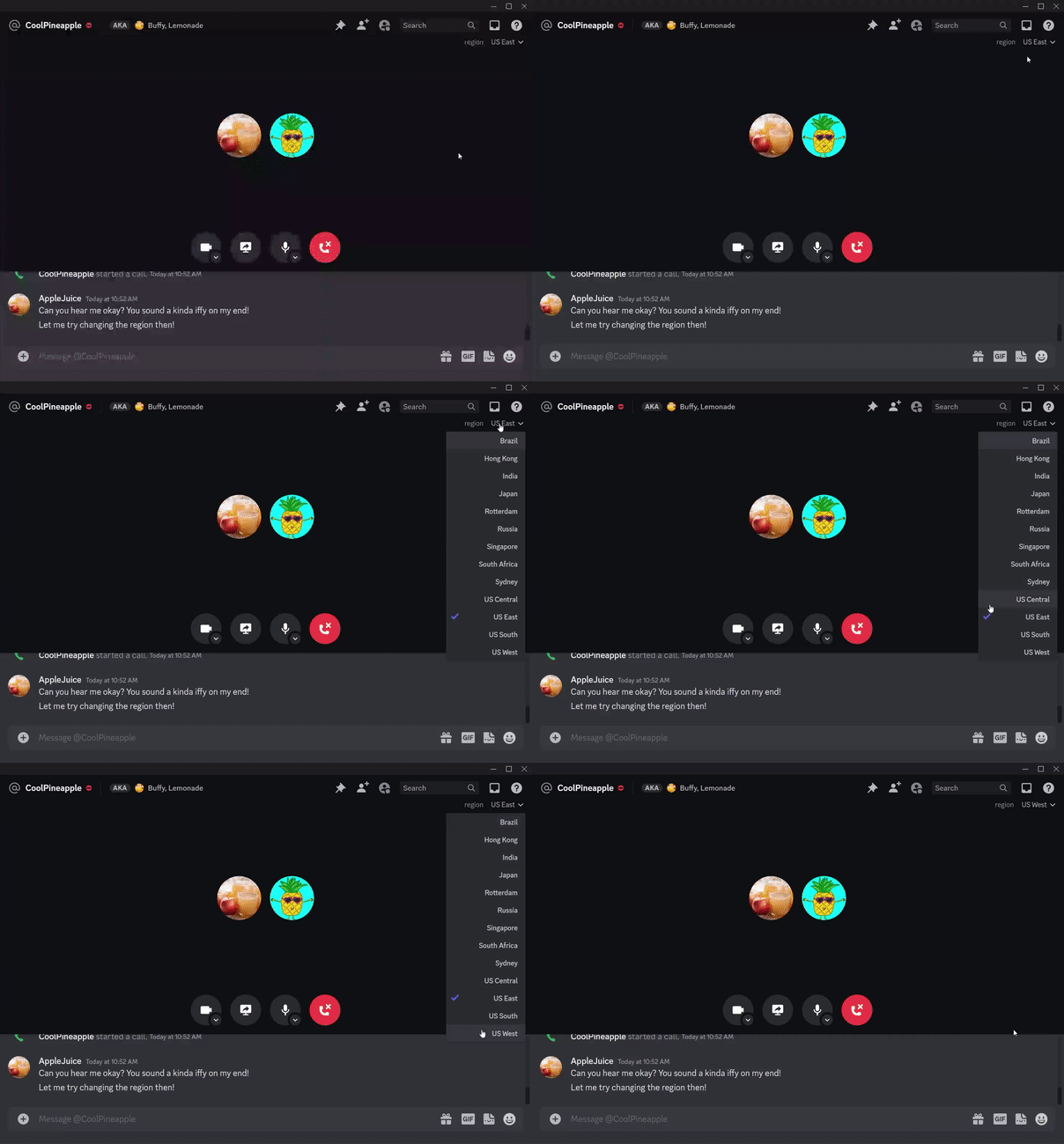
If you are in a private call with a friend, anyone in the call can change the region instantly.
On Desktop:
- Look at the top right corner of the video/call screen.
- You will see the current region name (e.g., “Automatic: US East”).
- Click the name and select a new region from the dropdown list.
On Mobile:
- Tap the screen to bring up the menu overlay.
- Tap the Region Name (usually at the top or in the three-dot menu).
- Select the new location.
❓ Frequently Asked Questions (FAQ)
Q: Which region should I choose?
A: Pick the geographical midpoint.
- If you are in New York and your friend is in California, pick US Central.
- If you are in London and your friend is in Tokyo, try India or Singapore as a middle ground, though lag is inevitable with that distance.
Q: Why does my voice sound robotic?
A: High Packet Loss.
This usually happens when the server is too far away or your internet is unstable.
- Check your ping by hovering over the “Connection Info” (signal bars) icon in the call.
- If ping is high (150ms+), try changing the Region.
- If ping is low but you still sound robotic, it might be your Wi-Fi connection.
Q: Do I need to change it back to “Automatic” later?
A: Yes, it is recommended.
“Automatic” adapts to whoever is currently in the channel. If you hard-code a channel to “US East” and then a group of friends from Europe tries to use it, they will have terrible lag. Only use manual overrides to fix temporary problems.
Q: Does changing the region affect text chat?
A: No.
Voice Regions only affect audio and video quality. Text messages are sent through Discord’s central infrastructure and are not affected by this setting.
🌟 Summary: Fix Your Audio
Don’t suffer through bad calls.
- Check the Region at the top of the call.
- Switch it to a location closer to you (or between you and your friend).
- Set it back to Automatic when you are done.
Next Step: The next time you hear a “robot voice” in a call, look at the top right of your screen and try swapping the region to US Central to see if it clears up the static!