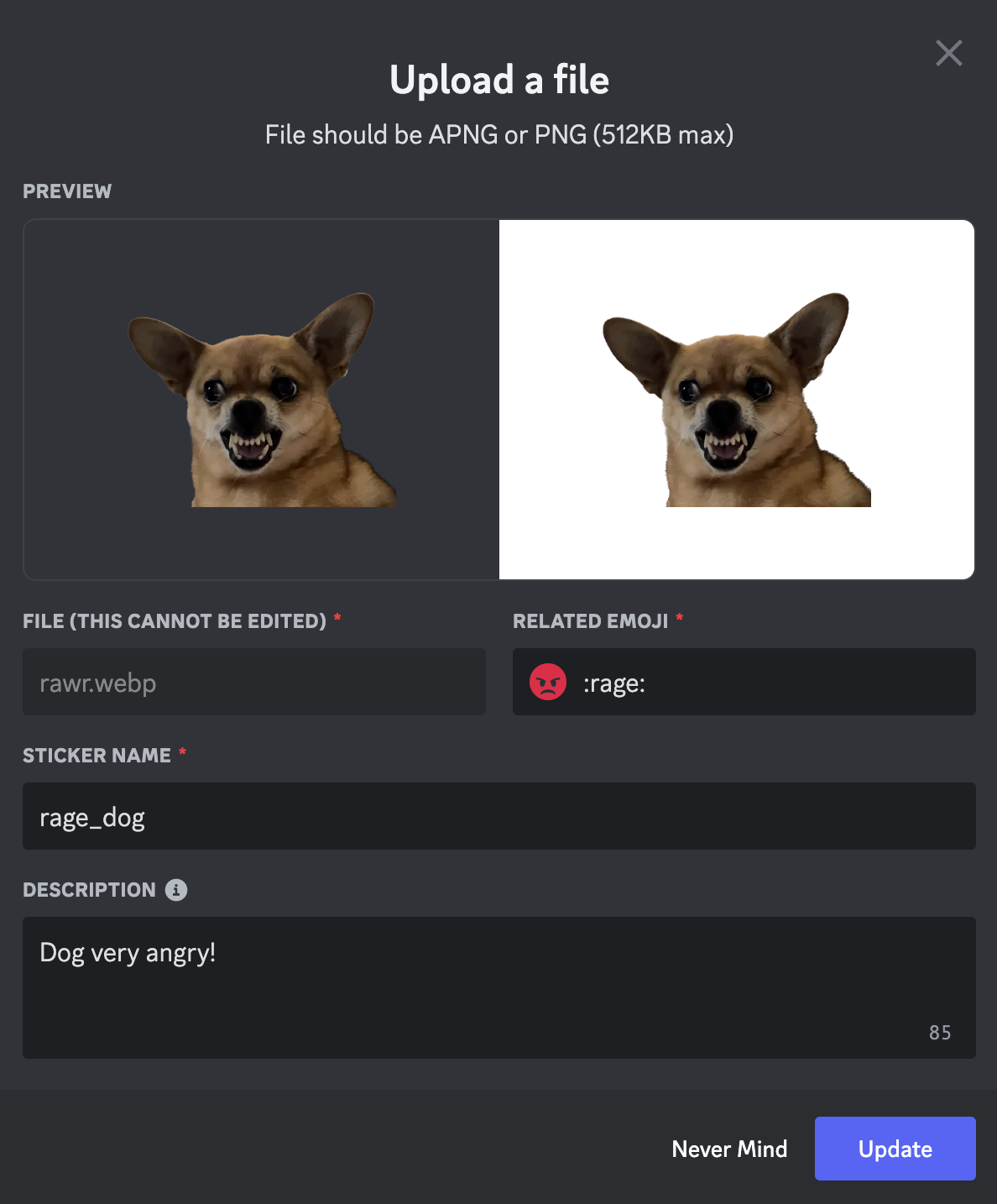
“I want to add my own meme stickers to my server!”
“How do I get more sticker slots?”
Custom Stickers are one of the best ways to give your Discord server a unique identity. Unlike standard emojis, stickers are larger, more expressive, and can even be animated.
The short answer: Every Discord server starts with 5 free custom sticker slots. You can upload your own PNG or APNG files via Server Settings to let your community use them.
Here is your complete guide to unlocking more slots, managing permissions, and uploading the perfect sticker.
🚀 Sticker Slots & Server Boosts
By default, your server gets a starter pack of slots. To get more, your community needs to contribute Server Boosts.
| Server Level | New Slots Added | Total Slots |
| Default (Free) | 5 Slots | 5 |
| Level 1 | +10 Slots | 15 |
| Level 2 | +15 Slots | 30 |
| Level 3 | +30 Slots | 60 |
👮 Managing Permissions (Who Can Add Stickers?)
Before you start uploading, you need to decide who is allowed to touch the sticker library.
- “Create Expressions”: Enable this permission for roles you trust to upload new stickers.
- “Manage Emojis and Stickers”: Enable this for Admins/Mods who need to edit or delete existing stickers.
How to change permissions:
- Click your Server Name > Server Settings.
- Go to the Roles tab and select a role.
- Click the Permissions tab.
- Scroll down to “General Server Permissions” to find these toggles.
Note: Currently, you can only manage (add/edit/delete) stickers via the Desktop or Browser app. Mobile management is not fully supported yet.
📤 How to Upload a Custom Sticker
Ready to add some flair? Follow these steps.
- Open Server Settings: Click your server name in the top left.
- Select “Stickers”: Located in the left sidebar menu.
- Click “Upload Sticker”: Choose your file from your computer.
- Fill in the Details:
- Name: Give it a short, searchable name (e.g.,
happy-cat). - Related Emoji: Choose a standard emoji (like 😄) that represents the sticker. This helps users find it in the suggestion bar.
- Description (Alt Text): Highly Recommended. Write a brief description for screen readers (e.g., “A pink flower character smiling gently”).
- Name: Give it a short, searchable name (e.g.,
- Click Upload.
🎨 Best Practices for Perfect Stickers
To make sure your stickers are actually used, follow these tips.
1. Naming Conventions
Keep names simple and lower-case. Use text that is actually in the image if possible.
- Good:
grumpy-dog,surprised-pikachu,gg-text - Bad:
IMG_2025,my_cool_sticker_v2
2. Related Emojis are Crucial
When you link a custom sticker to a standard emoji (Unicode), it appears in Sticker Suggestions.
- If you link your “Laughing Dog” sticker to the 😂 emoji, users will see your sticker pop up whenever they type
:joy:or:laughing:.
3. Write Good Alt Text
Accessibility matters. Describe the image clearly for visually impaired users.
- Good: “A cartoon dog holding a ‘This is Fine’ sign while surrounded by fire.”
- Bad: “Dog fire meme.”
🔧 Editing and Deleting
Did you make a typo?
- To Edit: Go to the Stickers menu, hover over the sticker, and click the Pencil icon. You can change the name, tag, and description.
- To Delete: Click the Red X icon.
- To Replace: You cannot replace the image file of an existing sticker. You must delete the old one and upload the new image as a fresh sticker.
❓ Frequently Asked Questions (FAQ)
Q: Who can use my server’s stickers?
A: Any member of your server can use them inside your server. If a user has Discord Nitro, they can use your server’s stickers in other servers and DMs, acting as a walking advertisement for your community.
Q: Can I stop people from spamming stickers?
A: You cannot disable stickers entirely, but you can stop people from using stickers from other servers. Go to Roles > Permissions and disable “Use External Emojis and Stickers” for the @everyone role.
Q: What file formats are accepted?
A:
- PNG: For static (non-moving) images.
- APNG: For animated stickers.
- Note: Discord prefers these formats to ensure high quality and transparency.
Q: What happens if we lose a Boost Level?
A: Your stickers are safe, but they get locked.
If you drop from Level 1 to Level 0, the extra 10 stickers you uploaded will become unusable until you boost the server again. You can still view and delete them in the settings, but members cannot send them.
Q: Can I upload multiple stickers at once?
A: No.
Currently, you must upload them one by one.
🌟 Summary
Custom Stickers add personality and fun to any community.
- Upload via Server Settings > Stickers.
- Tag them with relevant emojis so they appear in suggestions.
- Boost your server to unlock up to 60 slots.
Next Step: Check your Server Settings > Stickers right now to see if you have any empty slots waiting to be filled!