 By Discord Media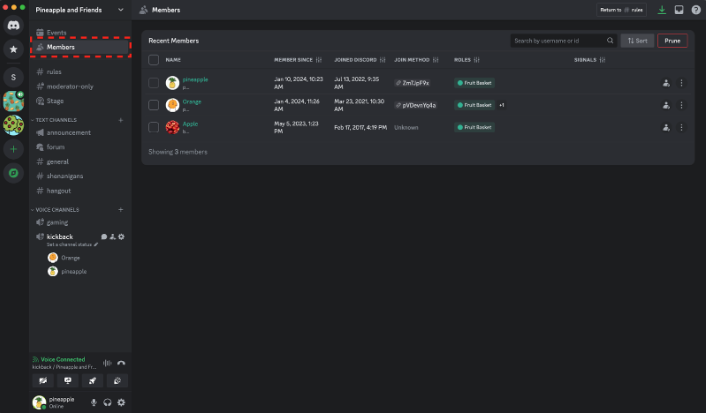
Managing a server with 10,000 members using a scroll wheel is not administration; it is chaos.
To maintain operational security and community health, you need granular data on every user entering your digital borders. Enter the Members Page—Discord’s native CRM (Customer Relationship Management) tool designed for power users.
This dashboard transforms a simple list of names into actionable intelligence, allowing you to track join sources, flag suspicious alts, and execute mass moderation actions in seconds. Here is how to weaponize this tool for your server.
1. Access Protocols: Entering the Command Center
The Members Page is no longer hidden in the settings for Community Servers; it is front and center.
- For Community Servers:Navigate to the top of your Channel List and click the Members tab. It acts as a dedicated dashboard channel.
- For Non-Community / Friend Servers:Go to Server Settings > User Management > Members.
- Pro Tip: You can toggle an option here to display “Members” in your main channel list for quicker access.
2. The Data Intel: What You Can Audit
The Members Page provides a forensic breakdown of every user profile. Stop guessing who the trolls are; look at the data.
- Join Date & Account Age: Instantly spot “Alt Accounts” (e.g., accounts created 2 hours ago).
- Invite Source: Trace exactly which invite link brought a user in. Crucial for tracking marketing campaigns or raiding vectors.
- Safety Signals: Discord’s heuristic engine flags users with “Unusual DM Activity” or active Timeouts.
- Engagement Metrics: View the number of messages sent to identify lurkers vs. contributors.
- Role Distribution: Audit which users hold specific permissions.
3. Tactical Operations: Mass Management
The true power of this page lies in Bulk Actions.
A. The Purge (Mass Ban)
During a raid, banning users one by one is impossible. On the Members Page:
- Filter by “Joined: Last 24 Hours”.
- Select the checkboxes next to the bot/raid accounts.
- Click Ban. You can neutralize 50+ threats in a single click.
B. Role Sync
Need to give a “Verified” role to 100 people?
- Select the target users.
- Click the Add Role dropdown (Plus Icon).
- Apply the role to the entire batch instantly.
C. The “Signal” Scan
Use the Signals filter to isolate users Discord has flagged for suspicious behavior. This is your “Pre-Crime” division—deal with potential spammers before they DM your members.
4. Insight Matrix: Old List vs. Members Page
| Feature | Standard Sidebar List | Members Page Dashboard |
| Visibility | Online users only (mostly) | All Members (Offline included) |
| Data Depth | Name & Status | Join Source, Account Age, Signals |
| Action | Single User Click | Bulk / Mass Action |
| Search | Name only | Role, Join Date, Safety Flags |
5. FAQ Vortex: Operational Intelligence
Q: Why can’t I see the Members Page on my phone?
A: Desktop/Browser Only. As of 2025, this dashboard is too complex for mobile UI. You must be on a PC to access these advanced analytics.
Q: What does “Unknown” mean under Join Method?
A: It means the data is legacy or the user joined via a method Discord could not track (e.g., a temporary integration or vanity URL prior to tracking updates).
Q: Who has access to this data?
A: Only those with the “Keys to the Kingdom.” You must be the Server Owner or have specific high-level permissions: Administrator, Manage Server, Manage Roles, Ban Members, or Kick Members.
Q: What exactly is a “Safety Signal”?
A: These are automated flags from Discord’s Trust & Safety algorithms. For example, “Unusual DM Activity” suggests a user may be a spam bot attempting to DM-blast your member list.
Streamline your command.
Stop managing users manually. Audit your Members Page today—check for “Unusual DM” signals and purge the threats before they strike.