 By Discord Media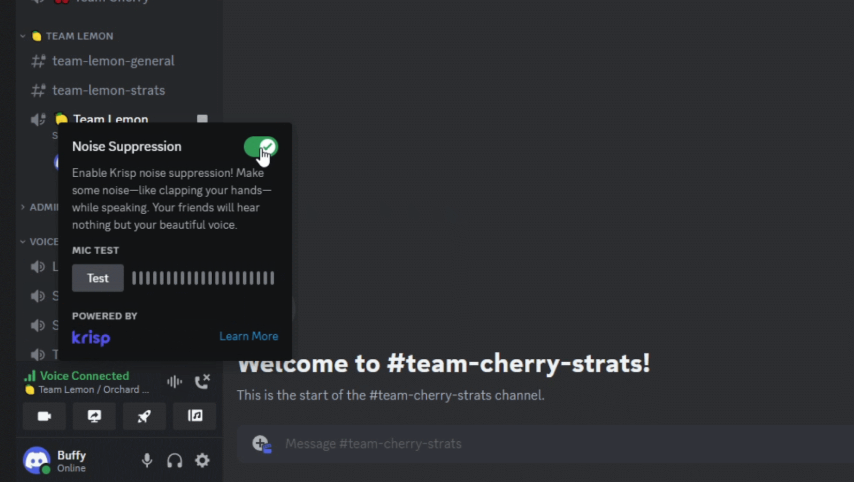
Your mechanical keyboard is loud. Your teammates hate it.
In the high-fidelity world of Discord, audio hygiene is not a suggestion; it is a requirement. Whether you are commanding a raid, hosting a board meeting, or just hanging out in a Tier 3 Nitro server, background noise is the ultimate immersion breaker.
Enter Krisp. This is not a basic noise gate; it is a machine-learning neural network integrated directly into Discord’s audio stack. It filters out the world so your voice cuts through with broadcast clarity. Here is your tactical guide to deploying Krisp, optimizing your signal chain, and understanding why this AI is the industry standard for noise suppression.
1. The Tech: What is Krisp?
Krisp is an AI-driven noise filtration layer that sits between your microphone and Discord. Unlike traditional “Noise Gates” that simply cut audio when volume drops, Krisp analyzes the waveform in real-time to distinguish human speech from environmental chaos.
The “Kill List” (What it Blocks)
Krisp is trained to annihilate specific frequencies and patterns:
- Mechanical Keyboards: The click-clack of Cherry MX Blues.
- Household Friction: Vacuums, fans, and door slams.
- Bio-Noise: Dog barks and heavy breathing.
- Urban Ambience: Sirens, traffic, and construction.
The Privacy Protocol:
Crucially, Krisp operates locally on your device. Your voice data is not sent to the cloud for processing. The machine learning model runs on your CPU, ensuring your privacy remains intact.
2. Deployment Protocols: How to Enable Krisp
You do not need to install external software. Krisp is native to the Discord client.
Desktop Operations (PC/Mac)
There are two vectors to activate the AI:
Vector A: The Quick Toggle (In-Call)
- Join a Voice Channel.
- Locate the Sound Wave Icon (Noise Suppression) in the bottom-left voice status bar.
- Toggle Krisp to ON.
Vector B: The Global Config
- Go to User Settings (Gear Icon).
- Navigate to Voice & Video.
- Scroll to Advanced
→\rightarrow→Noise Suppression. - Select Krisp.
Mobile Operations (iOS/Android)
Audio discipline is even more critical on mobile due to uncontrolled environments.
- Join a Voice Channel.
- Tap the Channel Name (top left) or swipe up to reveal the control deck.
- Tap the Noise Suppression icon.
- Toggle Krisp to ON.
3. Insight Matrix: Audio Processing Codex
| Feature Node | Standard Noise Gate | Krisp AI | Best Use Case |
| Processing | Volume Threshold | Waveform Analysis | Krisp: Noisy cafes, gaming with mech keyboards. |
| Latency | Zero | Negligible | Standard: Studio environments with pro mics. |
| CPU Load | None | Low/Medium | Krisp: General use. Standard: Low-end hardware. |
| Privacy | Local | Local | Both are secure. |
4. FAQ Vortex: Troubleshooting the Signal
Q: Does Krisp filter the audio coming from my friends?
A: Negative. Krisp is an outbound filter. It cleans your microphone for them. If your friend sounds like they are inside a jet engine, they need to enable Krisp.
Q: Is Krisp free on Discord?
A: Yes. While Krisp has paid standalone plans, the integration within Discord is completely free for all users.
Q: Why does Krisp sometimes turn off automatically?
A: This is a failsafe. If your CPU usage spikes to 100% (e.g., during intense rendering or gaming), Discord disables Krisp to preserve system stability.
Q: Should I use Krisp if I have a professional studio microphone?
A: Generally, no. If you are in a sound-treated room with a dynamic XLR mic, Krisp might compress your audio range, making you sound “robotic.” Test it; if your room is silent, turn Krisp OFF for maximum fidelity.
Zenith CTA
Elevate your signal.
Don’t be the person with the hot mic. Toggle Krisp on and deliver crystal-clear comms, no matter how chaotic your environment is.