 By Discord Media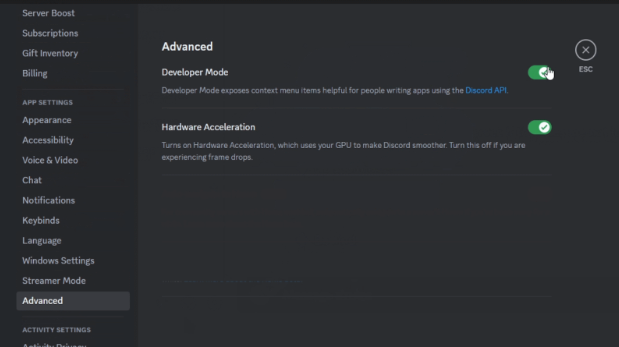
Stop guessing. Start administrating.
Whether you are configuring a Dyno bot, filing a Trust & Safety report, or coding a custom Python script, the GUI username is useless. You need the raw telemetry: the Snowflake ID.
Discord hides these 18-19 digit numerical strings behind a UI wall to keep the interface clean for casuals. But for Server Architects and Admins, these IDs are the coordinates of your digital empire. Here is your tactical guide to unlocking “Developer Mode” and extracting User, Server, Message, and Channel IDs on any device.
1. The Prerequisite: Enabling Developer Mode
You cannot see IDs until you toggle this switch. It is the gatekeeper between “User” and “Power User.”
Desktop Protocol (PC/Mac)
- Click the Gear Icon (User Settings) near your username.
- Navigate to the Advanced tab in the left sidebar.
- Toggle Developer Mode to ON.
Mobile Protocol (iOS/Android)
- Tap your Avatar/Profile Picture in the bottom navigation bar.
- Tap the Gear Icon (Settings) at the top right.
- Scroll down to Advanced (sometimes nested under “App Settings”).
- Toggle Developer Mode to ON.
2. Target Acquisition: Extracting the IDs
Once Developer Mode is active, the “Copy ID” function is injected into your context menus.
A. User ID (The Unique Identifier)
Why you need it: For banning users who aren’t in the server yet, or configuring bot permissions.
- PC: Right-click the user’s name or avatar
→\rightarrow→Click Copy User ID. - Mobile: Tap the user’s avatar to open their profile
→\rightarrow→Tap the three dots (…)→\rightarrow→Tap Copy User ID.
B. Server ID (The Guild ID)
Why you need it: For API integrations, widget configurations, or support tickets.
- PC: Right-click the Server Icon on the left sidebar
→\rightarrow→Click Copy Server ID. - Mobile: Tap the Server Name at the top of the channel list
→\rightarrow→Scroll down/Tap the three dots (…)→\rightarrow→Tap Copy Server ID.
C. Channel ID (The Location)
Why you need it: For setting up welcome messages, log channels, or webhooks.
- PC: Right-click the Channel Name in the list
→\rightarrow→Click Copy Channel ID. - Mobile: Long-press the Channel Name
→\rightarrow→Tap Copy Channel ID.
D. Message ID (The Timestamped Log)
Why you need it: For reporting specific violations or setting up “Reaction Roles” via bots.
- PC: Right-click the specific message
→\rightarrow→Click Copy Message ID. - Mobile: Long-press the message bubble
→\rightarrow→Tap Copy Message ID.
3. Insight Matrix: ID vs. Link
Don’t confuse the map with the coordinates.
| Data Type | Format Example | Use Case |
| ID (Snowflake) | 8473628475839201 | Bot config, Bans, API calls. |
| Link (URL) | discord.com/channels/… | Sharing content, Navigation. |
| Tag | User#0000 (Legacy) | Deprecated. Do not use for identification. |
4. FAQ Vortex: Troubleshooting
Q: I enabled Developer Mode, but I still don’t see “Copy ID.”
A: This is a caching issue. Restart your Discord client (Ctrl+R on Windows, Cmd+R on Mac). If on mobile, force close the app and relaunch.
Q: Can I get an ID without Developer Mode?
A: No. The option is strictly hidden in the UI layer without this toggle.
Q: I sent a Message ID to a friend, but they can’t see the message.
A: An ID is just a number; it is not a hyperlink. To show someone a message, you need the Message Link (Right-click
→\rightarrow→
Copy Message Link), and they must have permission to view that specific channel.
Q: Why are IDs so long?
A: They are “Snowflakes”—unique, time-based integers. They contain the timestamp of creation, ensuring no two IDs are ever identical across the entire platform.
Zenith CTA
Master the backend.
Stop fumbling with usernames. Enable Developer Mode today and take full control of your server’s architecture.