Introduction: What is Statbot?
Statbot is a powerful, professional-grade analytics bot for Discord. It tracks detailed server activity—including messages sent, time spent in voice chat, online status, and game activity—to give you a complete picture of your community’s health.
It helps server owners make data-driven decisions by showing exactly when your server is active, who your most engaged members are, and which channels are the most popular.
Key Features of Statbot
Statbot stands out from other stats bots with its deep, professional features.
- In-Depth Data Collection: Tracks messages, voice, status (online, idle), and game/application activity.
- Customizable Channel Counters: Create channels that automatically update their names to display stats like “Members: 1,234” or “Online: 250.” These are highly customizable.
- Automatic Role Rewards (Statroles): This is a key feature. It automatically grants and removes roles based on a member’s activity. Unlike a leveling bot, Statroles are dynamic, meaning a user can lose the role if they become inactive.
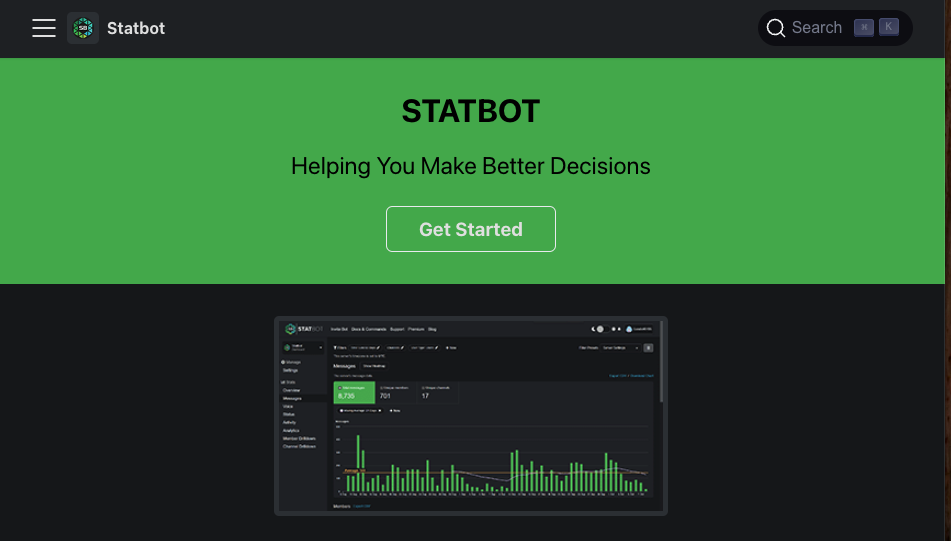
- Web Dashboard: Provides a clean dashboard with graphs, charts, and heatmaps to visualize your server’s data and identify trends.
- Advanced Settings: You can customize tracking periods, time zones, and filters to drill down into the specific data you need.
How to Add & Set Up Statbot
- Invite Statbot:
- Go to the official Statbot website and log in with your Discord.
- Select your server and grant the required permissions. Statbot needs permissions like
Manage Roles(for Statroles),Manage Channels(for counters), andRead Message History(to gather stats).
- Verify & Configure:
- Run the
/helpcommand in your server to make sure the bot is working. - Go to your server’s dashboard on the Statbot website to configure settings like your Timezone (default is UTC) and your Lookback period (how far back the stats should show).
- Use the
/countercommand to set up channel counters. - Use the web dashboard to configure Statroles.
- Run the
Statbot Command List (Essentials)
Statbot supports both slash commands (/) and a prefix (default is s?).
| Command | Description |
/help | Displays the main help menu. |
/stats <type> | Shows an overview of a specific stat type (e.g., messages, voice). |
/me | Shows your personal stats for this server. |
/server | Shows a general overview of the server’s stats. |
/top | Lists the top members and channels for activity. |
/user <user> | Shows the stats for a specific user. |
/channel <channel> | Shows the stats for a specific channel. |
/counter | The main command for creating and managing channel counters. |
/settings | Opens the settings menu for the bot. |
/diag | Checks the bot’s configuration for common setup errors. |
/filter | Edits the filters for which channels, members, or roles to track. |
Conclusion
Statbot is an essential tool for any server owner who is serious about community management. Its detailed data, customizable channel counters, and unique Statroles system provide everything you need to understand your server’s activity and make informed decisions. By using Statbot, you can reward your most active members and build a better, data-driven community.
Statbot Frequently Asked Questions (FAQ)
Q: Why are my server stats not showing up?
A: Statbot only starts tracking data after it has been invited. It cannot see past history. It can also take up to 15 minutes for new data to appear. For graphs, you need at least two data points, which can take up to 24 hours for daily charts.
Q: How do I stop Statbot from tracking a channel?
A: First, make sure Statbot does not have the Administrator permission. Then, go to the channel’s permissions and deny the View Channel permission for the Statbot role.
Q: Can I see stats from more than 14 days ago?
A: Yes. On the free plan, you can change the “Lookback” setting to show up to 30 days of data. For data older than 30 days, you will need a paid History plan.
Q: How do I change the time zone for my stats?
A: Yes, the default time zone is UTC (GMT±0). You can change this for your entire server in the Timezone setting on the web dashboard.
Q: How do I set up Channel Counters or Statroles?
A: Channel Counters (also called Statdocks) are set up using the /counter command. Automatic Role Rewards (Statroles) are configured on the web dashboard. Both have detailed documentation to guide you.
QS: How do I reset my server’s data?
A: Statbot does not have a feature to delete data. However, you can change the “Lookback” setting to a more recent start date, which will effectively “reset” the data that is displayed.
Q: How do I find my Server ID, User ID, or Channel ID?
A: You must enable Developer Mode in your Discord settings (Settings > Advanced > Developer Mode). After it’s enabled, you can right-click any server, user, or channel and select “Copy ID.”
Q: Does Statbot delete my data?
A: Statbot does not delete data unless you request it. Free users can only see the last 30 days of data, but the data is still stored. Paid plans allow you to access this older data.