Introduction: What is ProBot?
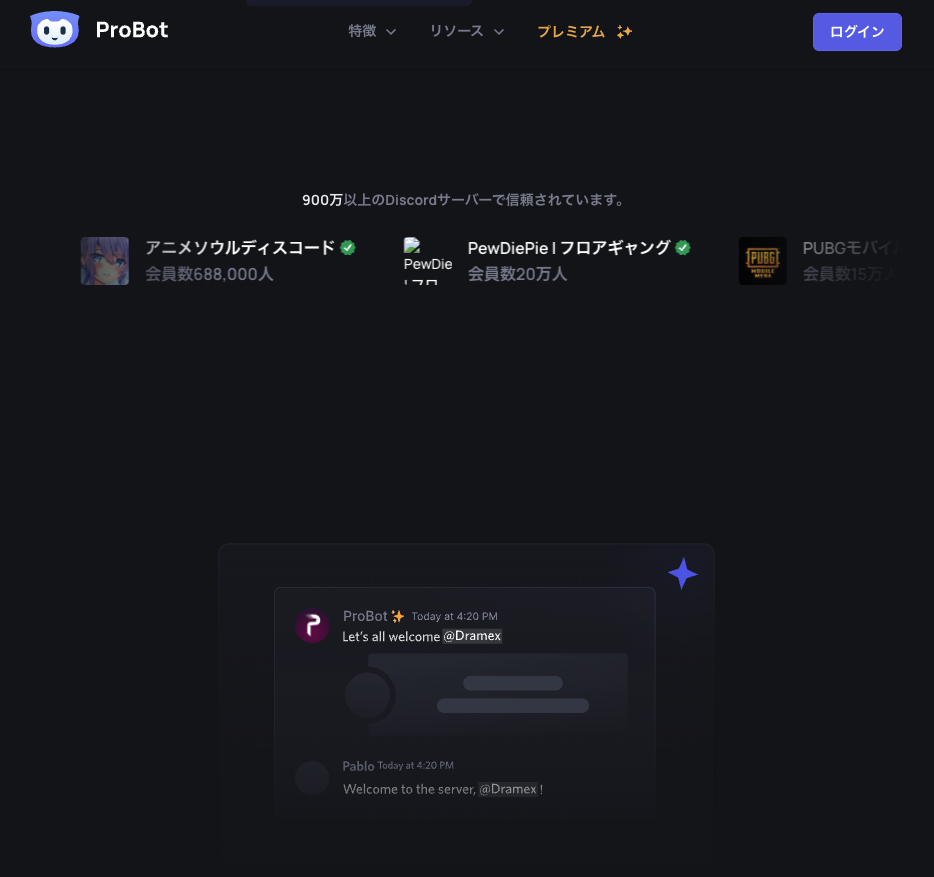
ProBot is one of the most popular, all-in-one Discord bots, trusted by over 9 million servers. It’s a powerful tool designed to help you manage, moderate, and supercharge your community.
Its main strength is a user-friendly web dashboard that makes it easy for anyone—from beginners to experts—to set up advanced features like welcome messages, moderation, a leveling system, and self-assignable roles.
🤖 Why 9 Million Servers Trust ProBot
ProBot combines the features of many different bots into one package.
- All-in-One Features: It handles welcome images, logging, moderation, leveling, reaction roles, and custom commands.
- Easy Setup: The intuitive web dashboard is clean and easy to navigate.
- High Customization: You can fine-tune every module to fit your server’s needs.
- High Stability: It’s a reliable, 24/7 bot that won’t let you down.
- Active Support: Has a large, official support server for help and questions.
🚀 How to Set Up ProBot (3-Step Guide)
Getting ProBot on your server takes less than three minutes.
- Step 1: Invite ProBot
- Go to the official ProBot website.
- Click the “Add to Discord” button.
- Select the server you want to add ProBot to and click “Authorize.”
- Confirm the required permissions.
- Step 2: Grant Core PermissionsFor ProBot to work correctly, it needs a few key permissions in your Server Settings > Roles.
- Administrator: This is the easiest way to ensure everything works.
- (If not Admin): It needs
Manage Server,Manage Roles, andManage Messages.
- Step 3: Adjust Role Hierarchy (Crucial!)This is the most important step. For ProBot to manage other roles (like for leveling or moderation), its own role must be at the top of your role list.
- Go to
Server Settings > Roles. - Find the “ProBot” role.
- Click and drag the ProBot role to the very top of the list (or at least above any roles you want it to manage).
- Click “Save Changes.”
- Go to
🖥️ The ProBot Dashboard: Your Command Center
ProBot’s real power is its web dashboard. After logging in on the ProBot website, you can control every aspect of the bot.
What you can do on the dashboard:
- Toggle Modules: Turn features like “Leveling” or “Welcome” on or off.
- Customize Commands: Create aliases, set permissions (who can use them), and limit them to specific channels.
- Set Up Welcomes: Design a custom welcome image and message for new members.
- Configure Leveling: Set XP rates and define which roles are given at which levels.
- Set Up Logs: Choose exactly what actions (e.g., “message deleted,” “member banned”) get recorded in a specific log channel.
Troubleshooting: If your server doesn’t show up on the dashboard, it’s almost always because you (the owner) are not logged into the correct Discord account on the ProBot website.
⭐ ProBot’s Most Popular Features
ProBot’s features are “modules” you can enable on the dashboard.
- Welcome Image: Greet new members with a custom-designed welcome card.
- Leveling System: This is ProBot’s most popular feature. It encourages server activity by giving members XP for chatting. You can set up role rewards (e.g., “Reach Level 10 to get the ‘Regular’ role”).
- Self-Roles (Reaction Roles): Lets members assign themselves roles (like for colors, regions, or game preferences) by clicking on a reaction or button.
- Moderation: A full suite of commands to keep your server clean.
- Logging: Creates a log channel that records everything that happens in your server, from deleted messages to member joins/leaves.
⌨️ ProBot Command List (Slash Commands)
ProBot uses modern slash commands (/). Here are the most essential ones.
General Commands
| Command | Description |
/credits | Check your (or another user’s) credits. |
/rep | Give a reputation point to another user. |
/moveme | Moves you to the voice channel of another user. |
/color | Changes the color of your name. |
/roll | Rolls a die. |
/short | Shortens a URL. |
Leveling Commands
| Command | Description |
/profile | Displays your server profile card (level, XP, etc.). |
/rank | Shows your current server rank. |
/top | Displays the server’s activity leaderboard. |
/title | Changes the title on your profile card. |
Information Commands
| Command | Description |
/user | Shows detailed information about a user. |
/avatar | Displays a user’s avatar. |
/server | Shows detailed information about the server. |
/roles | Lists all roles on the server. |
Moderation Commands
| Command | Description |
/ban | Bans a member from the server. |
/kick | Kicks a member from the server. |
/mute | Mutes a member (applies a “timeout”). |
/clear | Deletes a specified number of messages. |
/warn | Issues a warning to a member. |
/lock | Locks a channel (prevents members from talking). |
/unlock | Unlocks a channel. |
/setxp | [Admin] Sets the XP for a user. |
/setlevel | [Admin] Sets the level for a user. |
💎 ProBot Premium
For server owners who want more power, ProBot Premium unlocks advanced features.
- Custom Bot: Get a private version of ProBot with its own custom name, avatar, and status.
- Anti-Raid: Automatically protects your server from join-raids.
- Temp Links: Create temporary invite links.
- Voice Online: Show which members are in a voice channel via a counter.
- Dedicated Support: Get priority support.
❓ Frequently Asked Questions (FAQ)
Q: Is ProBot free?
A: Yes, all essential features (leveling, moderation, welcome messages, etc.) are 100% free. Premium is an optional upgrade for more advanced customization.
Q: Can I change the bot’s prefix?
A: ProBot is now 100% slash commands (/). Older prefix commands are no longer supported, so you don’t need to worry about changing a prefix.
Q: Can I change the timezone?
A: No, the timezone is currently fixed to UTC+3 by default and cannot be changed.
Q: Who can access the web dashboard?
A: Only users with “Administrator” permission on the server can access the dashboard. Premium users can use the /vip whitelist command to grant access to non-admins.
Q: Where can I report bugs or suggest features?
A: The best place is the official ProBot support server.
🎯 Conclusion
ProBot is an essential, all-in-one tool for any serious Discord server owner. Its powerful and easy-to-use dashboard makes it simple to set up the most important features every community needs: moderation, logging, welcome messages, and an engaging leveling system.
Use this guide to get ProBot set up, and you’ll be on your way to building your ideal Discord server.