Introduction
A Discord server template is a blueprint that copies your server’s categories, channels, roles, and permissions.1 It’s the fastest way to create a new, pre-configured server without starting from scratch. This guide shows you exactly how to create, use, and manage them.
What a Template Copies (And What It Doesn’t)
The most important thing to understand is that templates do not copy everything. They are for the structure of your server, not its content or members.
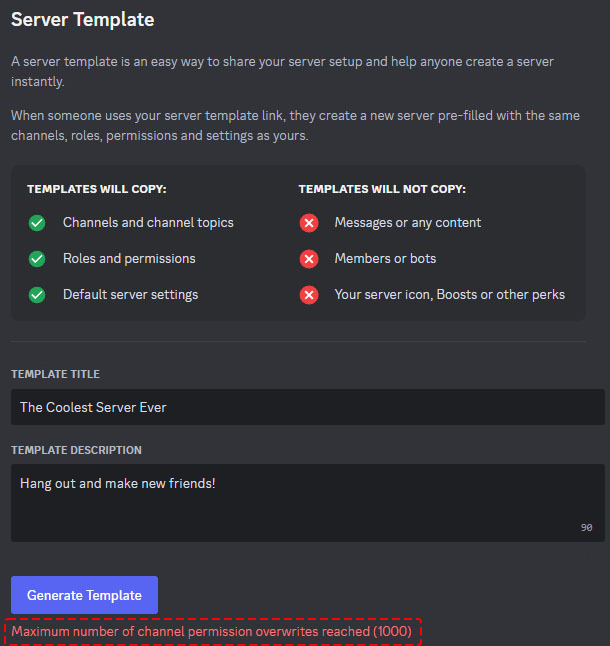
| ✅ What IS Copied | ❌ What is NOT Copied |
| Categories & Channels | Messages & Content |
| Channel Topics & Settings | Server Members & Bots |
| Roles & Permissions | Server Icon & Banner |
| Default Server Settings | Server Boosts & Perks |
| Server Name (as a base) | Community Channels (Forums, Stages) |
How to Create a Server Template (Step-by-Step)
- Open Server Settings
- Right-click your server’s icon on the left-hand bar.
- Select Server Settings.
- Find the Template Menu
- In the settings menu, click on “Server Template.”
- Name Your Template
- Give your template a clear “Template Title” (e.g., “Gaming Guild Base” or “Study Group”).
- Write a “Template Description” so you and others know what it’s for.
- Generate the Link
- Click the green “Generate Link” button.
- Discord will create a unique
discord.new/link.
- Share the Link
- Copy this link! Anyone who has it can use it to create a new server based on your template.
How to Use a Server Template
Using a template is even easier.
- Click the Template Link
- Open the
discord.new/link you received.
- Open the
- Preview and Create
- A preview window will pop up, showing you the template’s name and what it will create.
- Give your new server a name and upload an icon.
- Click “Create”
- Discord will instantly build a new server for you with all the channels, roles, and permissions from the template.2
Managing Your Template (Syncing & Deleting)
Your template is a snapshot in time. It does not automatically update when you change your original server.
- How to Sync Your TemplateIf you add new roles or channels to your original server, you must sync the template manually.
- Go back to
Server Settings > Server Template. - Click the “Sync” button. This updates the template to match the server’s current state.
- Go back to
- How to Delete Your TemplateIf you no longer need the template, go to Server Settings > Server Template and click “Delete Template.”
Pro-Tip for Community Managers:
“Templates are fantastic for ‘franchising’ your community. If you run a main ‘Hub’ server, you can create a ‘lite’ template for fan-run guilds or local chapters. This ensures brand consistency (same roles, same channels) while saving your new admins hours of setup.”
Troubleshooting & Limitations
- Why Can’t I Create a Template? (Creation Error)In very large or complex servers, you may get an error. This happens if any single channel has more than 1,000 “permission overwrites” (specific permissions for individual roles). To fix this, you must simplify your channel’s role permissions before creating the template.
- Why Are My Forum/Stage Channels Missing?Templates do not support Community-enabled channels. This is the biggest limitation. Any Forum, Announcement, or Stage Channels from the original server will not be copied. You must add these manually after creating the server.
Frequently Asked Questions (FAQ)
Q: What platforms can I use server templates on?
A: You can only create and use templates on the Desktop app or the web browser version of Discord. The mobile app does not currently support this feature.
Q: Can I edit a server after using a template?
A: Yes. The template is just a starting point. You have full control to add, delete, or change anything you want after the server is created.
Q: If I share my template, can people see my original server?
A: No. Using a template does not affect your original server in any way. It’s just a copy of the structure, and it doesn’t grant anyone access to your server.
Conclusion
Server templates are the most efficient way to build new, well-organized Discord servers. By copying your channels, roles, and permissions, you save hours of work. Start creating templates for your gaming guilds, study groups, or fan communities today!