Introduction
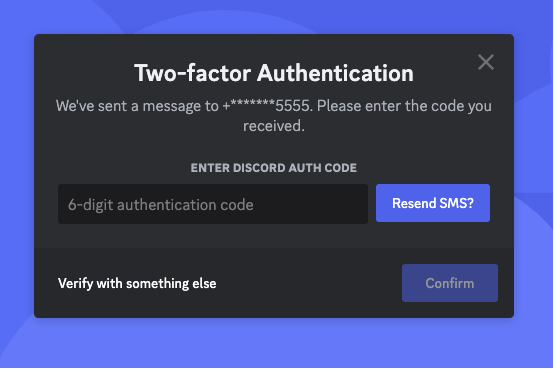
If you’re locked out of Discord because you lost your 2FA authenticator app, the only way to regain access is by using one of your 8-digit backup codes. If you do not have your backup codes, Discord support cannot and will not remove 2FA, and you will have to create a new account.
Don’t panic yet. This guide explains how to use your backup codes and, more importantly, how to save your account if you’re still logged in on another device.
Step 1: Check If You’re Still Logged In Elsewhere
Before you do anything, check your other devices. This is your best-case scenario.
- Check your PC Desktop App.
- Check your web browser (Chrome, Firefox, etc.) at
discord.com.
If you are still logged in on any device, you are not locked out. You can access your backup codes right now:
- Go to User Settings (the gear icon ⚙️) next to your name.
- Click on the “My Account” tab.
- In the “Password and Authentication” section, click “View Backup Codes.”
- Enter your Discord password to confirm.
- You can now see your 10 backup codes. Use one of these codes to log in on your new device.
Step 2: How to Recover Using Your Backup Codes
If you aren’t logged in elsewhere, but you do have your backup codes saved (e.g., in a password manager or a text file), here is how to use them.
- Go to the Discord login screen on your app or browser.
- Enter your email and password as usual.
- When you are prompted to enter the 6-digit 2FA code, look for a link that says “Login with Backup Code” or “Use a backup code.”
- Enter one of your 8-digit backup codes. (Note: These are 8 digits, not 6, and do not have spaces or dashes).
- You’re in!
Where are my backup codes? When you first enabled 2FA, Discord prompted you to download a file named
discord_backup_codes.txt. Search your computer’s “Downloads” folder for this file.
Step 3: What to Do Immediately After Recovering
Once you are back in your account, your first priority is to fix your 2FA. The old 2FA is still linked to the phone you lost.
- Go to User Settings > My Account.
- Click “Remove 2FA.” You will need to enter a backup code to do this.
- Click “Enable Two-Factor Auth” to set it up again with your new phone or authenticator app.
- CRITICAL: When prompted, download the new set of backup codes! Your old codes are now invalid.
The Hard Truth: No Backup Codes = No Account
We must be very clear about this: if you are not logged in anywhere and you do not have your discord_backup_codes.txt file, your account is lost.
Discord’s Official Security Policy: For security and privacy reasons, Discord support cannot remove 2FA from your account. 2FA is designed to protect you, and bypassing it would defeat its entire purpose. If you do not have your backup codes, you have been permanently locked out. Your only option is to create a new account.
How to Prevent This From Ever Happening Again
Once you are back in (or on your new account), set up your security properly.
- Save Your Backup Codes! Use a password manager (like 1Password or Bitwarden), print them and put them in a safe, or save the
.txtfile to a secure cloud drive. - Enable SMS Authentication as a Backup. Discord now allows you to have both an Authenticator App and SMS 2FA. This is your best protection. If you lose your app, you can still get a code sent to your phone number.
- Go to User Settings > My Account.
- Click “Enable SMS Authentication.”
Frequently Asked Questions (FAQ)
Q: What’s the difference between a 6-digit code and an 8-digit code? A: The 6-digit code is the temporary code generated by your authenticator app (like Google Authenticator or Authy) that changes every 30 seconds. The 8-digit code is one of your permanent, one-time-use backup codes.
Q: Can’t Discord Support just email me a reset link? A: No. 2FA is specifically designed to protect your account even if someone (like a hacker) gets your email and password. Bypassing it would make it useless.
Q: I found discord_backup_codes.txt. Are these the right ones? A: Yes. That is the official file Discord provides. Each 8-digit code in that file can be used one time.
Conclusion
Your Discord backup codes are the only key to your account if you lose your 2FA device. If you’re logged in, go save them right now. If you’re locked out, search your computer for discord_backup_codes.txt. Without those codes, the unfortunate reality is that the account is no longer accessible.