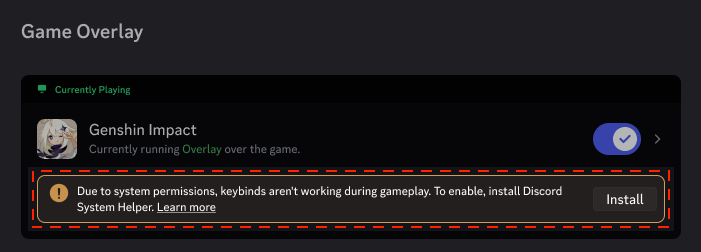
“Why isn’t my Push-to-Talk working in-game?”
“I saw a notification to install ‘Discord System Helper’—is this safe?”
If you are a PC gamer, you have likely run into this issue: Discord works fine on your desktop, but the moment you launch a specific game, your Keybinds (like Push-to-Talk) stop responding.
The short answer: This happens because your game is running with higher permissions than Discord. The Discord System Helper is the official fix for this.
Here is everything you need to know about what it is, why you need it, and how to install or uninstall it safely.
🛠️ What Is Discord System Helper?
Discord System Helper is an optional, official feature developed by Discord to fix compatibility issues with games that run as Administrator (or “Elevated Permissions”).
Why Do Keybinds Stop Working?
To understand why you need this, you have to understand Windows permissions:
- The Problem: Some modern games (especially those with strict Anti-Cheat software) run with Administrator privileges.
- ** The Conflict:** If Discord is running normally (without Admin privileges), Windows prevents it from “talking” to the game. Discord cannot detect when you press your Push-to-Talk key because the game blocks the input.
- The Solution: The System Helper acts as a bridge. It safely grants Discord the specific permissions needed to recognize your key presses even while a high-security game is the active window.
Note: This is currently an experimental feature available only for the Windows Desktop version of Discord. It is not needed for Mobile or Web versions.
📥 How to Install Discord System Helper
You should only install this if Discord prompts you to, or if you are experiencing issues with Keybinds or the Overlay not working.
Step 1: Find the Prompt
Discord usually detects when the System Helper is needed. You will see a banner asking you to install it in one of these menus:
- User Settings > Voice & Video
- User Settings > Keybinds
- User Settings > Game Overlay
- User Settings > Windows Settings
Step 2: Install
- Click the “Install” button on the notification banner.
- A Windows User Account Control (UAC) prompt will appear asking for permission.
- Click “Yes”. (Since this is an official Discord tool, it is safe to authorize).
- The installation happens silently in the background.
Once finished, your Push-to-Talk and Overlay should start working immediately, even in games that require Administrator access.
🗑️ How to Uninstall Discord System Helper
If you no longer need the feature or want to troubleshoot a bug, removing it is easy.
- Open Discord and click the Gear Icon (User Settings) in the bottom left.
- Scroll down the left menu and select Windows Settings.
- Look for the “System Helper” section.
- Click the “Uninstall” button.
The feature will be removed immediately without affecting the rest of your Discord app.
❓ Frequently Asked Questions (FAQ)
Q: Is Discord System Helper safe?
A: Yes.
It is an official component built by Discord. It is designed solely to allow Keybinds and the Overlay to function correctly over other programs. It does not compromise your PC’s security.
Q: Will it make my games lag?
A: No.
The System Helper is lightweight and does not affect game performance. It only listens for specific key triggers (like your PTT button).
Q: Do I have to install it?
A: No.
Discord works perfectly fine without it for chatting and browsing. You only need it if you rely on Keybinds (PTT, Mute Toggle, Overlay Toggle) while playing specific high-security games. If you use “Voice Activity” mode, you might never need it.
Q: Why don’t I see the option to install it?
A: You might not need it yet.
Discord typically only shows the prompt if it detects you are playing a game that requires elevated permissions. If everything is working fine, you can ignore it.
🌟 Summary: Should You Install It?
If your Push-to-Talk button stops working every time you launch a game like Valorant, Apex Legends, or Call of Duty, the Discord System Helper is the solution.
- It fixes: Unresponsive Keybinds and Overlay issues in Admin-mode games.
- It is safe: An official tool from Discord.
- It is reversible: You can uninstall it anytime in Windows Settings.
Check your User Settings > Voice & Video tab now to see if the update is waiting for you!