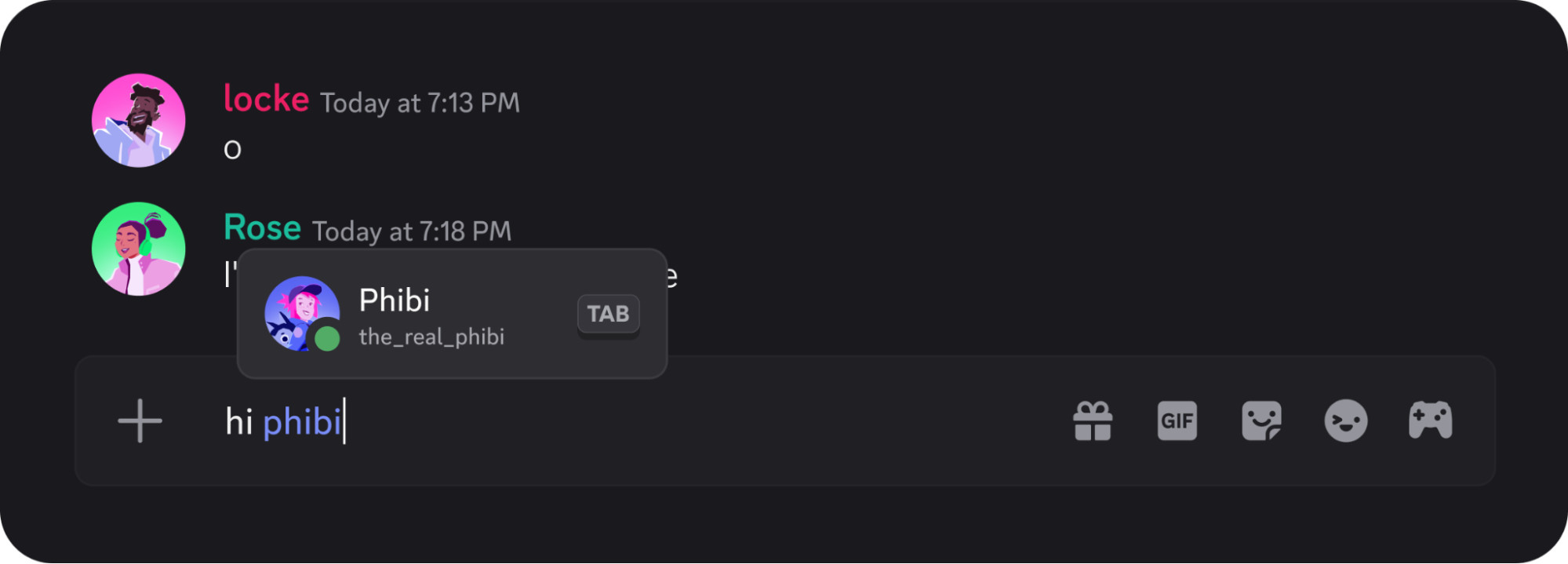
“Why are names popping up while I’m just trying to type?”
“Do I really not need to type ‘@’ anymore?”
If you have noticed a pop-up list of friends appearing while you type a normal sentence, you have encountered Discord’s Mention Suggestions. This feature is designed to make tagging faster, but it can be annoying if you prefer the old way.
The short answer: Mention Suggestions let you tag users just by typing their name—no “@” symbol required. If you hate it, you can easily turn it off in your User Settings.
Here is everything you need to know about how it works, what it searches, and how to disable it if it’s getting in your way.
💡 What Are Mention Suggestions?
Mention Suggestions is a feature that allows you to mention (tag) a user in a Text Channel, DM, or Group Chat without typing the @ symbol first.
- The Old Way: You type
@+Nameto tag someone. - The New Way: You simply start typing their
Name. A list of candidates pops up. You press Tab (or click) to autocomplete the tag (e.g.,<@123456789>).
Note: This is currently an experimental feature. It is available on the Desktop app but may not be live for every single user yet.
🔍 How It Finds Users
When you type, the feature scans the current channel or DM for people who match what you are writing. It looks for:
- Usernames (e.g.,
discord.user) - Display Names (The main name shown on their profile)
- Server Nicknames (Specific names used in that server)
- Friend Nicknames (Private nicknames you set for them)
Pro Tip: If a user isn’t showing up in the suggestions, your Discord app might not have “loaded” them yet. It only searches locally cached users in that channel.
⚙️ How to Turn Off Mention Suggestions
If you find the pop-ups distracting or annoying, you can disable them in seconds. There are two ways to do this.
Method 1: Turn It Off Permanently (Recommended)
This is the best way to stop the feature globally.
- Click the Gear Icon (User Settings) in the bottom left.
- Select Chat from the left-hand menu.
- Scroll down to “Show mention suggestions when typing.”
- Toggle the switch OFF (Grey).
Method 2: Turn It Off Temporarily
If you just want to stop it for the current session without digging through settings:
- Right-click inside the message text box (where you type).
- Hover over Suggestions.
- Uncheck Mentions.
❓ Frequently Asked Questions (FAQ)
Q: Does this work on Mobile?
A: No.
As of late 2025, Mention Suggestions are only available on the Discord Desktop App (Windows/Mac/Linux). It does not work on the mobile app or browser version yet.
Q: Can I use this to tag Roles (like @everyone)?
A: No.
This feature is strictly for Usernames only. If you want to tag a Role (e.g., @Admins) or a Bot/App, you still need to type the @ symbol first.
Q: Is Discord reading my drafts?
A: No, it is safe.
The suggestion process happens locally on your computer. Discord is not sending your unfinished keystrokes to a server to analyze them; your app is simply matching what you type against the list of users loaded in that channel.
🌟 Summary
Mention Suggestions are a “love it or hate it” feature.
- Pro: Saves you a keystroke (no need for Shift+2).
- Con: Can be distracting if you are just trying to type a normal sentence.
- The Fix: Go to User Settings > Chat to toggle it off.
Whether you decide to keep it or disable it, you now have full control over your chat experience!