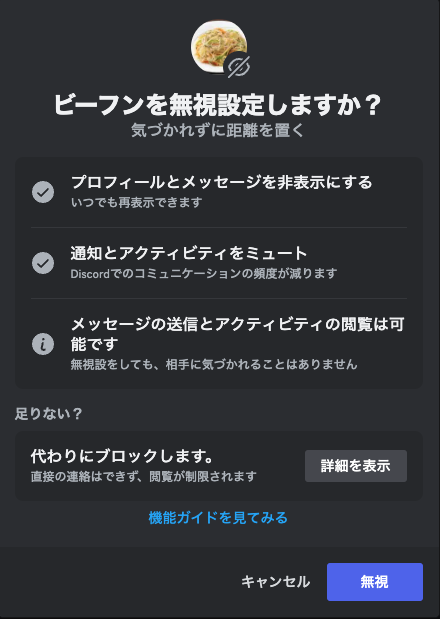
“I don’t want to block them because it’ll cause drama, but I can’t stand their messages.”
If you have ever felt this way, Discord’s “Ignore” feature is the perfect solution. Unlike the nuclear option of “Blocking,” Ignoring is a subtle way to hide a specific user’s activity without unfriending them or alerting them.
The short answer: Ignoring a user hides their messages and disables their notifications for you, but they can still see your messages, and you remain friends. It is the ultimate “soft block.”
Here is your complete guide on how to use it, how it differs from blocking, and how to manage your ignored list.
🔇 What Is the Discord Ignore Feature?
The Ignore function allows you to stop seeing messages and receiving notifications from a specific user, all while keeping your connection intact.
Why use it?
- Hide Messages: Their texts in servers and DMs disappear from your view.
- Stop Notifications: You won’t get pinged by them.
- No Drama: The user is NOT notified that you ignored them, and you stay on their Friends list.
It is perfect for that one friend who spams too much, or a server member who is annoying but not “ban-worthy.”
⚔️ Ignore vs. Block: What’s the Difference?
This is the most common question. Here is a quick breakdown to help you decide which one to use.
| Feature | Ignore (Soft) 🔇 | Block (Hard) ⛔ |
| Can they DM you? | Yes (but you won’t see it) | No (Message fails) |
| Do you see their chats? | No (Hidden) | No (Hidden behind “Blocked Message”) |
| Friend Status | Remains Friends | Unfriended Instantly |
| Do they know? | No (It looks normal to them) | Yes (They can tell when DMs fail) |
| Voice Chat | You can’t hear them | You can’t hear them |
Summary: Use Ignore for annoying friends you want to keep. Use Block for harassment or people you never want to interact with again.
🛠️ How to Ignore a User (Step-by-Step)
You can ignore someone from a server, a DM, or their profile card.
On Desktop (PC/Mac)
- Click on the user’s Avatar or Username to open their profile.
- Click the User Actions icon (three vertical dots
⋮or a person icon on the far right). - Select Ignore from the dropdown menu.
- Confirm by clicking Ignore again in the popup.
On Mobile (iOS/Android)
- Tap the user’s Avatar to bring up their profile card.
- Tap the Ellipsis icon (three dots …) in the top right corner.
- Tap Ignore.
📝 How to Un-Ignore (Manage Your List)
Did you make up with your friend? Or did you accidentally ignore the wrong person? Here is how to fix it.
- Go to User Settings (The Gear Icon ⚙️).
- Select Privacy & Safety (or “Content & Social” in some updates).
- Scroll down to find the “Blocked & Ignored Users” section.
- Here you can see the list. Click the “Unignore” button next to their name to restore their messages.
❓ Frequently Asked Questions (FAQ)
Q: Will they know I ignored them?
A: No.
There is no notification. To them, it looks like you are just busy or not reading the chat. They can still react to your messages and see your status.
Q: Can an ignored user still read my messages?
A: Yes.
Ignoring is a one-way mirror. You cannot see them, but they can still see everything you type. If you want to stop them from seeing your messages, you must Block them.
Q: What happens if we are in the same Voice Channel?
A: You won’t hear them.
Ignoring a user also applies to Voice Chat. Their audio will be muted for you, but they can still hear you speaking.
Q: I reported a message. Do I have to ignore them separately?
A: Usually, yes.
However, Discord’s Safety Tools often give you a prompt immediately after reporting a message, asking if you would like to Block or Ignore that user to protect yourself.
🌟 Summary: Choose Peace of Mind
The Ignore feature is one of Discord’s best tools for mental health.
- Use Ignore when you need a break from a noisy friend but don’t want to burn bridges.
- Use Block when you need to cut ties completely for safety.
Next Step: Is there someone blowing up your notifications right now? Try right-clicking their name and hitting Ignore—you can always undo it later!