“My chat is moving too fast!”
“I’m tired of scrolling just to read three messages.”
If you hang out in busy servers, the default Discord interface (called “Cozy”) can feel cluttered. Large profile pictures and spacing take up a lot of room.
The solution: Switch to Compact Mode.
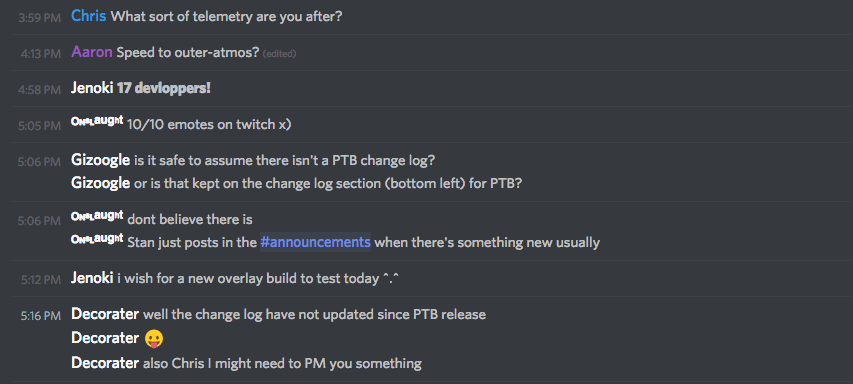
The short answer: Compact Mode removes user avatars and tightens the line spacing, allowing you to see significantly more messages on your screen at once. It looks similar to old-school IRC or Slack.
Here is how to enable it, how it differs from the default look, and why power users love it.
🆚 Cozy vs. Compact: What’s the Difference?
Before you switch, it helps to know what you are changing.
| Feature | Cozy (Default) 🖼️ | Compact Mode 📝 |
| Avatars | Visible (Large icons) | Hidden (No icons) |
| Timestamp | Small text above the message | Displayed next to username |
| Spacing | Wide, comfortable gaps | Tight, condensed lines |
| Vibe | Modern Chat App | Professional / IRC Style |
| Messages on Screen | Fewer | 2x to 3x More |
⚙️ How to Enable Compact Mode (Desktop)
Changing your view takes seconds.
- Click the Gear Icon (User Settings) in the bottom left.
- Scroll down to the App Settings section and select Appearance.
- Scroll to the “Message Display” section.
- Select Compact.
The change happens instantly. You can switch back to “Cozy” anytime if you don’t like it.
📱 How to Enable Compact Mode (Mobile)
Yes, you can also save screen space on your phone.
- Tap your Profile Picture in the bottom right.
- Tap the Gear Icon (top right) to open Settings.
- Scroll down to Appearance.
- Look for Message Display (or “Chat View”).
- Toggle on Compact Mode.
✅ The Pros and Cons
Is Compact Mode right for you?
The Benefits (Pros)
- Less Scrolling: You can read long conversations without constantly flicking your mouse wheel or thumb.
- Cleaner Look: Ideal for second monitors or smaller laptop screens where space is limited.
- Great for Mods: Moderators often prefer this mode because it allows them to scan chat logs much faster.
The Downsides (Cons)
- Harder to Identify Users: Without profile pictures (Avatars), you have to rely solely on reading usernames to know who is talking.
- “Wall of Text”: For some, the dense text can feel overwhelming or harder to read.
❓ Frequently Asked Questions (FAQ)
Q: Does this hide Role Colors?
A: No.
Even in Compact Mode, usernames will still display the color of their highest role. This helps you distinguish between Admins, Mods, and regular members even without avatars.
Q: Can I delete the timestamps?
A: No.
In Compact Mode, the timestamp (e.g., [10:30 AM]) appears to the left of the username. You cannot hide this, as it separates the messages.
Q: Why did my chat suddenly look different without me changing settings?
A: Check your zoom level.
Sometimes, if you accidentally zoom out too far (Ctrl + -), Discord might adjust the layout. However, it usually won’t switch to Compact Mode automatically. You likely toggled it by accident or logged into a device where it was already set.
🌟 Summary: Give It a Try
If you feel like Discord is too “bulky,” Compact Mode is the best way to streamline your experience.
- Go to User Settings > Appearance.
- Select Compact.
- Enjoy a cleaner, text-focused chat.
Next Step: Switch to Compact Mode right now for 5 minutes. Visit a busy server and see if it makes reading the chat flow easier for you!