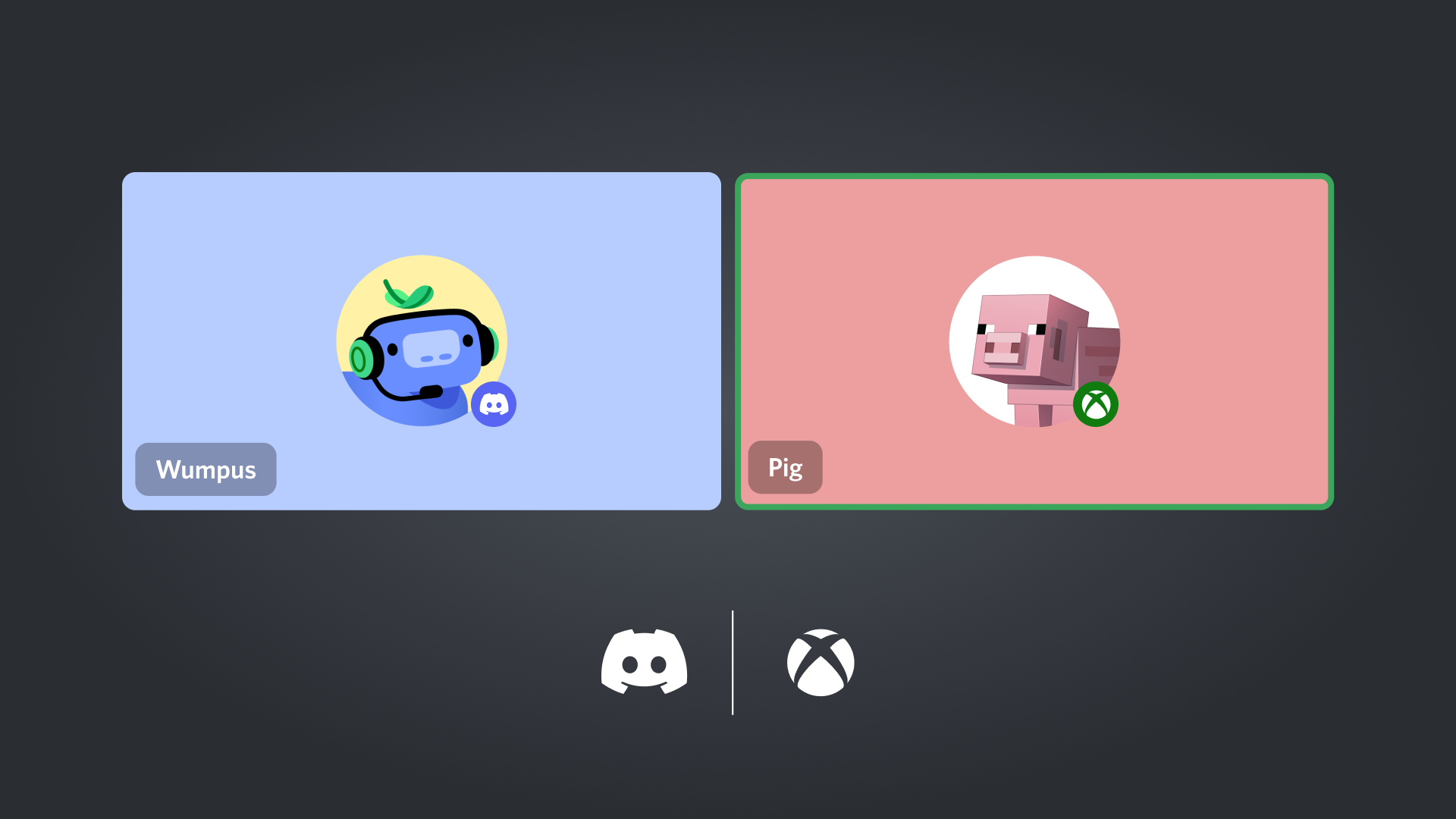
“Can I talk to my PC friends from my Xbox?”
“How do I stream my console gameplay to a Discord server?”
The answer is Yes. Discord and Xbox have teamed up to bring native Voice Chat and Streaming directly to your console (Series X|S and Xbox One). You no longer need to wear earbuds under your headset or use complicated audio splitters.
The short answer: By linking your accounts, you can join Discord Voice Channels directly from the Xbox dashboard and stream your gameplay to friends for free.
Here is your complete guide to connecting your accounts, starting a call, and going live.
🔗 Step 1: Link Your Discord & Xbox Accounts
Before you can chat, you must authorize the connection. You can do this on your phone/PC or directly on the Xbox.
Option A: Via Discord Mobile/PC (Easiest)
- Open Discord and go to User Settings (Gear Icon ⚙️).
- Select the Connections tab.
- Click the Xbox Icon. (If you don’t see it, click “Add” or “View More”).
- A browser window will open. Sign in with your Microsoft (Xbox) Account.
- Click “Authorize” to link them.
Option B: Via Xbox Console
- Press the Xbox button to open the guide.
- Go to Profile & system > Settings > Account > Linked social accounts.
- Select the Discord tile and choose Link.
- Follow the on-screen instructions to scan a QR code or sign in.
🎧 Step 2: How to Voice Chat on Xbox
Once linked, you can hop into voice channels with friends on PC, Mobile, and PlayStation.
- Press the Xbox button to open the Guide.
- Go to the Parties & chats tab.
- Select Discord.
- Choose the Server you want to join (or select Direct Messages for private calls).
- Select the Voice Channel and press A to join.
Pro Tip: You can adjust the balance between “Game Audio” and “Voice Chat Audio” directly in the Xbox audio settings while in a call.
🎥 Step 3: How to Stream Xbox Gameplay to Discord
Want to show your friends your boss fight? You can stream directly from the console.
- Follow the steps above to join a Discord Voice Channel.
- Once you are in the voice channel on your Xbox, select “Stream your game” from the Discord menu in the Xbox Guide.
- Adjust your settings (if available) and select Start Streaming.
Note: You can only stream the “Game” visual. The Xbox dashboard and other apps will be hidden for privacy.
📋 Features: Why Link?
Why should you bother setting this up?
- Cross-Platform Comms: Talk to friends on PC or Mobile without using an external app.
- Go Live: Stream gameplay to your Discord community without a capture card or PC.
- Rich Presence: Show off what you are playing (e.g., “Playing Halo Infinite on Xbox Series X”) on your Discord profile status.
❓ Frequently Asked Questions (FAQ)
Q: Do I need the Xbox Mobile App?
A: Yes, for the initial setup.
While you can join calls directly from the console now, having the Xbox App on your phone is highly recommended for the initial linking process and for transferring calls from your phone to your console if you step away.
Q: Can I use Xbox Party Chat AND Discord Voice at the same time?
A: No.
You can only be in one voice channel at a time. If you join a Discord call, you will be disconnected from your Xbox Party Chat (and vice versa).
Q: Do I need Discord Nitro to stream from Xbox?
A: No, it is free.
However, if you do have Discord Nitro, you can stream at higher resolutions (up to 1080p/60fps) and better quality. Free users are limited to standard definition (720p/30fps).
Q: Why can’t I stream Netflix or YouTube?
A: Copyright protection.
The streaming feature is strictly for Games. If you switch to a media app like Netflix, the stream will pause or show a black screen to your viewers.
🌟 Summary
The Xbox x Discord integration is the best way to bridge the gap between console and PC gaming.
- Link Accounts in User Settings > Connections.
- Open the Xbox Guide and go to Parties & chats.
- Select Discord and jump into the channel.
Next Step: Turn on your Xbox, press the Guide button, and look for the Discord logo in the “Parties & chats” menu to get started right now!