“How do I get my Discord status to show what anime I’m watching?”
“I want my friends to know I’m catching up on Jujutsu Kaisen!”
If you are an anime fan, linking your Crunchyroll account to Discord is the ultimate flex. It updates your status in real-time, showing your friends exactly which series, season, and episode you are currently watching.
The short answer: By connecting your accounts in the “Connections” menu, you unlock Rich Presence. This feature automatically updates your profile status whenever you start a video on Crunchyroll.
Here is your complete guide to linking accounts, managing privacy, and fixing common display issues.
🍿 What is Crunchyroll?
For the uninitiated, Crunchyroll is the world’s largest anime streaming service.
- Huge Library: Over 1,000 titles, from Naruto to the latest seasonal hits.
- Simulcasts: New episodes arrive as fast as 1 hour after the Japanese broadcast.
- Free & Premium: You can watch for free (with ads) or pay for a Premium experience.
When you link it to Discord, you turn your profile into a live anime feed.
🔗 How to Link Discord & Crunchyroll (Step-by-Step)
Setting this up takes less than 2 minutes. You can do it on your PC or Mobile.
Step 1: Open User Settings
- Desktop: Click the Gear Icon ⚙️ (User Settings) in the bottom left corner.
- Mobile: Tap your Profile Picture in the bottom right, then tap the Gear Icon (top right).
Step 2: Go to “Connections”
Select the Connections tab from the menu.
Step 3: Add Crunchyroll
- Look for the orange Crunchyroll logo in the list of apps. (If you don’t see it, click “View More” or “Add”).
- A browser window will pop up.
Step 4: Authorize
Log in to your Crunchyroll account and click “Agree” or “Authorize” to connect the two services.
Step 5: Enable the Status
Once linked, make sure the toggle switch for “Display as status” (or “Display on profile”) is turned ON.
📺 What Does It Look Like? (Rich Presence)
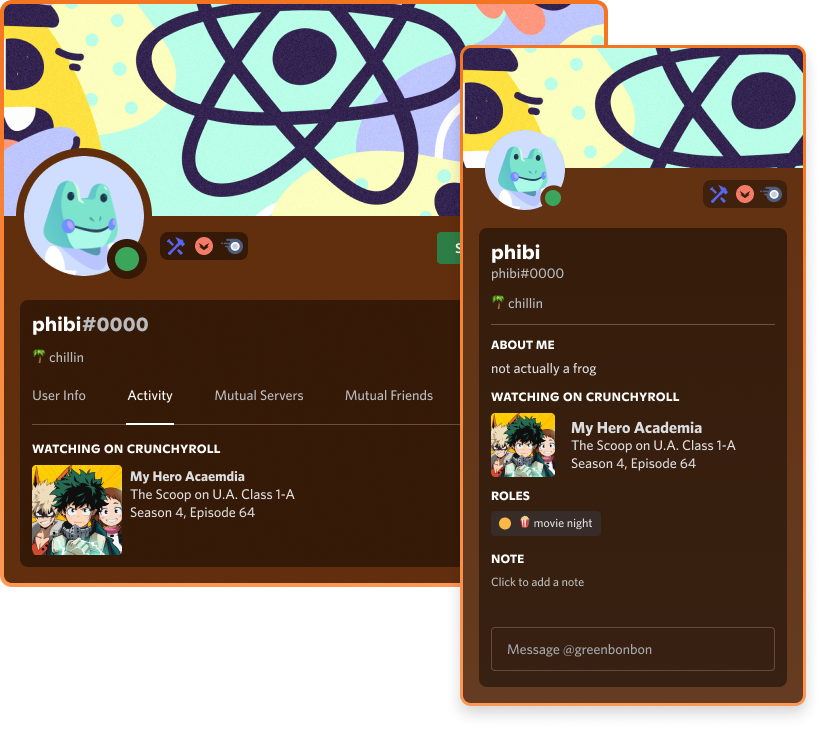
Once connected, when you start watching an anime on Crunchyroll, your Discord profile will update to show:
- The Series Title: e.g., Demon Slayer: Kimetsu no Yaiba
- The Episode: e.g., Season 2, Episode 10
- Time Elapsed: How long you’ve been watching.
- Watch Button: Sometimes, friends can click a button on your profile to go directly to that episode on Crunchyroll.
Why do this? It’s a great conversation starter. Friends can see you’re watching a show they love and DM you to talk about it!
🛡️ Privacy: How to Hide Your Activity
“I’m watching a guilty pleasure anime and I don’t want anyone to know.”
You don’t need to unlink your account to hide your activity. You can toggle it off temporarily.
- Go to User Settings > Connections.
- Find Crunchyroll in your list.
- Toggle OFF the switch labeled “Display on profile” (or “Display details on profile”).
Your account remains linked, but your anime watching habits stay private until you turn it back on.
🔌 How to Disconnect (Unlink) Completely
If you want to remove the connection entirely, you should do it from both sides to prevent bugs.
- In Discord: Go to User Settings > Connections, find Crunchyroll, and click the “X” to remove it.
- In Crunchyroll: Go to your Account Settings on the Crunchyroll website (specifically the “Connected Apps” section) and click Disconnect.
❓ Frequently Asked Questions (FAQ)
Q: Do I need Crunchyroll Premium to use this?
A: No.
This feature works for both Free and Premium Crunchyroll users. As long as you are logged in and watching, Discord will detect it.
Q: Will it show my watch history to everyone?
A: No.
It only shows what you are watching right now. It does not publish a list of your past history or your queue to Discord.
Q: My status isn’t updating. Why?
A: Check these fixes:
- Browser vs. App: Sometimes the integration works better if you use the Crunchyroll web player on a browser rather than a Smart TV app.
- Discord Priority: If you are also playing a game (like League of Legends) that has Rich Presence, the game status might override the anime status.
- Reconnect: Try disconnecting and reconnecting the account in the Settings menu.
Q: Can I watch anime with friends through this?
A: Not directly.
The “Connections” feature is just for status. To watch together, you would need to use Discord Screen Share (streaming your browser to a Voice Channel) or use Discord’s “Watch Together” activity if available in your region.
🌟 Summary
Linking Crunchyroll to Discord is the best way to find fellow anime fans in your servers.
- Link in User Settings > Connections.
- Watch your favorite anime.
- Let friends see what you’re binging!
Next Step: Head to User Settings > Connections right now and see if you’ve already linked your account. If not, click that orange logo and show off your anime taste!