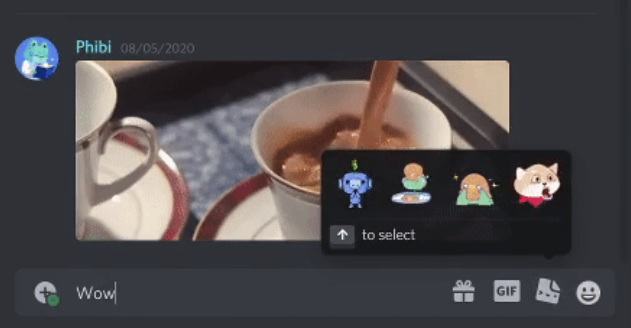
“I typed ‘Hello’ and a giant waving Wumpus popped up. What is this?”
“How do I stop these stickers from blocking my chat box?”
If you have noticed stickers appearing automatically while you type, you are seeing Discord’s Sticker Suggestions. For some, it’s a fun way to express emotions quickly. For others, it’s a distraction.
The short answer: Sticker Suggestions analyze the words or emojis you type and instantly offer a matching Sticker from your library. You can click them to send, or turn them off completely in your settings.
Here is your complete guide to mastering (or silencing) this feature on Desktop and Mobile.
💡 What Are Sticker Suggestions?
Sticker Suggestions are a smart feature designed to save you time. Instead of opening the Sticker menu and scrolling through 50 different servers to find a “Laughing” sticker, you just type :joy: or “lol”, and Discord automatically previews relevant stickers right above your text box.
- Nitro Users: It suggests stickers from all servers you have joined.
- Free Users: It suggests stickers from the current server (if available).
🚀 How to Use Sticker Suggestions
Using them is seamless once you know the controls.
1. Trigger the Suggestion
Simply start typing a message in the chat bar. Keywords like “Happy,” “Sad,” “Love,” or typing an emoji code like :heart: will trigger the pop-up.
2. Select a Sticker
- Mouse: Hover over the sticker you want.
- Clicking it usually sends it immediately as a standalone message.
- Shift + Click (or specific settings) may attach it to your text.
- Keyboard:
- Press the Up Arrow
↑to enter the suggestion window. - Use Left/Right Arrows
←→to browse options. - Press Enter to send.
- Press the Up Arrow
Pro Tip: If the pop-up is in your way, just press the Esc key to dismiss it instantly.
⚙️ How to Turn Off Sticker Suggestions
If you find the pop-ups annoying or distracting, you can easily disable them. The settings are slightly different for PC and Mobile.
🖥️ On Desktop (PC/Mac)
- Click the Gear Icon (User Settings) in the bottom left.
- Select Text & Images from the left sidebar.
- Scroll down to the Stickers section.
- Toggle “Sticker Suggestions” to OFF (Grey).
📱 On Mobile (iOS/Android)
- Tap your Profile Picture in the bottom right.
- Tap the Gear Icon (top right) to open Settings.
- Scroll down and tap Text & Images.
- Toggle “Sticker Suggestions” to OFF.
❓ Frequently Asked Questions (FAQ)
Q: Why aren’t any stickers showing up?
A: Check your Nitro status.
If you do not have Discord Nitro, you can only use stickers from the server you are currently in. If that server has no custom stickers, no suggestions will appear. Also, ensure the feature is enabled in your settings.
Q: Can I customize which stickers appear?
A: No.
The suggestions are based on Discord’s algorithm, which matches your text to the sticker’s name or assigned emoji tags. You cannot manually “teach” it to show a specific sticker for a specific word.
Q: Does this make Discord lag?
A: It can.
On older devices or slow internet connections, loading animated sticker previews instantly while typing can cause input lag. If your typing feels sluggish, disabling Sticker Suggestions often fixes the problem.
Q: Is this the same as Emoji Suggestions?
A: No.
Emoji suggestions appear as a small list of text codes (like :smile:). Sticker suggestions appear as a large horizontal bar of images above the chat box. You can disable one and keep the other.
🌟 Summary
Sticker Suggestions are great for power users who want to react fast.
- Type a keyword to see options.
- Press Enter to send.
- Go to Text & Images settings to turn it off if you prefer a clean screen.
Next Step: Open a chat right now and type :wave: to see which of your servers has the best “Hello” sticker!