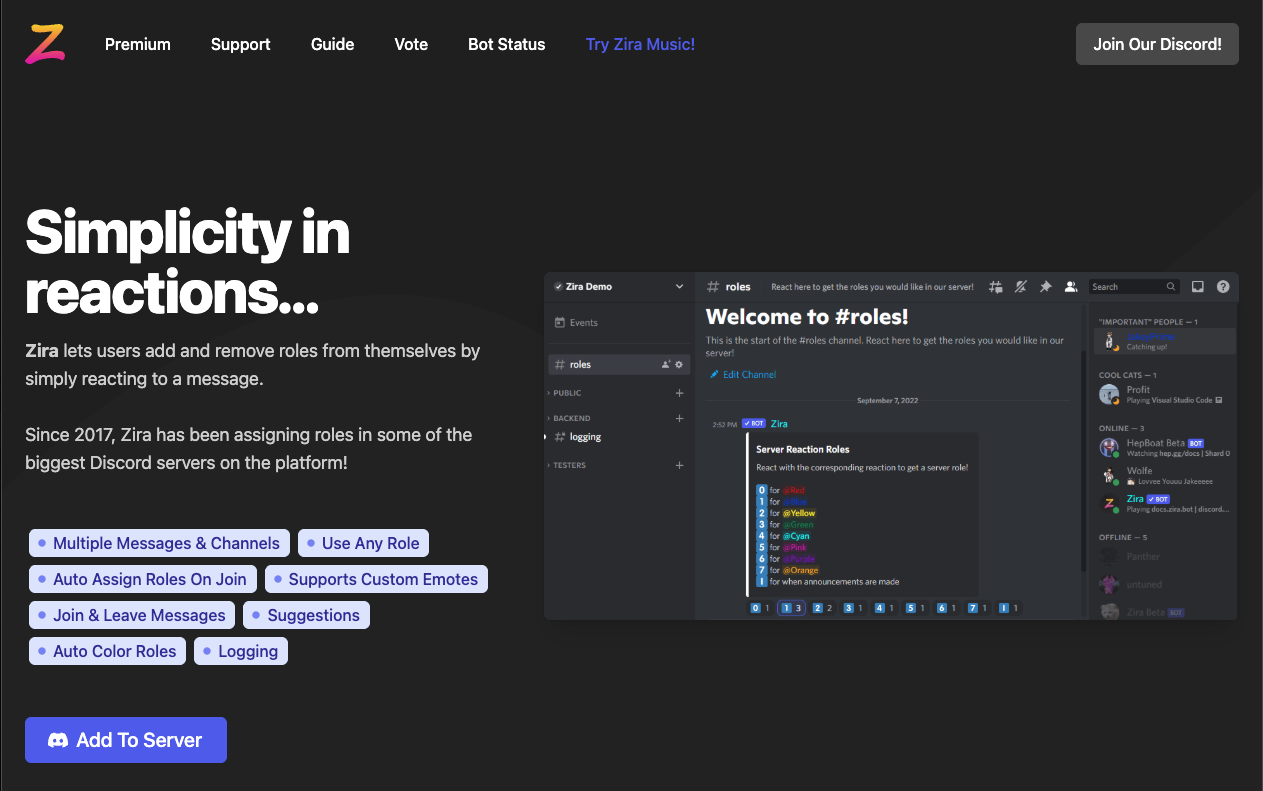
Zira is the gold standard for “Reaction Roles” on Discord.
While multipurpose bots like Carl-bot or MEE6 offer reaction roles, Zira is a specialist. It is lightweight, reliable, and offers advanced button behaviors (like “Toggle,” “Once,” and “Remove”) that general bots often lack. Since 2017, it has been the go-to tool for admins who want a clean, automated way to assign roles.
🛠️ Why Zira? (The Specialist Advantage)
Zira focuses on doing one thing perfectly: Managing Roles via Reactions.
1. Unlimited Potential
Unlike many bots that cap the number of reaction roles behind a paywall, Zira is incredibly generous with its free limits. You can set up hundreds of roles without paying a cent.
2. Flexible Modes
Zira isn’t just “click to get role.”
- Toggle: Click to add, click again to remove (Standard).
- Once: Click to add, but clicking again does not remove it (Great for “I Agree to Rules”).
- Remove: Click to remove a specific role.
⚙️ Core Mechanics: The 3-Step Flow
Zira works on a strict logic flow. You must tell it:
- Where? (Channel)
- Which Message? (Message ID)
- What? (Emoji + Role)
If you skip a step, the bot won’t know what to do.
💻 Essential Command List
Zira uses Slash Commands (/).
🛠 Setup Commands
| Command | Description |
| /channel [Channel] | Step 1: Sets the active channel. |
| /message set [ID] | Step 2: Sets the active message by ID. |
| /message send [Text] | Makes Zira post a message for you. |
🔘 Role Commands
| Command | Description |
| /normal [Emoji] [Role] | Step 3: Adds a standard toggle reaction role. |
| /once [Emoji] [Role] | Adds a role that cannot be removed by the user. |
| /remove [Emoji] [Role] | Creates a button that removes a role. |
| /list | Shows all active configurations. |
| /delete | Removes a reaction role setup. |
🚀 Setup Tutorial: The “Hard Part” Made Easy
90% of users get stuck on getting the Message ID. Here is the foolproof method.
Prerequisite: Enable Developer Mode
- Go to User Settings > Advanced.
- Turn ON “Developer Mode.”
- Why? You cannot copy Message IDs without this.
Step 1: Prepare the Message
Go to your #roles channel and type your message.
- Example: “React with 🟢 for Green Role, 🔵 for Blue Role.”
Step 2: Configure Location
- Type /channel. Select the current channel.
- Right-click your message (from Step 1) and select “Copy Message ID”.
- Type /message set [Paste ID here].
- Zira now knows exactly where to look.
Step 3: Add the Button
- Type /normal.
- Emoji: Select 🟢.
- Role: Select @GreenRole.
- Hit Enter.
- Zira will instantly add the 🟢 reaction to your message.
Step 4: Check Permissions (CRITICAL)
If Zira fails to add the role when you click:
- Go to Server Settings > Roles.
- Drag the Zira role ABOVE the @GreenRole.
- Rule: Bots cannot assign roles higher than their own.
❓ FAQ: Troubleshooting
Q: I get the error “Please set a channel and message first.”
A: You skipped the flow.
You must run /channel AND /message set before you can run /normal. Zira has a short memory; it needs to know the target message.
Q: Zira isn’t reacting to the message.
A: Permissions.
Does Zira have “Add Reactions” and “Read Message History” permissions in that channel?
Q: Can I use custom emojis?
A: Yes.
Zira can use custom emojis from your server. If you want to use emojis from other servers, Zira needs to be in those servers too (or have Nitro capabilities via premium, depending on updates).
Q: How do I delete a setup?
A: /delete
You can delete by Message ID or wipe all configs in a channel.
Q: Can I make colored embeds?
A: Yes.
Use /embed builder. Zira creates a visual interface to design a colored box with titles and footers. Once done, it posts it, and you can use /message set on that new embed.
🌟 Admin Tip: The “Gatekeeper” Setup
Use Zira to verify rules.
- Create a role called “Member”. (Set channels so only “Member” can see them).
- Post your rules.
- Use /once with a ✅ emoji to give the “Member” role.
- New users read rules, click ✅, and the server unlocks. They cannot unclick it to lose access (thanks to /once).
Next Step for You: Invite Zira, turn on Developer Mode, and set up your first role panel today!