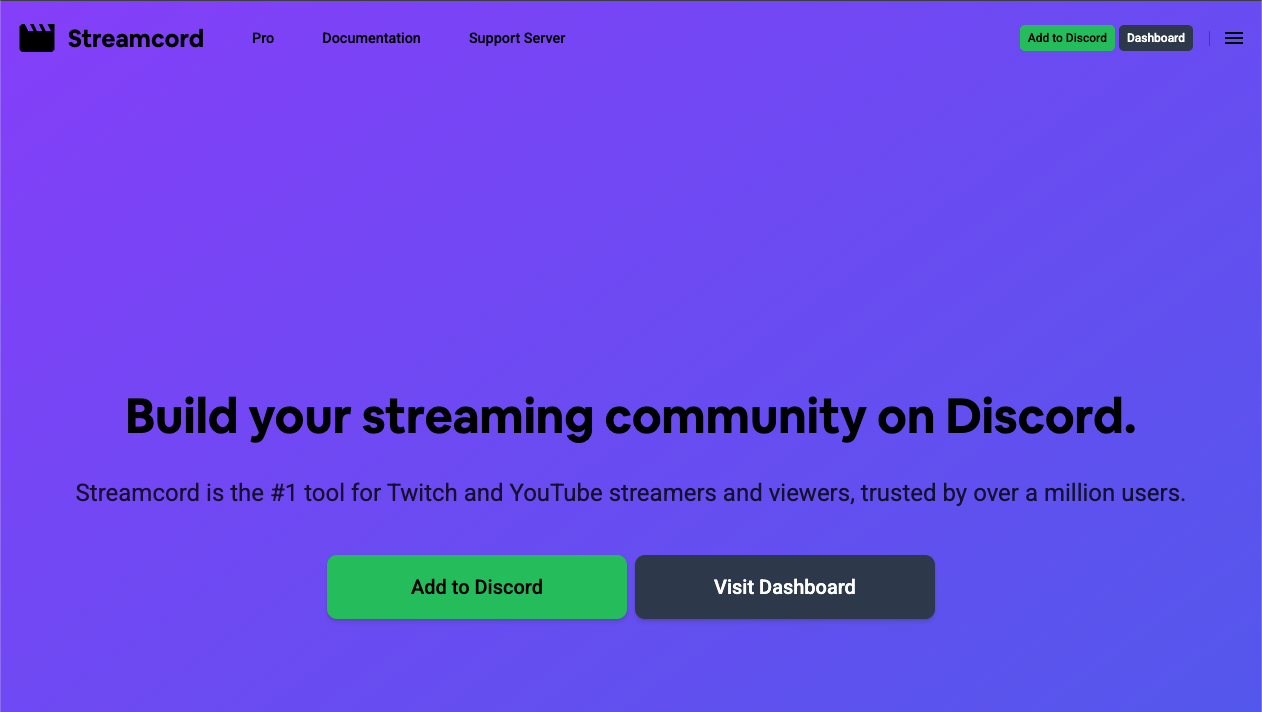
Streamcord (formerly TwitchBot) is the definitive Discord bot for Twitch integration, used by over 1 million servers to send live stream notifications.
“Did my favorite streamer just go live?”
Streamcord answers this automatically. Whether you are following a massive esports tournament or your friend’s first broadcast, Streamcord ensures the notification hits your Discord server the moment the stream starts. It is the “Defacto Standard” for stream alerts.
🌏 Why Streamcord? (Bridging the Time Difference)
This bot is particularly essential for gamers in regions like New Zealand (NZ), Australia, and Asia who follow North American or European streamers.
1. Overcoming Timezones
For international fans, streamers often go live at 3 AM or during work hours. Streamcord acts as a 24/7 monitor. By pushing notifications to Discord—an app gamers always have open—it ensures you never miss a rare stream just because you weren’t refreshing Twitch.
2. Community “Watch Parties”
When the notification pops up in a server, it acts as a digital campfire. “Oh, Shroud is live? Let’s hop in VC and watch together.” Streamcord turns solitary viewing into a communal event.
⚙️ Key Features
Streamcord does two things perfectly: Notifications and Role Management.
🔴 Stream Notifications
When a tracked Twitch channel goes live, the bot posts a customizable message in your server.
- Smart Filtering: You can set it to only notify if they are playing a specific game (e.g., only notify when playing Valorant).
- Cleanup: Optionally delete the message when the stream ends to keep your channel clean.
🟣 Live Role (Crucial Feature)
This feature automatically assigns a role (e.g., “Live Now”) to any server member who starts streaming on Twitch.
- Visibility: This moves the streamer to the top of the member list and highlights their name purple, providing massive visibility for community streamers.
💻 Essential Command List
Streamcord uses Slash Commands (/), but the Web Dashboard is recommended for setup.
🔔 Notifications
| Command | Description |
| /streamers add [Name] | Adds a streamer to the notification list. |
| /streamers remove | Removes a streamer. |
| /streamers list | Shows all currently tracked channels. |
| /notification preview | Sends a test alert to check your formatting. |
⚙️ Settings
| Command | Description |
| /dashboard | Best Command. Generates a link to the Web Dashboard. |
| /user [Name] | Displays info about a Twitch user. |
🚀 Setup Tutorial: Notifications & Live Role
The dashboard is the easiest way to configure the bot.
Step 1: Invite the Bot
Visit the Streamcord website and click “Add to Discord.”
- Permissions: Ensure it has “Manage Roles” (for Live Role) and “Send Messages.”
Step 2: Set Up Notifications
- Log in to the Streamcord Dashboard.
- Select “Notifications” > “Add Notification.”
- Streamer Name: Enter the Twitch username.
- Channel: Select the Discord channel for the alert.
- Message: Customize it! (e.g., “{streamer} is live! Come hang out: {link}”).
Step 3: Set Up “Live Role” (Advanced)
This is where most people get stuck. Follow carefully:
- Create a Role: In Discord, create a role called “Live” or “Streamer.”
- Order Matters: Go to Server Settings > Roles. Drag the Streamcord role ABOVE the “Live” role. (The bot cannot assign a role higher than itself).
- Dashboard Config: Go to the dashboard > “Live Role.”
- Select your “Live” role and click Save.
- Requirement: Members must connect their Twitch account to Discord connections for this to work.
❓ FAQ: Troubleshooting
Q: Notifications aren’t showing up.
A: Check permissions and API lag.
- Does the bot have permission to speak in that channel?
- Twitch API Lag: Notifications are not instant. There is usually a 2-10 minute delay between the stream starting and the bot posting. This is normal.
Q: The Live Role isn’t working.
A: Check the Role Hierarchy.
99% of the time, the Streamcord role is physically below the Live role in the server settings list. Drag the bot’s role to the top. Also, ensure the user has “Display current activity as a status message” enabled in their personal User Settings.
Q: Can I track YouTube streams?
A: No.
Streamcord removed YouTube support due to API instability. For YouTube, use a dedicated bot like YouTube or MEE6.
Q: What is the limit?
A: 25 Notifications.
The free plan allows up to 25 tracked streamers per server. For unlimited tracking, you need Streamcord Pro.
🌟 Admin Tips: Building a Streamer Community
Use Streamcord to support your members.
- “Self-Promo” Channel: Create a #now-live channel specifically for Streamcord alerts. This keeps your general chat clean while giving streamers a place to shine.
- The “Streamer” Role: Give a “Streamer” role to trusted content creators, and configure Streamcord to only give the “Live Now” role to people who already have the “Streamer” role. This prevents random members from spamming your member list just by going live.
Next Step for You: Invite Streamcord and set up a notification for your favorite streamer to test the delay!