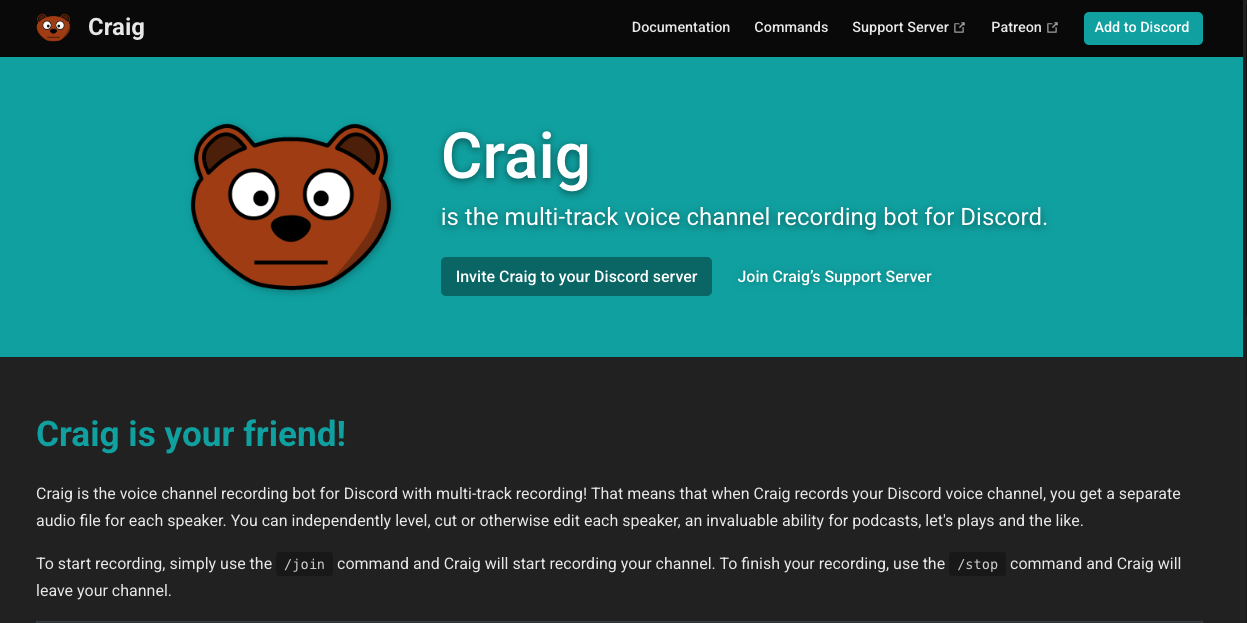
Craig is the #1 voice recording bot for Discord, designed specifically for podcasters, creators, and professionals.
What makes Craig unique?
Unlike other bots that record all voices into a single file (like a standard screen recording), Craig performs Multi-Track Recording. It records each speaker into a separate audio file. This allows editors to mute one person’s cough, adjust volume levels individually, and produce studio-quality audio directly from a Discord call.
🎙️ History: Solving the “Bad Audio” Problem
- Developer: Created by Yahweasel.
- Launch: Released in 2017 to solve the nightmare of editing podcast audio recorded over the internet.
- Philosophy: “Privacy and Quality.” Craig visibly changes its nickname to Craig [RECORDING] so no one is ever recorded without knowing. It is strictly compliant with privacy standards.
⚙️ Key Features
1. Multi-Track Recording (The Killer Feature)
If you have 5 people in a call, Craig gives you 5 separate WAV or FLAC files.
- Benefit: If User A screams while User B is talking, you can delete User A’s track in editing without ruining User B’s audio.
2. Auto-Sync
Internet lag causes audio drift. Craig automatically aligns the files so that when you drop them into an editor (like Audacity or Premiere Pro), they are perfectly synchronized.
3. EnnuiPanel (Web Recording)
For users with bad internet, Craig offers EnnuiPanel.
- Instead of recording the compressed Discord audio, it records the raw audio from the user’s browser and uploads it. This bypasses Discord’s bitrate limits for pristine quality.
4. Backup Bot (“Giarc”)
Craig has a brother named Giarc (Craig backwards). You can invite both to record simultaneously. If Craig crashes, Giarc saves the day.
💻 Essential Command List
Craig uses Slash Commands (/).
🎙️ Recording
| Command | Description |
| /join | Main Command. Joins your VC and starts recording. |
| /stop | Stops recording and leaves. |
| /note [Text] | Adds a timestamped note to the recording (e.g., “Edit this out”). |
📂 Management
| Command | Description |
| /recordings | Resends the download link for recent sessions. |
| /server-settings | Configures who can use the bot. |
🚀 Setup Tutorial: Your First Recording
Note: You do not need to set up an account. It works instantly.
Step 1: Invite the Bot
Visit craig.chat and invite it.
Step 2: Start Recording
- Join a Voice Channel.
- Type /join.
- Craig enters and says: “Recording started.”
- Important: Craig will instantly send you a DM (Direct Message) with a download link. Do not delete this!
Step 3: Stop & Download
- Type /stop when finished.
- Open the DM link.
- Select your preferred format:
- Audacity Project: Best for editing. Opens all tracks instantly.
- FLAC/WAV: Best quality.
- AAC/MP3: Smaller file size.
- Download the ZIP file and extract it.
❓ FAQ: Troubleshooting
Q: I didn’t get the DM link.
A: Check Privacy Settings.
If your DMs are closed, Craig cannot send the link.
- Fix: Enable “Allow Direct Messages from Server Members” in your Privacy Settings. Then run /recordings to get the link back.
Q: How long can I record?
A: 6 Hours.
The limit is 6 hours per session. If you need more, simply /stop and /join again to reset the timer.
Q: Is it free?
A: Yes.
The core multi-track recording is 100% free. There is a Patreon for extra features (like longer recording time or Google Drive auto-upload), but the free version is fully functional for most users.
Q: Why do I only hear one person?
A: You downloaded the wrong file.
Make sure you didn’t select “Single Track Mix.” Download the Multi-track ZIP file. You need to unzip it to see the separate files for each person.
🌟 Pro Tip: The “Giarc” Safety Net
If you are recording a once-in-a-lifetime interview, do not trust just one bot.
Invite Giarc (the backup bot) and run /join with both bots.
If Discord lags and Craig disconnects, Giarc will keep recording. Redundancy is the mark of a pro.
Next Step for You: Invite Craig, jump in a VC, and record a 10-second test clip to see how the multi-track files look on your computer!