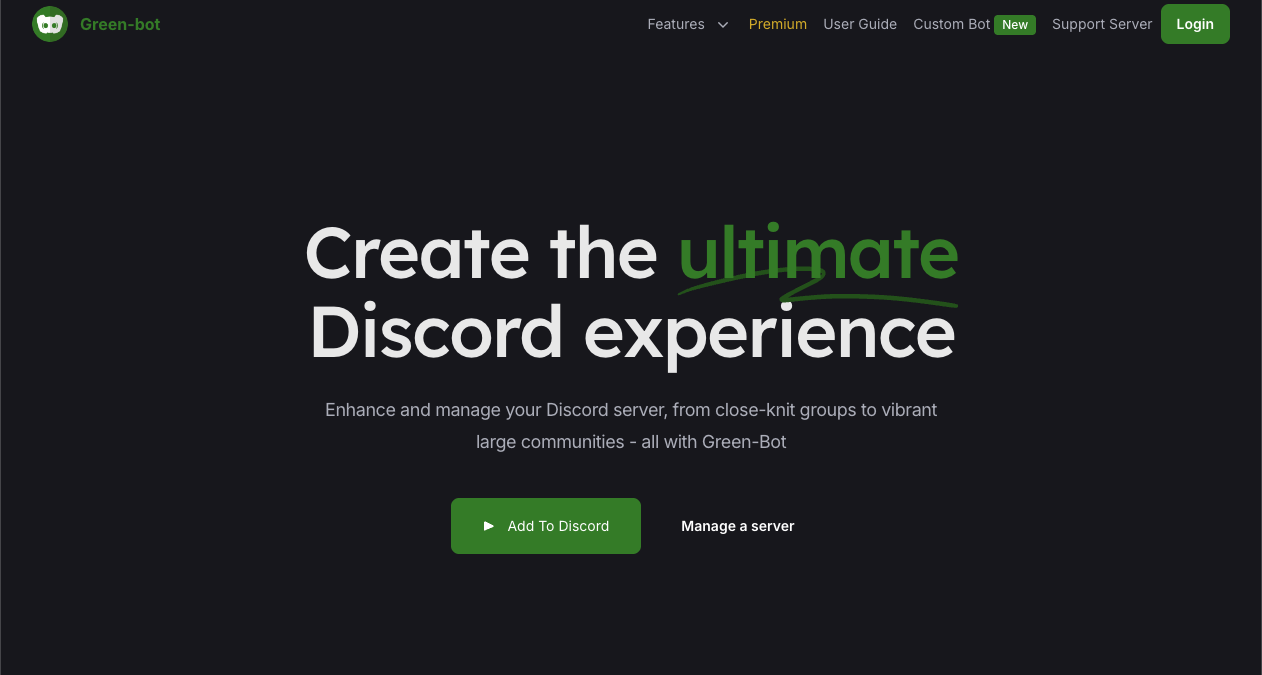
Green-bot is a high-performance music bot that offers a premium feature for free: 24/7 playback.
While giants like MEE6 or FredBoat lock “Always Online” modes behind paywalls, Green-bot allows your server to act as a radio station for free. It will stay in the Voice Channel even when everyone leaves, making it the top choice for “Lo-fi Study” servers or community lounges.
🎵 History: Filling the Void
- The Purge: In 2021, Google shut down legendary music bots like Rythm and Groovy. This left a massive void in the Discord ecosystem.
- The Rise of Green-bot: Developed by the GreenBotDevelopment team, this bot rose to fame by offering multi-source support (Spotify, SoundCloud) and maintaining features that others cut to save costs. Today, it serves millions of servers.
⚙️ Key Features
1. Free 24/7 Mode
This is the killer feature.
- Standard Bots: Leave the channel 2 minutes after the last person disconnects.
- Green-bot: Stays forever (if enabled). You can log in at 3 AM and the music is already playing.
2. Button Controls
Forget typing /skip. When the music starts, Green-bot posts an embed with interactive buttons:
- ⏯️ Pause/Resume
- ⏭️ Skip
- 🔀 Shuffle
- 🔉 Volume Down / 🔊 Volume Up
3. Audio Filters
It comes with fun filters like Nightcore (fast/high pitch), Bassboost, and 8D Audio.
💻 Essential Command List
Green-bot uses Slash Commands (/).
🎵 Playback
| Command | Description |
| /play [Query/URL] | Plays a song or playlist from Spotify/SoundCloud. |
| /pause | Pauses the track. |
| /skip | Skips to the next song. |
| /queue | Shows the upcoming list of songs. |
| /leave | Disconnects the bot manually. |
🎛️ Settings
| Command | Description |
| /247 | Crucial. Toggles “Always Online” mode ON/OFF. |
| /filter [Name] | Applies filters like Nightcore or Bassboost. |
| /volume [1-100] | Changes the volume. |
| /dj | Sets the DJ role for admin control. |
🚀 Setup Tutorial: The “Radio Station” Configuration
How to set up a 24/7 Lo-fi station.
Step 1: Invite the Bot
Visit green-bot.app and invite it.
- Permissions: It needs “Connect,” “Speak,” and “Send Messages.”
Step 2: Start the Music
- Join a Voice Channel.
- Type /play lofi hip hop (or paste a long Spotify playlist link).
- The bot joins and starts playing.
Step 3: Enable 24/7 Mode
- Type /247.
- Bot replies: “I will now stay in the voice channel 24/7.”
- Done. You can leave the channel, and the bot will keep playing.
Step 4: Lock Controls (DJ Role)
To prevent trolls from skipping songs:
- Create a role named DJ.
- Give it to trusted members.
- Type /dj role add @DJ.
Now, only DJs can use /skip or /stop.
❓ FAQ: Troubleshooting
Q: YouTube links aren’t working.
A: Use Spotify.
YouTube is aggressively blocking Discord bots. If /play [YouTube Link] fails, try searching by name or using a Spotify/SoundCloud link. Green-bot is optimized for these alternatives.
Q: The bot is lagging.
A: Change Server Region.
Go to Voice Channel Settings > Overview > Region Override. Change it from “Automatic” to a specific region like “US East” or “Japan.” This often fixes stuttering.
Q: What is Green-bot Premium?
A: Premium unlocks:
- Green-bot 2 & 3: Use multiple bots in different channels simultaneously.
- Higher Quality Audio: Uncompressed sound.
- AI Features: Auto-generated playlists.
Q: I can’t control the bot.
A: Join the channel.
You must be in the same Voice Channel as the bot to use commands like /skip.
🌟 Admin Tip: The “AFK” Radio
Create a specific Voice Channel named “🎵|Lounge Radio”.
- Summon Green-bot there.
- Load a 100-song playlist.
- Enable /247.
- Mute the bot’s ability to speak in text channels (so it doesn’t spam “Now Playing”).
Now you have a permanent background music room for your community to chill in.
Next Step for You: Invite Green-bot, load a playlist, and type /247 to start your server’s radio station!