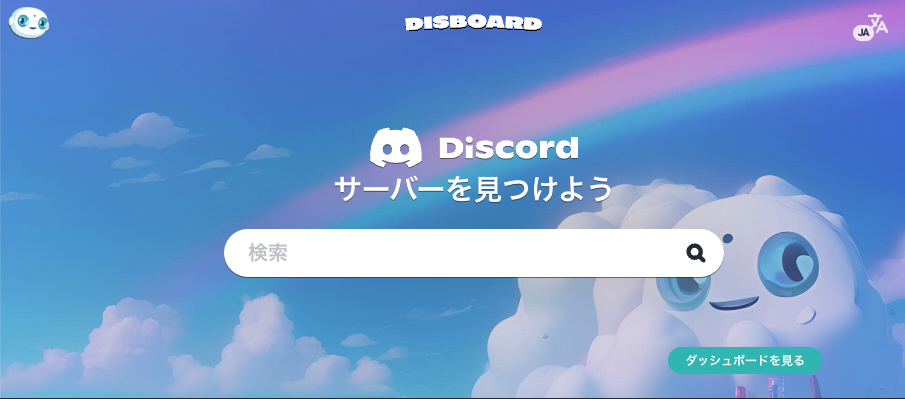
Introduction: What is Disboard?
Disboard (disboard.org) is a public website and bot that acts as the largest search platform for Discord servers. It’s a powerful, free tool for server owners to promote their community and for users to discover new servers based on their interests using keywords, tags, and categories.
This guide explains everything from the basics to advanced growth strategies, including how to master the all-important /bump command.
Key Benefits for Server Owners
Listing your server on Disboard is one of the most effective free ways to grow your community.
- Increased Visibility: Your server gets listed on a public, searchable directory, making it easy for new users to find.
- Free Promotion: You can advertise your server to a massive audience without spending any money.
- Targeted Members: By using specific tags and a clear description, you attract users who are already looking for your type of community.
- The
/bumpCommand: This is Disboard’s core feature. It allows you to “bump” your server to the top of the list, refreshing its visibility. - Review System: Positive reviews from existing members build social proof and trust, encouraging others to join.
Disboard’s Main Features
Disboard’s platform is built on a few simple, powerful features:
- Server Listings & Categories: Each server has a “card” showing its name, description, member count, and tags. Servers are sorted into categories like “Gaming,” “Community,” or “Technology.”
- Search & Filtering: Users can search for servers using keywords (which search tags), filter by category, or sort by member count and bump time.
- Server Reviews: Users who have been in a server for more than five days can leave a review, helping others decide if the server is a good fit.
- The
/bumpCommand: This is the most important feature. When you (or a member) use the/bumpcommand in your server, Disboard updates your server’s timestamp and moves it to the front page of the “Bumped” list, giving it immediate visibility.
How to Add & Set Up the Disboard Bot (Step-by-Step)
You must add the Disboard bot to your server to get listed.
- Log In & Add Server: Go to the Disboard website (
disboard.org) and log in with your Discord account. - Go to Dashboard: Navigate to your server dashboard and click “Add New Server.”
- Invite the Bot: Select the server you want to list. This will prompt you to invite the “Disboard.org” bot to that server.
- Grant Permissions: Authorize the bot. It will need “Read Messages” and “Send Messages” permissions in the channel where you plan to use the
/bumpcommand.
Optimizing Your Server Profile
This is the most critical step. A good profile gets members.
- Enter Accurate Info: Fill out all fields on the Disboard dashboard for your server.
- Use Relevant Tags: This is how users find you. Disboard’s search only searches your tags, not your description. Use a mix of broad (e.g., “gaming”) and specific (e.g., “valorant,” “minecraft-smp”) tags.
- Write a Great Description: Make your server sound exciting. What makes it unique? What are the rules?
- Set NSFW Correctly: If your server contains NSFW content, you must mark it. Failure to do so can get your server delisted.
- Set to “Public”: Ensure your server is set to “Public” on the Disboard dashboard so it appears in listings.
Mastering the /bump Command
This is your main tool for growth.
- How it Works: Using the
/bumpcommand in your designated channel updates your server’s “bump time” and moves it to the top of the list. - Recommended Frequency: You can bump your server once every 2 hours. This is the most effective way to stay visible.
- Rules & Guidelines:
- DO NOT incentivize bumps (e.g., “Get a special role for bumping!”). This is against Disboard’s rules.
- DO NOT use automated tools or bots to bump for you. This will get you banned.
- Forcing members to bump or review is also prohibited.
Disboard Growth Strategies
A listing is not enough. You need a strategy.
- Write an Amazing Description:
- Be clear about your server’s theme and purpose.
- Highlight unique features (e.g., “active VCs,” “custom bots,” “weekly events”).
- Use formatting (like bullet points) to make it easy to read.
- Use Smart Tags:
- Use all available tag slots.
- Research popular tags in your category to see what users are searching for.
- Optimize Your Bump Times:
- Bump regularly every 2 hours.
- Pro-Tip: Try to bump during the “peak hours” when your target audience is most active (e.g., after school/work or on weekends).
- Encourage (but don’t force) Reviews:
- Create a positive, welcoming server environment.
- A server with many good reviews is much more likely to attract new members.
Frequently Asked Questions (FAQ)
General
Q: What is the official Disboard website?
A: https://disboard.org/
Q: Does Disboard have an official Discord server?
A: Yes, the invite link is available on their website for support.
Q: Does Disboard have paid options?
A: Currently, all main features (listing, bumping, reviewing) are free.
Server Listings
Q: Why isn’t my server showing up in search results?
A: Disboard’s search only searches your server’s TAGS, not its name or description. Make sure you have relevant tags on your server’s Disboard profile. Also, ensure your invite link is valid and your server is set to “Public.”
Q: How often can I bump my server?
A: Once every 2 hours.
Q: How do I update my server’s member count on Disboard?
A: The bot automatically updates this data when you use a command like /bump.
Q: My server’s invite link is expired. How do I fix it?
A: Use the /invite command in your server to update the invite link Disboard uses.
Disboard Bot
Q: How do I invite the Disboard bot to my server?
A: This is done through the Disboard website’s server setup process.
Q: What are the main commands?
A: /bump (updates your server on the list), /invite (updates your invite link), and /help (shows commands).
Q: What permissions does the Disboard bot need?
A: It only needs “Read Messages” and “Send Messages” permissions in the channels where you’ll use its commands.
Q: The Disboard bot isn’t responding.
A: Check that the bot is online and has the correct permissions in that specific channel.
Reviews
Q: Who can review a server on Disboard?
A: Users who have been a member of that server for at least five days.
Summary
Disboard is an essential, free tool for growing your Discord server. Its effectiveness depends on a clear strategy: a well-written profile, smart tags, and—most importantly—consistent /bump commands.
Table 1: Disboard Features & Benefits
| Feature | Description | Benefit for Server Owners |
| Server Listing | A public profile card for your server. | Provides key info and encourages joins. |
| Categories | Sorts servers by topic (e.g., Gaming). | Helps users find your community. |
| Search Function | Lets users search for keywords (tags). | Allows users to find your server easily. |
| Server Reviews | Feedback from members. | Builds trust and social proof. |
/bump Command | Moves your server to the top of the list. | Massively increases short-term visibility. |
| Multilingual | Supports many languages. | Reaches a wider, global audience. |
Table 2: Disboard Bot Commands
| Command | Description |
/bump | Updates your server’s position on the list. |
/invite | Updates the server’s invite link. |
/help | Displays a list of commands. |
Use this guide to master Disboard, and you’ll be on your way to building a larger, more active community.