Introduction
Linking your Discord account to a game allows you to invite Discord friends and even chat with them directly from inside the game itself. This removes the hassle of alt-tabbing or switching apps just to join a party.
This integration is a key feature for modern multiplayer games, and this guide will show you how to set it up for beginners, with step-by-step examples for Battlefield 6 and Marvel Rivals.
What Are the Benefits of Linking Discord and Games?
For beginners who might be wondering, “What’s the point?”—linking your accounts has three main benefits:
- Invite Friends Directly From In-Game: You can see your Discord friends in your game’s friend list and send them a party invite with one click.
- In-Game Discord Chat (on supported games): In some games (like Marvel Rivals), you can send Discord messages from your in-game chat. Your friend can reply from their Discord app, and you’ll see the message in-game.
- Detailed Game Status (Rich Presence): This automatically shows your friends what you’re doing, such as “Playing Conquest – 3/4 in Party,” so they know if they can join you.
These features make joining up with friends completely seamless.
How to Link Discord and Battlefield 6 (BF6)
In Battlefield 6, linking Discord to your EA Account is the key. This lets you invite Discord friends to your party directly from in-game, on both PC and console.
There are two easy ways to set this up.
Method 1: From Inside the Game
- Launch Battlefield 6 and open your friends list (the EA Connect tab).
- Select the “Connect to Discord” option.
- Follow the on-screen instructions to authenticate and link your EA and Discord accounts.
Method 2: From the EA Website
- Go to the official EA “Account Connections” page on their website.
- Find the Discord option and click the purple “Connect” button.
- Follow the prompts to sign in to both accounts and authorize the connection.
Once linked, a new “Discord” section will appear in your BF6 friend list, allowing you to invite your Discord friends directly.
How to Link Discord with Marvel Rivals (PC)
Marvel Rivals on PC has even deeper integration, allowing both invites and direct in-game chat with your Discord friends.
Step-by-Step Linking Guide
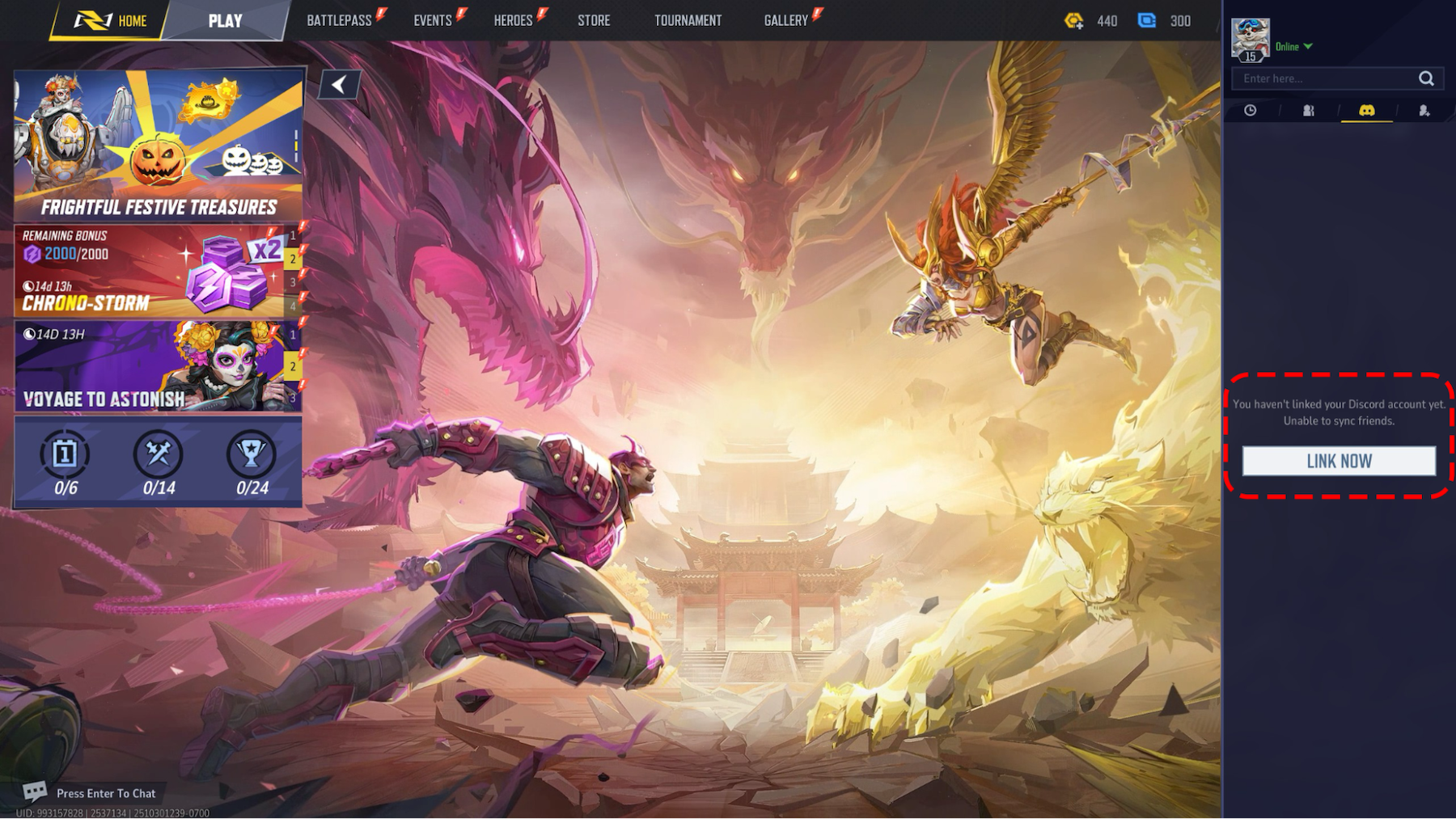
- From the Marvel Rivals main menu, open the “Friends List” in the top-right corner.
- Click the third tab at the top (the one with the Discord logo).
- Click the large “Link Now” button.
- On the next screen, press “Go” and follow the pop-up instructions to sign in to your Discord account and approve the connection.
That’s it! Your Discord friends will now appear in your Marvel Rivals friend list, where you can chat with them or invite them directly from the game.
Pro-Tip: You can use this feature to message a friend on Discord from the game and ask them to log on, even if they aren’t playing yet.
Other Popular Games with Discord Integration
Beyond BF6 and Marvel Rivals, many other games are adding direct Discord integration. Here are just a few:
- Rust (Facepunch Studios)
- Pax Dei (Mainframe Industries)
- SUPERVIVE (Theorycraft Games)
- Marvel Strike Force (Scopely)
- Predecessor (Omeda Studios)
- Splitgate 2 (1047 Games)
Note: Available features are subject to change based on each game’s updates.
FAQ – Discord Link Troubleshooting
Q1. My connection isn’t working. What do I do?
A1. Try these simple fixes:
- Check Accounts: Make sure you are linking the correct Discord account and the correct game account (e.g., your EA account).
- Relink: The best fix is often to unlink and relink the accounts. You can force an unlink from Discord in User Settings > Connections.
- Restart: Fully close and restart both the game and your Discord client.
Q2. How do I unlink my accounts?
A2. You can easily remove the connection from your Discord app:
- Open “User Settings” (the gear icon ⚙️).
- Go to the “Connections” tab.
- Find the game or platform (like EA or Xbox) you want to remove and click the “X” icon.
Q3. Can I link my console (PS5 or Xbox) accounts?
A3. Yes, you can! Connecting your PlayStation Network or Xbox account to Discord will show your console game as your status. Xbox also supports Discord Voice Chat directly on the console. However, the in-game friend invite feature (like in BF6) requires the game itself to support the integration.
Conclusion: Make Your Next Game Night Easier
Linking Discord to your games is a massive quality-of-life improvement, especially for multiplayer. With one simple setup, you can skip the hassle of switching apps and make joining friends seamless.
Take a few minutes to link your favorite games and make your next gaming session that much better.