Introduction: What is comcom Analytics?
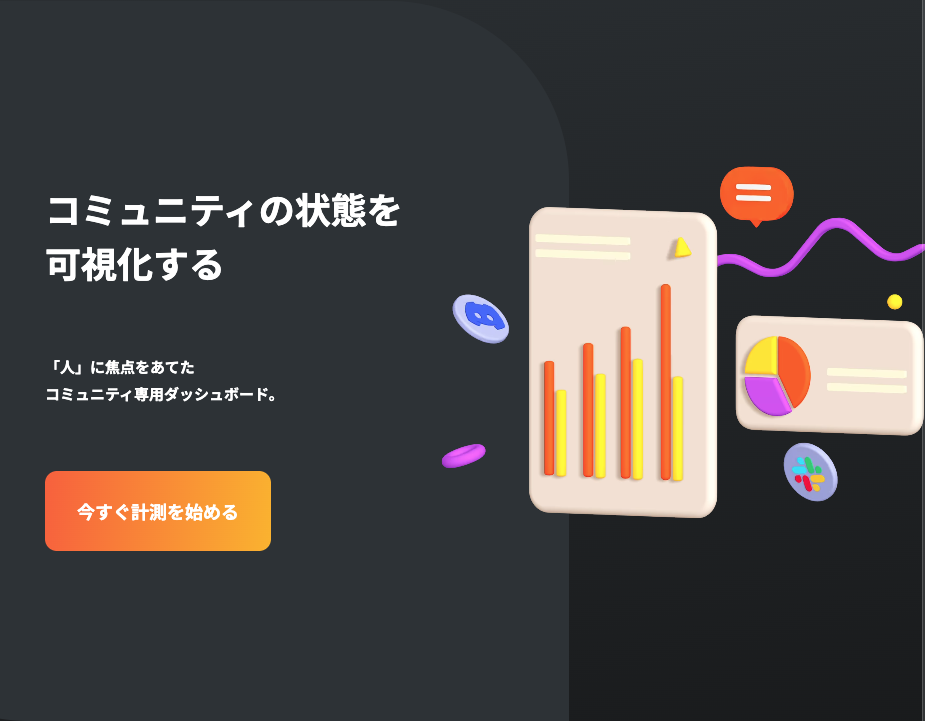
comcom Analytics is a data dashboard built specifically for Discord communities. It visualizes key metrics like member count, activity, and communication patterns, providing server owners with the insights they need to understand and grow their community.
Unlike other bots that just count messages, comcom Analytics’ biggest strength is its “human-focused” dashboard, which analyzes member contributions and, most importantly, member-to-member relationships.
What Makes comcom Analytics Different?
A “Human-Focused” Dashboard
The bot’s core philosophy is to focus on “people.” Instead of just showing raw numbers, it helps you see who is talking to whom, who is reacting to whom, and who your community’s key influencers are. This allows you to spot isolated members, reward hidden contributors, and build a healthier community.
Trusted by 2,000+ Communities
comcom Analytics is already used by over 2,000 Discord communities, proving its effectiveness and reliability as a tool for server owners.
Key Features: Visualizing Your Community
comcom Analytics provides a powerful dashboard with three main modules:
1. Trend Analysis
This module helps you track your community’s growth and changes over time.
- Visualize daily, weekly, and monthly unique users in a graph.
- Instantly grasp your community’s activity level.
- Measure the impact of events and track your server’s growth.
2. Activity Log
This feature measures the diverse ways members participate, helping you find hidden contributors.
- It measures more than just member count.
- Tracks messages, stamp reactions, mentions, and reactions received.
- Helps you identify and appreciate members who contribute by reacting, not just by talking.
3. Communication
This is the bot’s most unique feature. It maps the relationships between your members.
- It tracks who each member is “talking to,” “talked to by,” “reacting to,” and “reacted to by.”
- This helps you identify central figures in your community.
- You can also see which members might be isolated or disengaged.
How to Set Up comcom Analytics (3-Step Guide)
Getting started is incredibly easy and takes less than a minute.
- Go to
https://analytics.comcom.app - Log in with your Discord account and select the server you want to analyze.
- Install the bot to that server and start exploring your new dashboard!
Customizing Your Dashboard
You can fine-tune what your dashboard tracks.
How to Exclude Bot Data
To prevent bot activity from skewing your analytics:
- Go to your community’s dashboard.
- Click on “Settings” in the menu.
- Go to “Display Information Settings” > “Include bot data” and select “No.”
How to Exclude Channels
To hide data from private staff channels, bot-spam, or log channels:
- Go to your community’s dashboard.
- Click on “Settings” in the menu.
- Go to “Display Information Settings” > “Set channels to not display” and click “Set.”
- Uncheck the boxes for any channels you wish to exclude.
About Theme Tags
By setting “Theme Tags,” you can improve the accuracy of your community analysis. This also allows you to compare your server’s metrics against other, similar communities on the platform.
How to Use Slash Commands
comcom Analytics provides handy slash commands to access data directly from Discord.
| Command | Description |
/help | Displays the help message. You can select en or ja for the language. |
/rank | Displays an image of the server’s rankings. Options: type (mentioned, reaction), term (duration), visible (public/private). |
/analytics | Displays the server’s key metrics and trends. Options: visible (public/private). |
Frequently Asked Questions (FAQ)
Q: I can’t enter a “Community Theme” in the setup.
A: After typing your keyword, you must press the Enter key to register it. You may need to do this more than once to add the required number of keywords.
Q: Who can see the analytics dashboard?
A: Only users with the “Administrator” permission in the server can view the dashboard.
Q: What permissions does the bot require?
A: The bot requires standard permissions to read messages and view channels. This is necessary to gather data for the dashboard. All requested permissions are compliant with Discord’s Developer Policy.
Q: Can I see data from before I installed the bot?
A: No. The bot begins tracking data from the moment it is installed. It cannot see historical data from before it joined your server.
Q: Why is my data incomplete or not showing?
A: This happens if the bot does not have the correct permissions to see a category or channel. Please check your server’s role permissions to ensure the bot can read messages in the channels you want to track.
Q: How do you handle my server’s data and privacy?
A: We comply with Discord’s Developer Policy and our own Privacy Policy. All collected data is stored on an encrypted cloud database (Amazon Web Service), and access to this database is strictly controlled.
Conclusion
comcom Analytics is a powerful tool for server owners who want to move beyond simple member counts. Its “human-focused” approach to tracking trends, activity, and member-to-member communication provides deep, actionable insights. By visualizing who is talking to whom, you can identify key contributors, find members who may be feeling isolated, and make informed decisions to build a healthier, more active community.