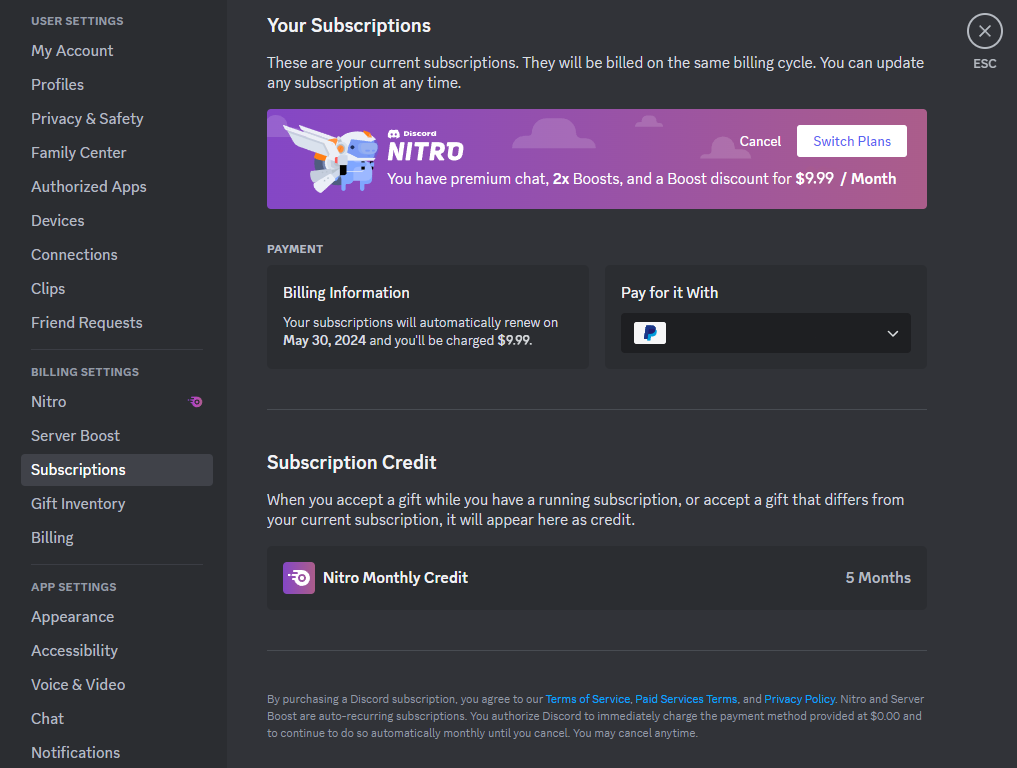
Where do you manage your Nitro settings? Everything related to payments, including canceling subscriptions and updating credit cards, is handled in the “User Settings” menu under two specific tabs: “Subscriptions” and “Billing.”
Managing your Discord payments shouldn’t be a mystery. Whether you need to download a receipt for tax purposes, update an expired credit card, or switch your Nitro plan from monthly to yearly, this guide covers every step of the process.
⚙️ How to Manage Your Subscriptions (Nitro & Boosts)
If you want to check when your next payment is due or cancel your plan, the “Subscriptions” tab is your command center.
Step-by-Step Guide:
- Open Discord and click the Gear Icon (User Settings) in the bottom left.
- Select “Subscriptions” from the left sidebar.
- Here, you will see a dashboard displaying:
- Current Plan: Your active Nitro or Server Boost subscriptions.
- Renewal Date: Exactly when you will be charged next.
- Billing Amount: The total price for the next cycle.
- Account Credit: Any unused Nitro credit gifted to you.
To Cancel or Change Plans: Click the “Cancel” or “Switch Plans” button next to the specific subscription in this menu.
💳 Managing Payment Methods
You can add credit cards, PayPal, or Venmo accounts in the “Billing” tab.
How to Add, Edit, or Remove Cards:
- Go to User Settings > Billing.
- Add: Click the “Add Payment Method” button.
- Edit: Click the “Edit” button next to an existing card to update the expiration date or billing address.
- Delete: Click “Edit” and then select “Delete Payment Method.”
Important Warning: Discord will not allow you to delete a payment method if it is currently tied to an active subscription. You must cancel the subscription (or add a new card) first.
🧾 How to Get Receipts & View History
Need proof of purchase? Discord keeps a detailed log of every transaction.
- Go to User Settings > Billing.
- Scroll down to the “Transaction History” section.
- Locate the specific charge.
- Click “Show Details” (or the expand arrow).
- Select “Download Invoice” to get a PDF receipt.
❓ FAQ: Common Billing Questions
We have compiled the most frequent issues users face regarding payments.
Troubleshooting
Q: My payment failed. What should I do?
A: First, check if your card has expired or if you have sufficient funds. If the issue persists, contact your bank. If the bank says the card is fine, submit a ticket to Discord Support.
Q: Why can’t I remove my credit card?
A: As mentioned above, you cannot remove a card that is paying for an active Nitro subscription. You must either cancel the subscription or add a new card and set it as the “Default” first.
Q: What does “DISCORD*ItemName” mean on my bank statement?
A: This is the standard descriptor Discord uses for charges. It verifies that the charge came from Discord.
Plans & Switching
Q: Can I transfer my Nitro subscription to another account?
A: No. Subscriptions are non-transferable. You cannot move a plan to a different user or account.
Q: What happens if I switch from Monthly to Yearly Nitro?
A: You will not be refunded. Instead, Discord calculates a “prorated” adjustment. The remaining value of your monthly plan is applied as a discount (credit) toward the new yearly price.
Q: What is “Proration”?
A: Proration is the calculation Discord uses when you change plans mid-cycle. It ensures you don’t lose money for the days you already paid for.
Q: Can I change my billing date?
A: No. Your billing date is automatically set to the day you first subscribed. The only way to change it is to cancel your plan, wait for it to expire, and resubscribe on the day you prefer.
🌟 Conclusion
Discord’s billing system is designed to be transparent. Just remember:
- “Subscriptions” tab = Cancel or Change Plans.
- “Billing” tab = Update Cards and Download Receipts.
Next Step for You: Go to your User Settings > Subscriptions right now and check your “Renewal Date” so you aren’t surprised by the next charge!