“I didn’t know you were streaming!”
“Why is my phone blowing up with Discord alerts?”
Whether you are a streamer trying to get viewers or a user trying to quiet your phone, Discord’s Go Live Notification system is a powerful tool. It allows users to send a push notification to their friends when they start streaming in a Voice Channel.
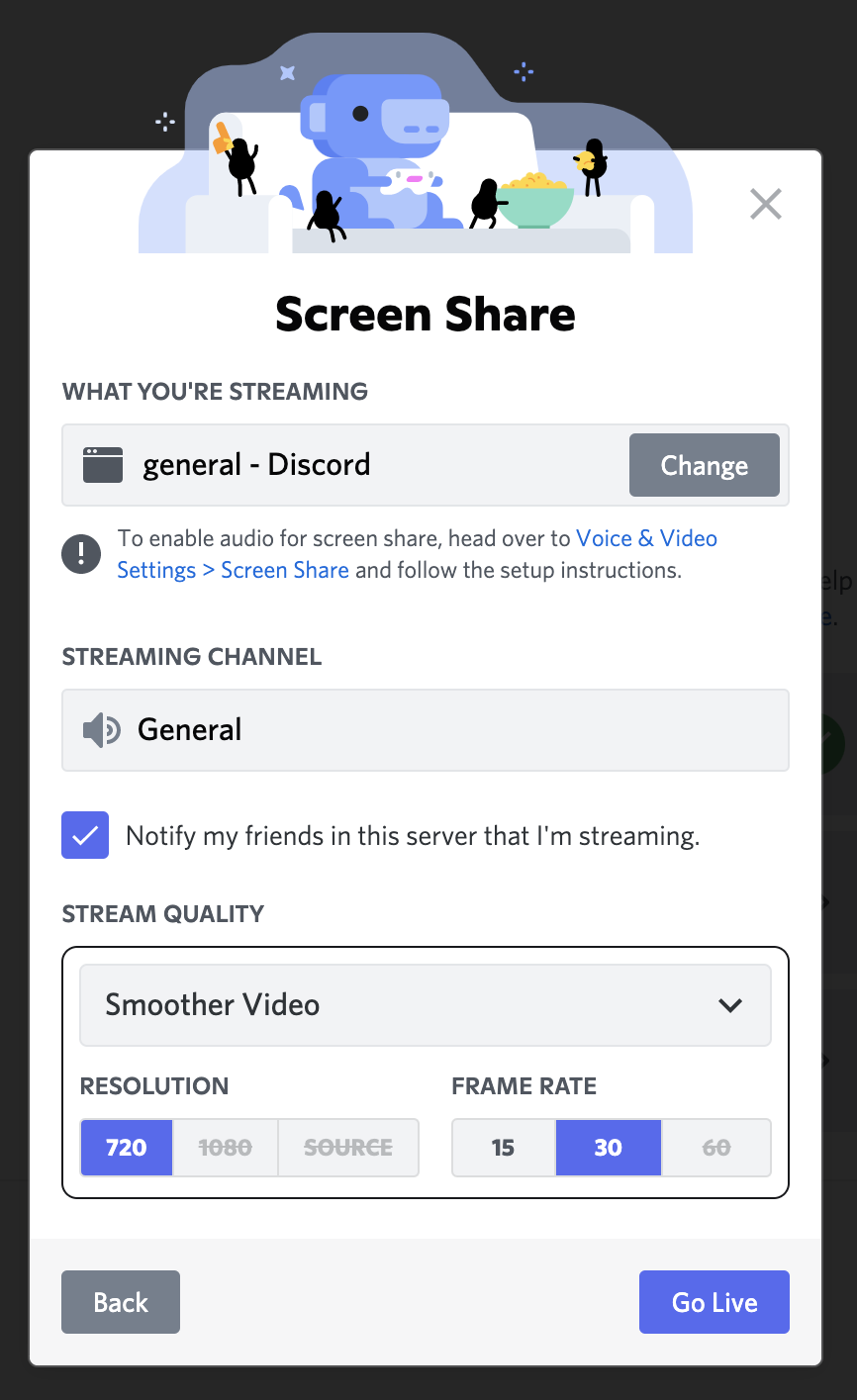
The short answer: When you start a stream, you can check a box to “Notify my friends in this server.” This sends a push alert to your friends who are also in that server, letting them know you are live.
Here is your complete guide to using this feature to boost your viewership, and how to turn it off if you prefer silence.
🎥 For Streamers: How to Send a Go Live Notification
Want to gather a crowd? You don’t need to @everyone anymore.
Step-by-Step:
- Join a Voice Channel.
- Click the Share Your Screen button (monitor icon).
- Select the game or application you want to stream.
- Look for the Checkbox: Before you hit “Go Live,” look for the option that says “Notify my friends in this server.”
- Check it and click Go Live.
⚠️ The Rules (Limitations)
You cannot spam this button. Discord has strict limits to prevent abuse:
- The 15-Minute Rule: You can only send a notification once every 15 minutes. If you stop and restart your stream immediately, you won’t get the option to notify again until the timer resets.
- Friend & Server Requirement: The notification only goes to users who are A) Your friend on Discord AND B) A member of the server you are streaming in.
🔔 For Viewers: Who Receives the Notification?
If you received a notification, it means you met specific criteria. Discord tries to be smart about not annoying you.
You will receive a “Go Live” push notification if:
- You are friends with the streamer.
- You are in the same server where they are streaming.
- You have permission to view/join that specific Voice Channel.
- The 6-Hour Rule: You haven’t received a Go Live notification from that specific person in the last 6 hours. (This prevents one friend from spamming your phone all day).
- You have not muted that server.
🔕 How to Turn Off Go Live Notifications
If your popular friends are streaming too often and cluttering your notification center, here is how to manage it.
Method 1: Disable Globally (User Settings)
This stops all “Go Live” notifications from everyone.
- iOS/Android: Tap your Profile Picture > Notifications.
- Desktop: Click the Gear Icon > Notifications.
- Look for the “Other Notifications” or “Friends” section.
- Toggle OFF “Get notifications when friends Go Live.”
Method 2: Mute a Specific Server
If you only want to stop notifications from one noisy server:
- Right-click the Server Icon (or tap the “…” menu on mobile).
- Select Notification Settings.
- Toggle OFF “Mobile Push Notifications.”
- Note: This disables all push notifications from that server, not just streams.
Method 3: The Nuclear Option (Unfriend)
Since these notifications only go to “Friends,” removing the user from your friends list will instantly stop these specific alerts, even if you remain in the same server.
❓ Frequently Asked Questions (FAQ)
Q: Why didn’t my friends get the notification?
A: There are a few reasons.
- They might have turned off push notifications.
- They might have received a notification from you less than 6 hours ago.
- They might not have permission to see the Voice Channel you are in.
Q: Can I customize the message?
A: No.
The notification is a standard system message (e.g., “Username started streaming in ServerName”). You cannot change the text.
Q: Does this work for Twitch/YouTube streams?
A: No.
This feature is specifically for Discord’s built-in “Go Live” / Screen Share feature. If you are streaming on Twitch, you need to use a bot or a “Now Live” role to notify your server.
🌟 Summary
The Go Live notification is the best way to turn a casual game session into a party.
- Streamers: Check the “Notify Friends” box when starting your stream.
- Viewers: If it’s annoying, go to Settings > Notifications to toggle it off.
Next Step: Planning to game tonight? Try using the “Notify Friends” checkbox on your next stream to see if more people drop by to say hello!