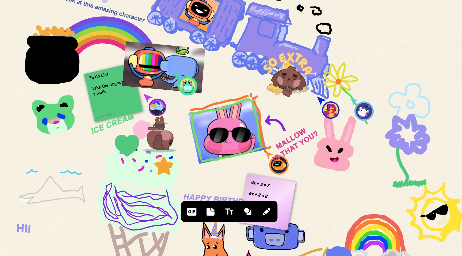
Jamspace Whiteboard is a collaborative, real-time digital canvas built directly into Discord Activities. It allows friends and communities to draw, brainstorm, and share ideas instantly within a Voice Channel.
Unlike complex professional tools like Miro or Photoshop, Jamspace is designed for speed and casual fun. Whether you are planning a raid strategy, studying with classmates, or just doodling with friends, this guide covers everything you need to know about using Discord’s native whiteboard.
🎨 What is Jamspace Whiteboard?
Jamspace is a “Discord Activity”—a mini-app that runs inside the platform without requiring downloads or external accounts. It transforms your voice chat into a shared visual space where users can:
- Draw freely with digital markers.
- Post sticky notes and text.
- Upload images and GIFs.
- Collaborate in real-time.
Key Fact: Jamspace is designed for casual collaboration. It prioritizes ease of access over professional features (like layers or pressure sensitivity), making it a “low-risk” way to visualize ideas instantly.
🚀 How to Start a Session
You can launch a whiteboard in seconds from any server or DM.
On Desktop (PC/Mac)
Recommendation: Before starting, go to User Settings > Advanced and ensure Hardware Acceleration is turned ON. This prevents lag.
- Join a Voice Channel.
- Click the Rocket Ship Icon 🚀 (Start an Activity) located in the voice controls panel.
- Select “Jamspace Whiteboard” from the menu.
- Click Authorize to launch.
On Mobile (Android)
Note: iOS support may be limited or unstable depending on the current version.
- Join a Voice Channel.
- Swipe up to view controls and tap the Rocket Icon 🚀.
- Select “Jamspace Whiteboard”.
🛠️ Tools & Features Overview
Once inside, you will see a toolbar at the bottom. Here is what each tool does:
| Tool | Function | Limitations |
| Pencil ✏️ | Freehand drawing. Change color and thickness. | No pressure sensitivity or stabilization. |
| Text 📝 | Add text boxes with basic formatting. | Only the creator can edit the text inside. |
| Sticky Note 🟨 | Place colored notes for brainstorming. | Basic font options only. |
| Shapes 🔺 | Add squares, circles, and triangles. | Simple geometry only. |
| Images/GIFs 🖼️ | Upload files (.png, .jpg) or search Discord’s GIF library. | Subject to Discord’s file size limits. |
Where is the Eraser?
Jamspace does not have a specific eraser tool. To erase, you must either:
- Select the object and press Delete/Backspace.
- Use the Pencil tool with the color set to the background color (painting over it).
👥 Collaboration & Performance
Participant Limits
While there is no hard cap on how many people can view the board, Discord recommends a maximum of ~12 active editors for the best performance. If too many people draw at once, you may experience significant lag.
Permissions
- Open Editing: Anyone in the session can move, resize, or delete objects (images, drawings, sticky notes).
- Text Lock: Text boxes are unique; only the person who wrote the text can edit it.
💾 Saving & Board Management (Crucial!)
Understanding how Jamspace handles data is vital to prevent losing your work.
1. Auto-Save
There is no “Save” button. Jamspace automatically saves your board to the specific Channel or DM where it was started. Next time you launch Jamspace in that same channel, your board will reappear.
2. The 90-Day Rule
Warning: Boards have an expiration date. If a board is not accessed or updated for 90 days, it will expire and likely be deleted.
- Solution: If you need to keep a drawing forever, take a screenshot or use the “Share” button to post a static image to the chat.
3. Multiple Boards
You can create multiple boards within a single channel. Click the Menu Icon (☰) in the top left to switch between saved boards or create a fresh canvas.
❓ Troubleshooting & FAQ
Q: Why is the whiteboard so laggy?
A: This is usually because Hardware Acceleration is off in your Discord settings. Turn it on and restart Discord. Also, having too many images on one board can slow it down.
Q: Can I export my drawing as a file?
A: You can use the Share button to send a snapshot to the chat, which you can then save. However, there is no high-resolution export (like PDF or SVG).
Q: Can I use a drawing tablet?
A: Yes, but Jamspace does not support pressure sensitivity. Your lines will have a uniform thickness regardless of how hard you press.
Q: Why can’t I edit my friend’s text?
A: This is a security feature. Only the original author can change the text inside a text box or sticky note.
🌟 Conclusion
Jamspace Whiteboard is the perfect tool for quick, visual communication. While it lacks the professional features of apps like Miro or Procreate, its seamless integration into Discord makes it unbeatable for spontaneous brainstorming or game nights.
To recap:
- Turn on Hardware Acceleration for smooth drawing.
- Remember the 90-day limit—screenshot your work!
- Use it for quick ideas, not professional art.
Next Step for You: Open a Discord Voice Channel right now, launch Jamspace, and try drawing a quick welcome message for your server members!