“I want my Discord profile to pop!”
“How do I get that cool background behind my username?”
If you’ve seen friends with stylish designs backing their names in chat and wondered how to get one, you are looking for Discord Nameplates.
The short answer: Nameplates are a cosmetic feature that lets you customize the background of your username. Unlike Avatar Decorations (which ring your picture), Nameplates style the actual text of your name in chats and member lists.
Here is your complete guide on how to buy them, how to equip them on mobile and PC, and why they might not be showing up.
🚀 What Are Discord Nameplates?
A Nameplate is a stylized backdrop that sits behind your username. It allows you to personalize how your name appears across Discord.
Where do people see it?
- Direct Messages (DMs): Right at the top of the chat.
- Member Lists: In servers, your name will have the custom background.
- Chat Windows: Depending on the design, it adds flair to your messages.
- Your Profile: It appears in your mini-profile and full profile view.
Unlike “Profile Effects” (which play an animation over your profile card), Nameplates are specifically for your identity tag (your name).
🛒 How to Buy a Nameplate
You can browse and buy Nameplates directly from the Shop.
Accessing the Shop
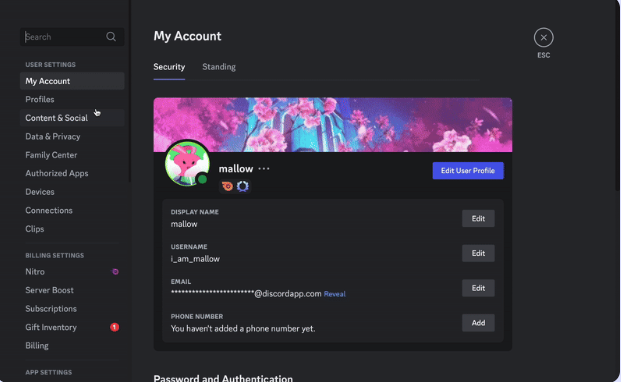
- Desktop: Click the Discord logo (top left) to go to DMs, then click the “Shop” tab above your friend list. Alternatively, go to User Settings > Profiles.
- Mobile: Tap your avatar (bottom right), tap the Settings gear (top right) or Edit Profile, and select “Shop”.
Cost and Nitro Discounts
- You buy Nameplates individually. Once bought, they are yours to keep forever in your collection.
- Nitro Subscribers: If you have an active Nitro subscription, you get a special discount on all Shop items, including Nameplates.
⚙️ How to Set Up Your Nameplate
Once you’ve bought a style you like, here is how to equip it.
🖥️ On Desktop (PC/Mac)
- Click the Gear Icon (User Settings) near your username at the bottom left.
- Select Profiles from the left menu.
- Click the button that says “Change Nameplate” (or click the pencil icon on your profile preview).
- Select your new Nameplate from your collection.
- Click “Save Changes” at the bottom.
📱 On Smartphone (iOS/Android)
Make sure your app is updated to the latest version.
- Tap your Avatar Icon in the bottom right corner.
- Tap “Edit Profile”.
- Scroll down to the Nameplate section.
- Select the Nameplate you want to use and tap Apply.
- Tap Save in the top right corner.
⚠️ “Why Can’t I See My Nameplate?” (Crucial!)
This is the #1 problem users face. If you equipped a Nameplate but it isn’t showing up, check your Online Status.
The Rule: Nameplates only appear when you are Online, Idle, or Do Not Disturb.
If your status is set to Invisible (Offline), your Nameplate will NOT display to anyone, including yourself. To fix this:
- Click your avatar/status.
- Change your status to Online (Green).
- Your Nameplate should appear immediately.
❓ Frequently Asked Questions (FAQ)
Q: Can I hide other people’s Nameplates?
A: No, you cannot fully hide them.
However, if the animations are distracting, you can reduce the motion. Go to User Settings > Accessibility and toggle on “Enable Reduced Motion.”
Q: Can I get a refund if I don’t like it?
A: Generally, no.
Shop purchases are typically final and non-refundable. Make sure you use the “Preview” feature on your profile before buying to see how it looks with your specific avatar and banner.
Q: Do I lose my Nameplate if I cancel Nitro?
A: No.
If you bought the Nameplate (even with the Nitro discount), it is yours to keep permanently, even if your subscription ends. However, if you are using a specific Nameplate that was free only for Nitro members (seasonal perks), you might lose access to it without the subscription.
🌟 Summary
Nameplates are the best way to flex your style in Discord servers and DMs.
- Buy them in the Shop tab.
- Equip them via User Settings > Profiles.
- Stay Visible: Ensure you are NOT set to “Invisible,” or your Nameplate won’t show.
Ready to customize? Open your Discord User Settings right now and check out the “Profiles” tab to see what’s new in the Shop!