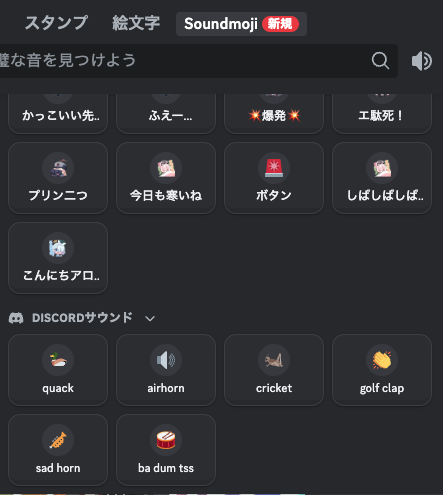
Want to add a laugh track or a drum roll to your text chat? “Soundmojis” are a feature that allows you to send clickable emojis that play short audio clips directly in the chat window.
While Discord’s “Soundboard” is famous for voice channels, Soundmojis bring that same energy to text channels and DMs. Instead of just sending a 😭 emoji, you can send one that actually cries.
This guide covers how to send them, how to upload your own, and the current limitations regarding mobile devices.
🔊 What is a Soundmoji?
A Soundmoji is essentially a visual emoji paired with an audio file from a server’s Soundboard.
- Visual: It looks like a standard emoji in the chat.
- Audio: When another user clicks or taps it, it plays a short sound.
- Versatile: You can send them in DMs, Group Chats, and Server Text Channels.
Note: Soundmojis use the same library as the Soundboard. If a sound exists on your server’s Soundboard, it can likely be sent as a Soundmoji.
🚀 How to Send a Soundmoji
Sending a sound is just as easy as sending a regular sticker or emoji.
Step-by-Step Guide (Desktop/Web)
- Open a text channel or DM.
- Click the Emoji Button (smiley face) in the chat bar.
- Click the Soundmoji Tab (icon looks like a speaker or sound wave) in the top-left of the picker.
- Select a sound: Click the sound you want to send.
- Optional: You can type a message to go along with it.
- Press Enter to send.
Your friends will see the icon. When they click it, the sound plays!
🎛️ How to Adjust the Volume
If the Soundmojis are too loud (or too quiet), you can adjust the playback volume in your personal settings.
- Go to User Settings (Gear Icon).
- Select Voice & Video.
- Scroll down to the Soundboard section.
- Adjust the “Soundmoji Volume” slider.
- Pro Tip: Setting this to 0% will mute all Soundmojis if you find them annoying.
📂 How to Upload Custom Soundmojis
To add a new Soundmoji, you simply need to add a sound to your server’s Soundboard.
Requirements:
- You must be the Server Owner OR have the “Manage Expressions” permission.
- The file must be an audio file (MP3, WAV, OGG) and adhere to Discord’s TOS.
Steps to Upload:
- Click the Server Name (top left) to open the menu.
- Go to Server Settings > Soundboard.
- Click “Upload Sound”.
- Choose a file: Select your audio clip.
- Name & Emoji: Give it a name and assign a related emoji (this is the icon people will click).
- Volume: Adjust the default volume so it isn’t too loud.
- Click Upload.
Once uploaded, this sound can be used in Voice Channels (Soundboard) AND Text Channels (Soundmoji).
❓ FAQ: Limitations & Troubleshooting
We have answered the most common questions regarding why Soundmojis might not be working for you.
Q: Can I use Soundmojis on Mobile?
A: Sending Only. Currently, you can send Soundmojis from the mobile app if the feature is enabled for you, but you cannot hear them play on mobile devices yet. Playback is currently limited to Desktop/Web.
Q: Why can’t I see the Soundmoji tab?
A: This feature is often rolled out experimentally or locked behind Discord Nitro. If you do not see the tab, you either do not have Nitro, or the feature hasn’t been enabled for your account group yet.
Q: Can I use a Soundmoji as a “Reaction” to a message?
A: No. Soundmojis can only be sent as new messages. You cannot “react” to someone else’s post with a sound.
Q: Do I need Nitro to use them?
A: Generally, Yes. Accessing Soundmojis from other servers usually requires a Nitro subscription, similar to using custom emojis across servers.
🌟 Conclusion
Soundmojis are a fantastic way to add context and humor to text chats. Whether it’s a “Ba Dum Tss” after a bad joke or a cheer for a victory, they bridge the gap between text and voice.
To recap:
- Click the Speaker icon in the emoji picker to find them.
- Upload custom sounds via Server Settings > Soundboard.
- Desktop is best for hearing the audio.
Next Step for You: Go to your favorite server right now, open the emoji picker, and see if you have the Soundmoji Speaker Icon available to try out!