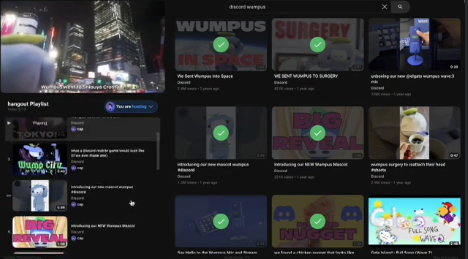
“Watch Together” is a built-in Discord Activity that allows you to stream YouTube videos in perfect sync with friends inside a Voice Channel.
Unlike screen sharing, which can be laggy or low quality, Watch Together runs a synchronized YouTube player directly in the app. This means high-quality video for everyone with zero delay. Whether you want to share music videos, game trailers, or memes, this guide explains how to set it up on PC and Mobile.
📺 What is Watch Together?
Watch Together is an official Discord “Activity.” It creates a shared viewing room where one person (the host) can select videos, or everyone can collaborate on a playlist.
Why use this instead of Screen Share?
- No Lag: The video loads on each user’s device individually but stays synced.
- High Quality: It doesn’t depend on the host’s upload speed.
- Collaborative: Friends can add their own videos to the queue.
🚀 How to Start a Session
You can launch Watch Together in a Server Voice Channel or a Direct Message (DM) call.
🖥️ On Desktop (PC/Mac)
Prerequisite: Go to User Settings > Advanced and ensure Hardware Acceleration is turned ON for the best performance.
- Join a Voice Channel.
- Click the Rocket Icon 🚀 (Start an Activity) located above your connection status in the bottom left.
- Select “Watch Together” from the menu.
- Click Authorize to launch the player.
📱 On Mobile (iOS/Android)
- Join a Voice Channel.
- Swipe up to reveal the controls and tap the Rocket Icon 🚀.
- Select “Watch Together” to start the session.
🎮 How to Control the Video
Once the activity is running, here is how to manage the viewing party.
Adding Videos (Playlist)
- Search: Use the search bar inside the activity to find videos directly on YouTube.
- Paste Links: You can copy a YouTube URL (Ctrl+V) directly into the search bar to load a specific video.
- Add to Queue: Click the “+” button to add a video to the playlist without interrupting the current video.
Host vs. Shared Control
By default, the person who started the activity is the Host. Only they can pause or skip videos.
- To Share Control: Toggle the “Sharing” switch (often a lock icon or toggle in the playlist tab). This allows anyone in the channel to pause, skip, or reorder the playlist.
Volume Control
Important: Volume is local.
If the video is too loud, adjust the slider inside the Watch Together player. This only affects you, not your friends.
❓ FAQ: Limitations & Troubleshooting
We have answered the most common questions regarding ads and limits.
Q: Can I use my YouTube Premium account to skip ads?
A: No. You cannot log in to your personal Google/YouTube account inside the Watch Together activity. Because of this, everyone will see ads, even if they have YouTube Premium.
Q: Why did the video stop playing?
A: There is a 180-minute (3 hour) limit on group viewing sessions. After 3 hours, the playback will stop. You must wait for a 10-minute “cooldown” before you can start watching again. Also, if the session is idle for 30 minutes, it will pause.
Q: Why is there no sound?
A: Check your Discord Output device. Sometimes the activity audio goes to a different default device than your voice chat. Go to User Settings > Voice & Video > Output Device.
Q: Can I hide the Activity Launcher (Rocket)?
A: If you are a Server Admin, you can remove permission for the “Use Activities” role, which will hide the rocket icon for specific members.
🌟 Conclusion
Discord Watch Together is the easiest way to host a virtual movie night or share music without the hassle of lagging screen shares.
To recap:
- Click the Rocket to start.
- Paste links to build a playlist.
- Toggle Sharing if you want friends to be the DJ.
Next Step for You: Copy a link to your favorite YouTube video right now, jump into a Voice Channel, and test out the “Paste Link” feature to see how fast it loads!