“I’m trying to work, but my Discord won’t stop pinging!”
“How do I shut up this one spammy channel without leaving the server?”
If Discord notifications are ruining your productivity, you don’t need to quit the app. You just need to master the Mute function.
The short answer: You can silence individual Channels (like #memes) or entire Servers so you only see messages when you want to.
Here is your complete guide to muting notifications, the difference between muting a channel vs. a server, and how to stop those annoying “@everyone” pings.
🔇 The 2 Ways to Silence Discord
1. Channel Mute (Precision Silence)
Use this when you like the server, but one specific channel (like #bot-commands or #general) is too noisy.
How to do it:
- Desktop: Right-click the channel name > Select Mute Channel > Choose a duration (e.g., 24 Hours or Until I turn it back on).
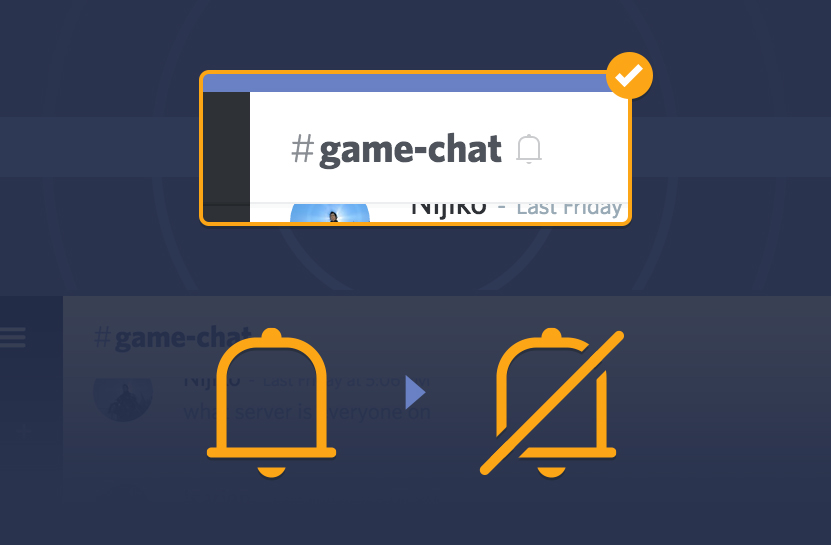
- Shortcut: Click the Bell Icon 🔔 at the top right of the channel to toggle mute instantly.
- Mobile: Long-press the channel name > Tap Mute Channel.
2. Server Mute (Global Silence)
Use this for large, public communities where you don’t need to read every single message.
How to do it:
- Desktop: Right-click the Server Icon on the left sidebar > Select Mute Server > Choose duration.
- Mobile: Tap the Server Name (top left) > Tap Notifications > Tap Mute.
⚠️ The “Mentions” Trap (Important!)
Here is the secret most people miss: Muting a server does NOT stop notifications for mentions.
Even if a server is muted, if someone types @everyone, @here, or tags your specific @username, you will still get a notification and a red number badge.
How to Stop @everyone Pings
To get total silence, you must go one step further:
- Right-click the Server Icon and select Notification Settings.
- Toggle “Suppress @everyone and @here” to ON.
- (Optional) Set “Server Notification Settings” to “Nothing” or “Only @mentions”.
📊 Mute vs. Suppress: What Happens?
What actually changes on your screen when you mute something?
| Action | Notification Sound? | Red Badge (Number)? | Channel Look |
| Normal | ✅ Yes | ✅ Yes | Bright Text |
| Mute Server | ❌ No | ❌ No (unless tagged) | Greyed Out |
| Suppress @everyone | ❌ No | ❌ No | Greyed Out |
Note: Muted channels/servers will appear “greyed out” or faded in your list, but you can still click them to read the history.
❓ Frequently Asked Questions (FAQ)
Q: Will people know I muted them?
A: No.
Muting is 100% private. The server admins and your friends will not be notified that you have muted the channel or server.
Q: Can I mute just one person?
A: Yes.
Right-click their username > Mute. This applies to Voice Chat (you won’t hear them). To stop seeing their text messages, use the Block feature instead.
Q: How do I check messages in a muted server?
A: Just click it.
Muting doesn’t hide the messages; it just stops the “Ding!” sound and the visual alerts. You can open the server anytime to catch up on what you missed.
Q: How do I unmute?
A: Do the same steps in reverse.
Right-click the server or channel and uncheck Mute.
🌟 Summary: Reclaim Your Focus
You don’t have to let Discord control your attention.
- Mute noisy channels individually via the Bell icon.
- Mute large servers entirely via the Right-Click menu.
- Suppress @everyone in Notification Settings for true peace and quiet.
Next Step: Find the noisiest server in your list right now, right-click it, and set it to “Mute Server > Until I turn it back on.” Enjoy the silence!