“How do I join the call?”
“Why can’t anyone hear me?”
If you are new to Discord, Voice Channels (VCs) are the heartbeat of the platform. Unlike a phone call where you have to “dial” someone, Voice Channels are like virtual living rooms—you can walk in and out whenever you want to talk, stream games, or just hang out.
The short answer: Look for the Speaker Icon 🔊 in your server list. Click it once to join. To leave, press the Phone with an “X” button.
Here is your complete guide to creating, joining, and troubleshooting Voice Channels on both PC and Mobile.
🎤 What Is a Voice Channel?
A Voice Channel is a dedicated space where server members can talk in real-time using their microphone.
- The Icon: Identified by a Speaker symbol 🔊.
- The Vibe: It is “drop-in, drop-out.” You don’t need to “call” anyone; you just enter the channel, and anyone else inside can hear you immediately.
- More than Audio: Once inside, you can also turn on your Camera, Share Your Screen, or play Activities (mini-games).
🚀 How to Join and Leave a Voice Channel
Using a VC is incredibly simple, but “leaving” is where most beginners get stuck.
How to Join
- Desktop/Web: Simply click once on the Voice Channel name. You will hear a confirmation sound, and your avatar will appear in the list.
- Mobile: Tap the channel name, then tap the big button that says “Join Voice”.
How to Leave (Disconnect)
Don’t just close the app! You need to disconnect properly.
- Look for the Disconnect button (an icon of a Phone handset with an “X” next to it).
- Desktop: Located above your user profile (bottom left).
- Mobile: Located in the floating menu or at the bottom of the screen.
🛠️ How to Create a Voice Channel
Note: You need “Manage Channels” or “Administrator” permissions to do this.
On Desktop (PC/Mac)
- Right-click on the empty space in the channel list (or click the “+” icon next to a Category name).
- Select Create Channel.
- Select Voice as the channel type.
- Name it (e.g., “Gaming Lounge”) and click Create Channel.
On Mobile (iOS/Android)
- Tap the Server Menu (three dots) or the “+” button next to a Category.
- Select Create Channel.
- Tap Voice.
- Enter a name and tap Create.
🔒 The Lock Icon: If you see a Voice Channel with a small Lock symbol, it means you do not have permission to join it. This is usually reserved for Admins or specific roles.
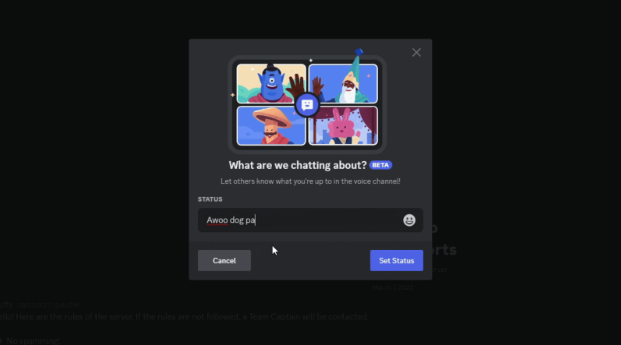
💬 Setting a “Voice Status” (Topic)
Want to let people know what you are doing in the channel before they join? You can set a Channel Status.
- Join the Voice Channel.
- Look for the text “Set a Status” (or the current status) under the channel name.
- Type your activity (e.g., “Ranking in Apex,” “Chilling,” “Movie Night”).
- This text will now appear in the channel list for everyone to see.
🔧 Troubleshooting: “Help! My Audio Is Broken”
Audio issues are the #1 complaint on Discord. Use this quick checklist to fix them.
| Issue | Possible Cause | The Fix |
| I can’t hear anyone. | Wrong Output Device. | Go to User Settings > Voice & Video. Check Output Device. Ensure your headset is selected (not “Default”). |
| They can’t hear me. | Wrong Input Device or Muted. | Check if you are “Self-Muted” (Mic icon with a slash). Check Input Device in settings. |
| Background Noise. | Sensitivity too low. | Enable Krisp Noise Suppression in Voice Settings. It filters out fans and keyboards. |
| “No Route” Error. | Internet/Firewall. | Restart your router or try disabling your VPN temporarily. |
❓ Frequently Asked Questions (FAQ)
Q: Can I share my screen in a Voice Channel?
A: Yes.
Once you join, look for the Screen Share icon (a monitor with an arrow). You can stream your game or browser to friends.
Q: Can I join on my phone and PC at the same time?
A: No.
If you join a VC on your phone while already in one on your PC, Discord will automatically disconnect your PC session and transfer the call to your phone.
Q: How many people can be in one channel?
A: It depends.
By default, it’s unlimited (until the server hits a cap). However, Admins can set a User Limit (e.g., “Max 4 Users”) to keep the chat from getting too chaotic.
Q: Can I talk without a microphone?
A: Sort of.
You can join and listen (this is called “lurking”). If you want to communicate, most Voice Channels have a built-in Text Chat (click the “Chat bubble” icon while hovering over the VC) where you can type to the people talking.
🌟 Summary
Discord Voice Channels are the easiest way to hang out online.
- Click the Speaker icon to enter.
- Check your Green Circle (around your avatar) to make sure your mic is working.
- Hit the Phone with X to leave when you are done.
Next Step: Hop into a Voice Channel right now and look for the “Noise Suppression” button (it looks like sound waves). Turn it on to instantly make your microphone sound professional!