The Truth: You Don’t “Transfer” a Discord Account
Here’s the most important thing you need to know: Discord accounts are not “transferred” like data in a mobile game. There is no “transfer code” to generate or “data migration” to run.
Your Discord account—including your friends list, joined servers, and all your chat history—is 100% cloud-based. It’s all saved to your account on Discord’s servers, not on your device.
This means “transferring” your account to a new phone (iPhone or Android) or PC is as simple as just logging in.
| What You Need | What You DON’T Need |
| ✅ Your registered Email Address | ❌ A special “transfer code” |
| ✅ Your Password | ❌ A “data migration” process |
How to “Transfer” Discord to a New Phone
If you got a new phone (even switching from iPhone to Android), all you have to do is:
- Download the official Discord app on your new device.
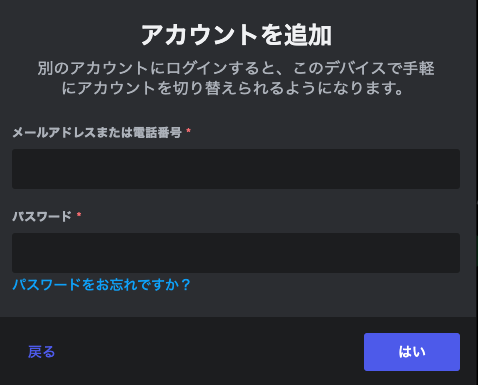
- Open the app and choose the “Login” option (be careful not to accidentally tap “Register”).
- Enter the email address and password you used to create your account.
- Tap “Login.” That’s it. Everything will be exactly as you left it.
3 Reasons You “Can’t” Log In (And How to Fix It)
This is the real problem people face. It’s not a “transfer” issue, it’s a “login” issue. Here are the three most common reasons and their solutions.
1. You Forgot Your Password (The Most Common Problem)
This is the easiest to fix, as long as you remember your email address.
- On the Discord login screen, tap the “Forgot your password?” link.
- Enter the email address you used for your account and tap the button.
- Discord will send a password reset link to that email.
- Open the email, click the link, and create a new, strong password.
- Use this new password to log in.
Note: If you don’t see the email, check your Spam or Promotions folder.
2. You’re Stuck at Two-Factor Authentication (2FA)
If you enabled 2FA for security, you’ll be asked for a 6-digit code after entering your password.
- Solution 1: Authenticator App (e.g., Google Authenticator)Open the authenticator app on your old phone and enter the 6-digit code. If you backed up your authenticator app, you can restore it on your new phone to get codes.
- Solution 2: Backup CodesIf you lost your authenticator, you must use one of your Backup Codes. When you set up 2FA, Discord told you to save a file named discord_backup_codes.txt. You must find this file and enter one of the 8-digit codes.
- The Hard Truth (Account Loss):[CRITICAL] If you lost your authenticator app AND you do not have your backup codes, you have permanently lost access to your account. Discord Support cannot and will not remove 2FA for you. This is a deliberate security feature.
3. You Forgot or Lost Access to Your Email Address
If you forgot your password and you can’t access your registered email (maybe it was an old school or work email), you are in serious trouble.
- The Problem: You can’t receive the “Forgot Password” email, so you can’t reset your password.
- The Solution (Switching Accounts):Unfortunately, you will have to create a brand new Discord account with a new email address. This is the “account switch” (norikae) scenario.However, you must be aware:
- Chat History: You cannot transfer your DM history or server chats to the new account.
- Friends List: You must re-add all your friends from your new account.
- Servers: You must find and re-join all your old servers.
Frequently Asked Questions (FAQ)
Q: Will I lose my chat history if I change phones?
A: No, you will not. Your chat history is saved to the cloud, not your phone. As long as you log in to the same account, your entire history will be there.
Q: How do I move my chat history from PC to my phone?
A: You don’t need to. Your PC chats and phone chats are the same thing. They are all on Discord’s servers. Just log in on your phone, and all your PC conversations will be there.
Q: Can I “transfer” my account from iPhone to Android?
A: Yes. As explained, you just need to install the Discord app on your new Android phone and log in with your email and password.
Q: Where can I check my registered phone number?
A: After you log in, you can see or change your phone number in [User Settings] (gear icon) > [My Account]. A phone number is used for 2FA and account recovery.
Conclusion: “Transferring” is Just “Logging In”
“Transferring” your Discord account is not a special process. It’s just logging in.
You don’t need to worry about losing your data when you get a new phone or PC. The only thing you ever need to worry about is forgetting your login info.
To keep your account safe forever, make sure you know:
- Your Email Address
- Your Password
- Where you saved your 2FA Backup Codes