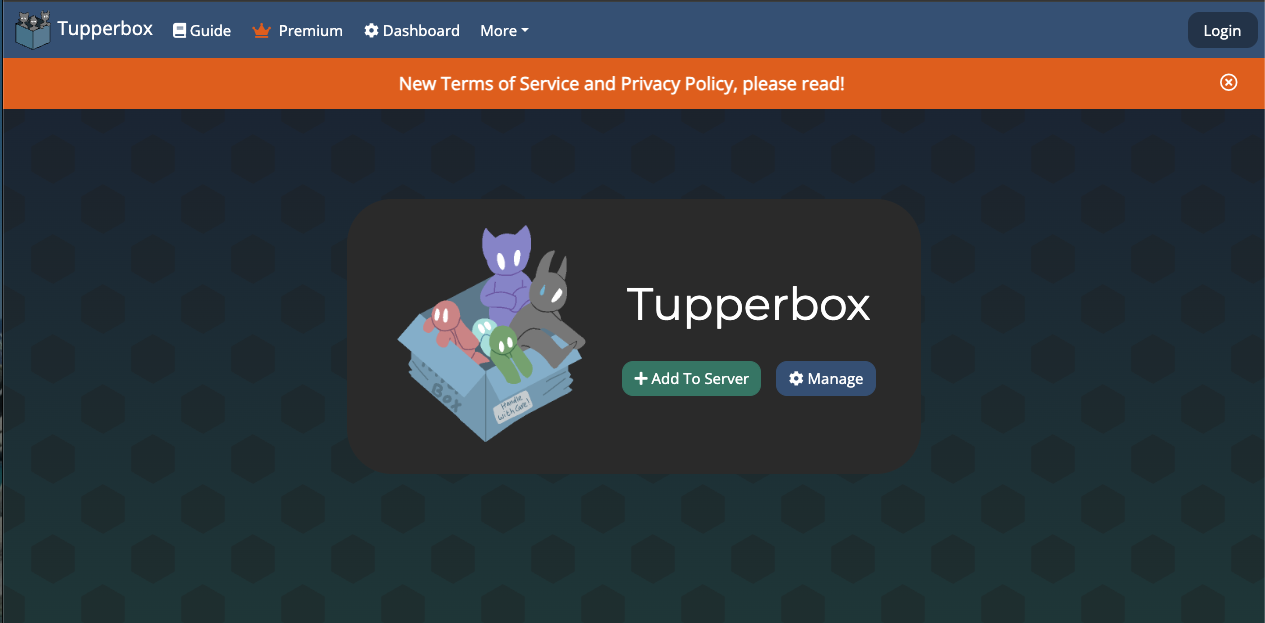
Tupperbox is a bot that allows users to create and switch between multiple “virtual identities” (Tuppers) seamlessly within a single Discord account.
By using special trigger symbols (brackets), the bot detects your message, deletes it, and reposts it using a custom name and avatar—effectively letting you “roleplay” as a character. It is the standard infrastructure for Tabletop RPGs (TRPG), creative writing communities, and plural systems (DID/OSDD).
🎭 Origins: From “Tulpa” to Tool
- Developer: Maintained by the Tupperbox Team.
- Concept: Originally inspired by PluralKit (designed for plural communities), Tupperbox focused on broader Roleplay (RP) usage. The name comes from “Tulpa” (a concept of sentient imaginary friends) mixed with “Tupperware.”
- Adoption: With its easy-to-use Web Dashboard, it is now used in millions of servers to visualize characters in chat.
⚙️ Core Mechanics: How It Works
It uses Webhooks to perform a magic trick.
- Trigger: You type [Hello!] in chat.
- Swap: The bot detects the brackets []. It deletes your message.
- Repost: It creates a temporary Webhook with your registered character’s Name and Avatar, posting “Hello!”
- Result: It looks like the character spoke, not you. (It will have a small “BOT” tag, indicating a Webhook).
💻 Essential Command List
The default prefix is tul!.
👤 Character Management
| Command | Description |
| tul!register [Name] [Brackets] | Main Command. Creates a new Tupper. |
| tul!avatar [Name] [Image] | Sets the profile picture for the Tupper. |
| tul!list | Shows all your registered characters. |
| tul!remove [Name] | Deletes a Tupper. |
| tul!rename [Old] [New] | Renames a Tupper. |
🔧 Utility
| Command | Description |
| tul!show [Name] | Displays full profile details. |
| tul!find [User] | See another user’s Tuppers. |
| tul!cfg | Server configuration (Log channels, etc.). |
🚀 Setup Tutorial: Create Your First Character
Let’s say you want to roleplay as a character named “Hero Alice” using brackets like [text].
Step 1: Invite & Permissions
Invite Tupperbox from the official site.
- CRITICAL PERMISSIONS: It must have “Manage Webhooks” (to post) and “Manage Messages” (to delete your trigger message).
Step 2: Register
Type this command:
tul!register “Hero Alice” [text]
- Note: Use quotes around the name if it has spaces. text is a placeholder for your message.
Step 3: Set Avatar
Upload an image to Discord (or copy an image link).
Type: tul!avatar “Hero Alice” [Paste Link or Attach Image]
Step 4: Test It
Type [Hello world!] in chat.
If the bot deletes your message and reposts it as Alice, you are done!
Step 5: The Web Dashboard (Recommended)
Managing via commands is slow.
- Go to tupperbox.app.
- Log in with Discord.
- Use the visual interface to upload avatars, change names, and organize groups effortlessly.
❓ FAQ: Troubleshooting & Safety
Q: The bot isn’t working (my message stays).
A: Check Permissions or Brackets.
- Permissions: Does the bot have “Manage Webhooks” in that specific channel?
- Brackets: Did you type (text) when you registered [text]? The symbols must match exactly.
Q: Who is actually speaking? (Anti-Abuse)
A: React with ❓.
If someone is using a Tupper to troll, react to their message with the ❓ (question mark) emoji. Tupperbox will DM you the real username of the person behind the character. (Admins can disable this, but it’s on by default).
Q: “Webhook Limit Reached” error.
A: Discord limit.
Discord only allows 10 Webhooks per channel. Go to Channel Settings > Integrations > Webhooks and delete unused ones to make space for Tupperbox.
Q: Images stopped working.
A: Discord Link Expiry.
Discord now expires file links over time.
- Fix: Use the Tupperbox Dashboard to upload images directly, or use a permanent host like Imgur.
🌟 Admin Tip: Logging
To keep your server safe, set up a Log Channel.
- Create a private channel #tupper-logs.
- Run tul!cfg log #tupper-logs.
- Now, every time someone uses a Tupper, the bot will post the real username and the message content in the log channel. This is essential for moderation.
Next Step for You: Invite Tupperbox, go to the dashboard, and create your first persona to bring your roleplay to life!