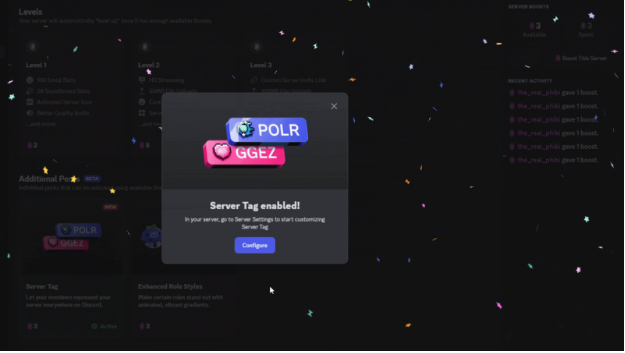
Introduction: What Are Discord Server Tags?
Discord’s “Server Tags” are a new feature that lets a server create a custom 4-character ID and icon. Members of that server can then choose to display this tag on their profile, allowing them to show off their favorite community wherever they go on Discord.
Key Features:
- Server Identity: A unique 4-character tag and badge to represent your community.
- Unlock Requirement: 3 Server Boosts.
- New “Additional Perks” System: This is a new system, separate from traditional Boost Levels.
Previously, Server Boosts were only used to “level up” a server (Level 1, 2, 3). With the new “Additional Perks” system, you can use a few boosts to unlock specific, individual features without having to reach a full level.
The main advantage: You can activate Server Tags with just 3 boosts, even if your server is still Level 0.
For Server Owners & Admins: How to Unlock and Set Up Server Tags
Here is the step-by-step guide for server owners and administrators to activate and customize a Server Tag.
1. How to Unlock the Server Tag Perk
- First, open the server you want to manage. Click the server name in the top-left corner and select “Server Boost.” (This tab is only visible to owners/admins).
- You will see your number of available Server Boosts. If you have 3 or more, you can unlock the perk.
- Find the “Server Tag” item in the list of perks and click “Unlock Perk.”
- This will activate the feature, and you can now move on to customization.
2. How to Customize Your Server Tag
Once the perk is unlocked, you can create your unique tag.
- Click the server name and go to “Server Settings.”
- Select “Server Tag” from the left-hand menu.
- Here, you can set the following:
- Tag Name: A 4-character ID (alphanumeric).
- Badge: The icon that appears next to the tag.
- Color: The tag’s background color.
- Your settings are saved automatically.
[Important] Warning for Admins:
If you update the design of the Server Tag (the name, badge, or color), the tag will be automatically removed from all members’ profiles. You must anounce this change to your members and ask them to re-equip the new tag.
For Server Members: How to Add or Remove a Server Tag
Once your server has unlocked a Server Tag, here’s how you can add it to your own profile.
On PC / Browser
- Click the gear icon [⚙️] in the bottom-left to open “User Settings.”
- Select the “Profiles” tab from the left-hand menu.
- Scroll down to the “Server Tags” section. Click the “Select” box, and a list of your servers with available tags will appear.
- Click the tag you want to display. It will be applied to your profile automatically.
- To remove it, simply click the “X” button next to the applied tag.
On Mobile (iOS / Android)
- Tap your avatar icon in the bottom-right corner of the app.
- Select “Edit Profile.”
- Scroll down to the “Server Tags” section, tap it, and select the tag you want to use. The setting will save automatically.
Frequently Asked Questions (FAQ)
Q: What characters can I use in a Server Tag?
A: You can use up to 4 characters, including letters, numbers, and some special characters. Emojis and spaces are not currently supported.
Q: Can Server Tags be duplicates of other servers?
A: Yes. Tag names do not need to be unique. You can use the same 4-character tag as another server.
Q: What happens if our server’s boosts drop below 3?
A: If the server loses the boosts required to maintain the perk, the Server Tag feature will be disabled. The tag will be automatically removed from all members’ profiles.
Q: Can members change the color of the tag?
A: No. The tag’s color and design are set by the server admin and are the same for all members.
Q: How many Server Tags can I put on my profile?
A: You can only display one Server Tag at a time.
Q: Can admins restrict who can use the tag (e.g., to specific roles)?
A: Currently, no. If the Server Tag perk is unlocked, it is available for all members of the server.
Q. What’s the difference between “Additional Perks” and “Boost Levels”?
A: Boost Levels (Level 1, 2, 3) unlock a large bundle of features for the whole server (like emoji slots, upload limits, etc.). “Additional Perks” is a new system where you use a small number of boosts to unlock a single, specific feature (like Server Tags) without needing to reach a full level.
Q: Can I manage (create, set up) Server Tags from my phone?
A: No. As of July 2025, the admin controls for unlocking and customizing Server Tags are only available on the PC/browser version of Discord. Members can equip the tag on their profile using mobile.
Conclusion: Show Off Your Community
The new Server Tag feature is a fantastic way to build community pride and allow your members to represent you across Discord.
Here are the key takeaways:
- Server Tags are an “Additional Perk” unlocked with 3 Server Boosts.
- Admins can create a custom 4-character tag with a unique badge and color.
- Members can choose one tag to display on their personal profile.
Start using Server Tags today to strengthen your community’s identity and let your members show their support!