“How do I get a moving profile picture?”
“Why is my banner just a solid color?”
Your Discord profile is your digital identity. Whether you are a gamer, a creator, or just hanging out, customizing your profile is the best way to stand out in a server. From animated avatars to flashy profile effects, the options can be overwhelming.
The short answer: You can customize your Avatar, “About Me,” and Pronouns for free. However, premium features like Animated Avatars (GIFs), Profile Banners, and Color Themes require a Discord Nitro subscription.
Here is your complete guide to maximizing your profile, including a breakdown of Free vs. Nitro features.
🛠️ How to Edit Your Profile
First, let’s get to the editing screen.
On Desktop (PC/Mac)
- Click the Gear Icon (User Settings) in the bottom left.
- Select the Profiles tab in the left menu.
- Here, you can toggle between your User Profile (Global) and Server Profiles (Specific to one server).
On Mobile (iOS/Android)
- Tap your Profile Picture in the bottom right corner.
- Tap “Edit Profile”.
- Tap the specific section (Avatar, Banner, etc.) you want to change.
🎨 Customization Options Explained
Here is a deep dive into every element you can change.
1. Avatar (Profile Picture)
This is your main face on Discord.
- Standard Image: Upload any PNG or JPG (Recommended size: 128×128 pixels).
- Animated Avatar (Nitro): Upload a GIF that moves when people hover over your message or view your profile.
2. Avatar Decorations
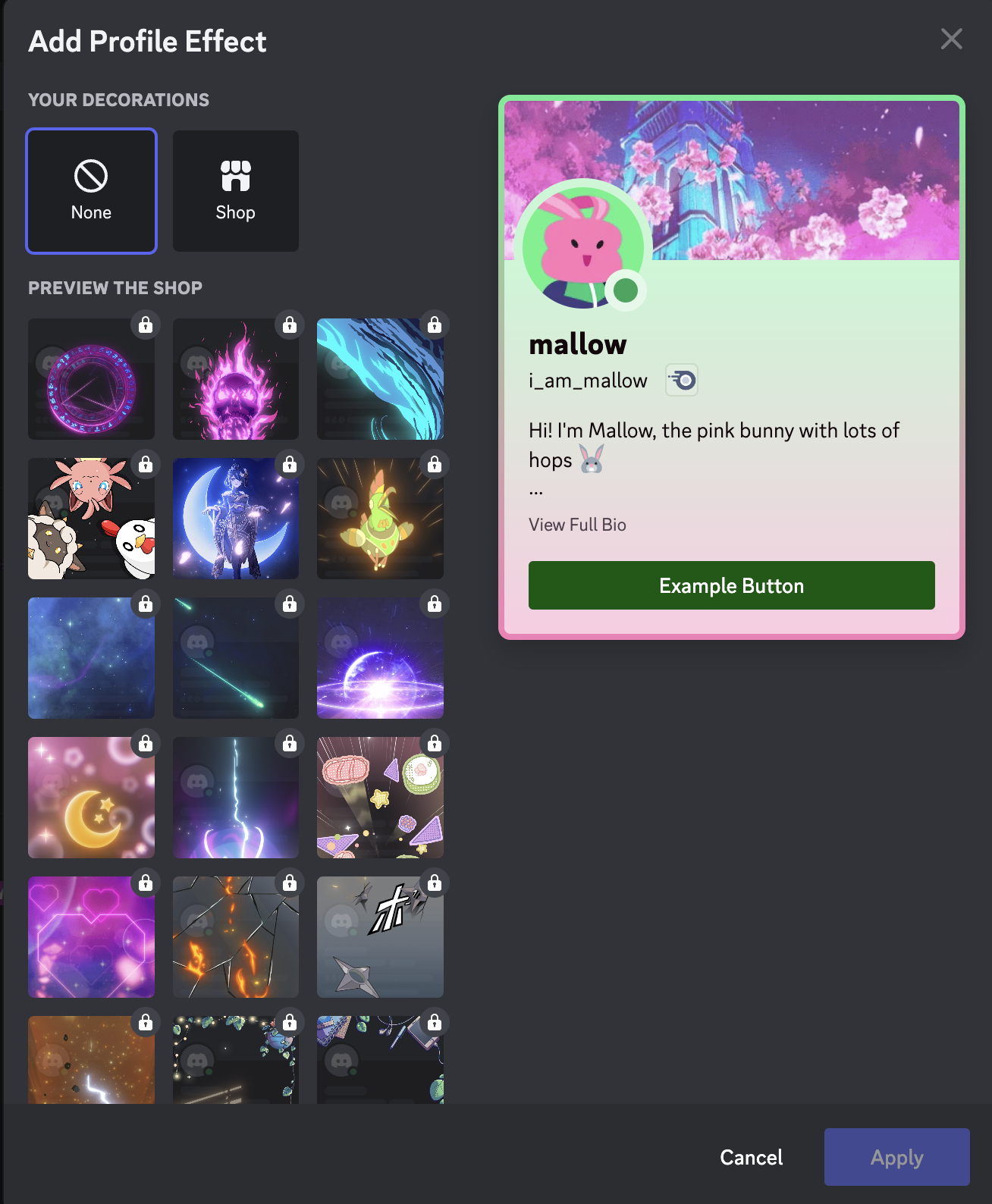
These are styled frames that sit around your avatar (like cat ears, fire, or seasonal wreaths).
- How to get them: You buy them in the Shop.
- Nitro Perk: Nitro members get a discount on Shop items and access to exclusive free decorations.
3. Profile Banner
This is the large rectangular image behind your avatar.
- Free Users: Can only choose a solid Color.
- Nitro Users: Can upload an Image or Animated GIF.
- Recommended Size: At least 680×240 pixels (Aspect ratio approx 17:6).
4. About Me (Bio)
A space to introduce yourself.
- Limit: 190 characters.
- Formatting: Supports Markdown (Bold
**text**, Italic*text*, Links, and Emoji).
5. Profile Theme (Colors)
This changes the background color of your profile card when someone clicks on your name.
- Free: Automatically pulled from your Avatar’s dominant color.
- Nitro: You can manually select a Primary and Accent color to create cool gradients.
6. Pronouns
A dedicated field to let people know how to refer to you (e.g., he/him, she/her, they/them). This appears clearly next to your username.
🆚 Comparison: Free vs. Nitro
Is Nitro worth it for the aesthetics? Check this table.
| Feature | Free User | Nitro User |
| Avatar | Static Image (PNG/JPG) | Animated GIF |
| Banner | Solid Color | Custom Image / GIF |
| Profile Theme | Auto-generated | Custom Gradient |
| Decorations | Buy in Shop | Discounted + Exclusive Free |
| Profile Effects | Buy in Shop | Discounted + Exclusive Free |
| Server Profiles | Same profile everywhere | Different Avatar/Bio per Server |
❓ Frequently Asked Questions (FAQ)
Q: Why isn’t my Profile Effect showing up?
A: Check your Accessibility settings.
If you have “Enable Reduced Motion” turned ON in your User Settings > Accessibility, animations like Profile Effects and GIFs will not play for you.
Q: Can I use a GIF for my banner without Nitro?
A: No.
If you upload a GIF as a free user, it will be converted into a static image (the first frame of the GIF).
Q: What is the file size limit for Avatars?
A:
- Free: 8 MB
- Nitro: 10 MB (Allows for higher quality GIFs)
Q: Can I change my profile just for one specific server?
A: Yes, if you have Nitro.
Go to User Settings > Profiles, then click the “Server Profiles” tab. You can set a specific Avatar and Bio that only appear in that server (e.g., a professional photo for a Work server, an anime pic for a Gaming server).
🌟 Summary: Express Yourself
Your profile is the first thing people see.
- Start with the basics: Set a clear Avatar and write a short “About Me.”
- Add Pronouns: It helps avoid confusion.
- Consider Nitro: If you want the “Moving” banner and avatar, the subscription unlocks the full creative suite.
Next Step: Open your User Settings > Profiles right now and try changing your Banner Color—even without Nitro, you can pick a color that matches your vibe!