“Can I talk to my PC friends while playing on my PS5?”
“How do I show what PlayStation game I’m playing on my Discord status?”
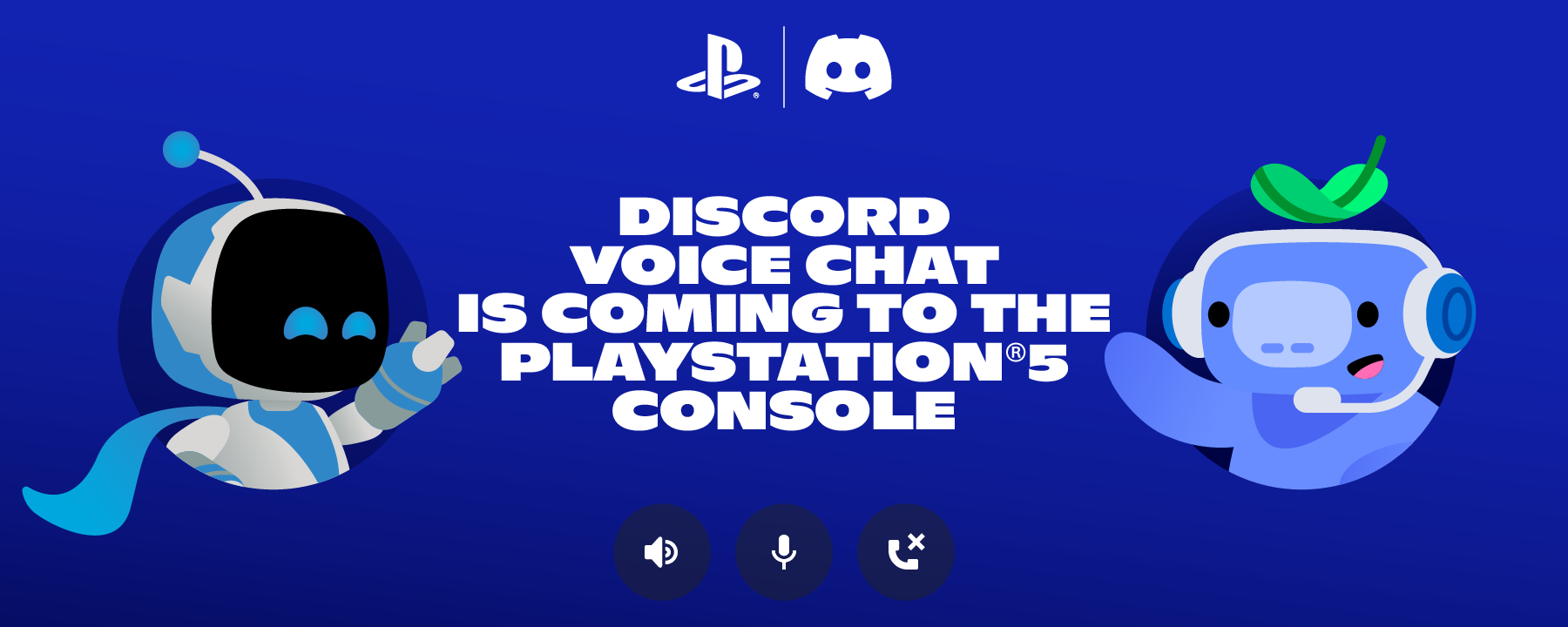
The answer is Yes. Discord has fully integrated with PlayStation™Network (PSN), allowing you to voice chat directly from your console (PS5 only) and share your game activity (PS4 & PS5).
Here is your complete guide to linking your accounts, transferring calls, and troubleshooting common issues.
🔗 How to Link Discord to PlayStation (Step-by-Step)
Before you can chat, you must connect your accounts. You can do this on your phone or computer.
- Open Discord and go to User Settings (Gear Icon ⚙️).
- Select the Connections tab.
- Click the PlayStation icon (If you don’t see it, click “View More”).
- A browser window will open. Sign in with your Sony (PSN) account email and password.
- Click “Authorize” to link the accounts.
Success: You should now see your PSN account listed in your Connections tab.
🎧 How to Use Discord Voice Chat on PS5
There are now two ways to join a call on your PS5.
Method 1: Join Directly from PS5 (The Easy Way)
Requires the latest PS5 System Software update.
- Press the PS Button on your controller to open the Control Center.
- Select the Game Base icon (the party icon).
- Select the Discord tab.
- Choose a Server or DM Group from the list.
- Select a Voice Channel and hit Join.
Method 2: Transfer from Phone/PC
If you are already in a call on your phone and want to move it to the TV:
- Join a Voice Channel on the Discord Mobile App.
- Swipe up to see the menu and tap “Transfer to Console.”
- Select “Transfer to PlayStation.”
- Your PS5 will automatically connect to the voice chat.
Note: You can adjust the mix between “Game Audio” and “Voice Chat Audio” directly from the PS5 sound card menu.
🎮 What About PS4? (The Limitation)
Important: Native Discord Voice Chat is NOT available on PS4.
If you link your account on a PS4, you only get “Rich Presence” features.
- What works on PS4: Discord displays the game you are currently playing as your status (e.g., “Playing Apex Legends on PS4”).
- What doesn’t work: You cannot talk or hear voice chat through the console. You will need to use the Discord app on your phone for audio while playing.
🛡️ Privacy: Why isn’t my game showing?
“I linked my account, but my friends can’t see what I’m playing.”
This is usually a privacy setting on your PlayStation account, not Discord. To fix it:
- Go to your PlayStation Privacy Settings (on the console or website).
- Find “Your Activity” or “Online Status and Now Playing.”
- Set it to “Anyone”.
- Go back to Discord User Settings > Connections.
- Toggle ON the switch that says “Display on profile.”
❓ Frequently Asked Questions (FAQ)
Q: Can I stream my PS5 gameplay to Discord (Screen Share)?
A: No.
Currently, the integration only supports Voice Chat. You cannot stream video (Screen Share) from your PS5 directly to a Discord server. To stream PS5 gameplay to Discord, you still need a PC and a Capture Card.
Q: Do I need PlayStation Plus to use Discord?
A: No.
Discord Voice Chat is free and does not require a PS Plus subscription. However, playing the actual online multiplayer game usually does require PS Plus.
Q: How do I unlink my account?
A: Go to Discord User Settings > Connections, find the PlayStation logo, and click the “X” button to remove it.
Q: Can child accounts use this?
A: It depends.
If the PSN account is a Child Account, Parental Controls may block the link. The Family Manager must allow “Communication and User-Generated Content” in the PSN family settings for Discord to work.
🌟 Summary
Linking PlayStation and Discord is a must for cross-platform gaming.
- PS5 Users: You get full Voice Chat and Game Status.
- PS4 Users: You get Game Status only.
- The Setup: Link once in User Settings > Connections, and you are good to go.
Next Step: Turn on your PS5, link your account, and surprise your PC friends by jumping into the voice channel directly from your couch!