 By Discord Media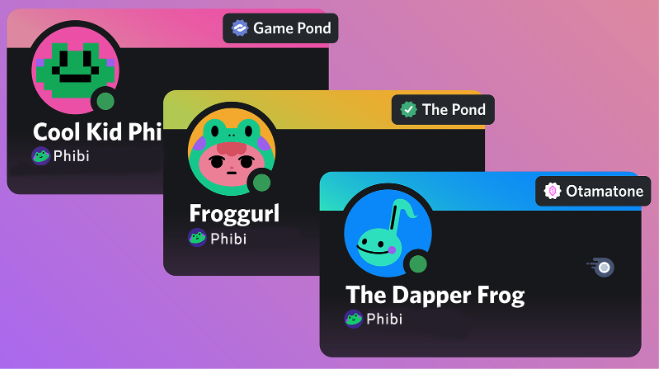
Stop looking like a generic NPC across your entire ecosystem.
The era of the “one-size-fits-all” avatar is dead. In 2025, context switching is the meta. You shouldn’t wear your Elden Ring cosplay into a Web3 professional networking server, nor should your LinkedIn headshot appear in your late-night shitposting tribe.
Enter Server Profiles. This Nitro-exclusive feature allows you to fragment your digital identity, tailoring your Avatar, Banner, and Bio for every specific community you inhabit. Here is your tactical guide to mastering identity segmentation on Desktop and Mobile.
1. The Prerequisites: The Paywall Check
Before you attempt to execute these protocols, understand the tiering system. This is a premium feature set.
- Free / Nitro Basic: You can only change your Nickname per server.
- Nitro (Full): Unlocks the full arsenal—Server Avatars, Banners, Bios, Themes, and Decorations.
2. Desktop Operations: The Command Center
The PC/Browser client offers the most granular control over your assets.
Execution: Changing Your Server Avatar
- Target Acquisition: Navigate to the specific server you wish to modify.
- Access UI: Right-click your own avatar in the chat stream or the Member List.
- Initiate Protocol: Select Edit Server Profile.
- Upload Asset: Click on your avatar image. You can upload a fresh file or select from your “Recent Avatars” cache (last 6 uploads).
- Commit Changes: Click Save Changes.
Advanced Customization (Banner & Bio)
While in the Edit Server Profile menu, do not stop at the avatar.
- The Banner: Upload a 16:9 image (Rec: 600x240px). This is your billboard.
- The Bio: You have 190 characters. Use Markdown. In a coding server? List your stack. In a gaming server? List your rank.
- Theme Colors: Manually override the “Primary” and “Accent” hex codes to match your avatar’s palette.
3. Mobile Operations: Identity on the Go
Note: As of mid-2025, while mobile functionality is robust, deep asset management (like specific decoration toggling) is best handled on Desktop for precision.
Execution:
- Navigate: Enter the target server.
- Access Menu: Tap the “…” (Ellipsis) icon next to the Server Name.
- Select: Tap Edit Server Profile.
- Modify: Tap your avatar to swap the image. Adjust your “Primary” and “Accent” theme colors here.
- Save: Tap Save (top right). Do not forget this step.
4. The Identity Matrix: Feature Codex
Understanding what is global versus what is local is key to avoiding embarrassment.
| Feature Node | Global Profile | Server Profile (Nitro) | Strategic Use Case |
| Avatar | Default | Overridable | Match the server’s theme (e.g., Anime vs. Corp). |
| Banner | Default | Overridable | Display portfolio work or memes relevant to that specific group. |
| Bio | Default | Overridable | Context-specific intros (e.g., “Admin @ Server A”). |
| Nickname | Default | Overridable (Free) | Use real names for work, handles for gaming. |
| Decorations | Default | Overridable | Equip seasonal or game-specific frames. |
5. FAQ Vortex: Troubleshooting & Permissions
Q: Can I reset all my Server Profiles at once?
A: Negative. There is no “Mass Reset” button. You must manually revert changes in each server.
Q: Can Server Admins force-change my avatar?
A: No. Admins can change your Nickname (if permissions allow), but your visual assets (Avatar/Banner) are your sovereign property. They cannot touch them.
Q: What are the file specs?
A: JPG, PNG, or GIF. Max file size is 8MB. Keep banners under 10MB for optimal loading.
Q: Why can’t I change my banner on Mobile?
A: UI updates vary. If the option is missing on your specific build, deploy via Desktop. It is the only guaranteed method for full-suite editing.
Zenith CTA
Fragment your reality.
Don’t be a monolith. Customize your presence, increase your immersion, and respect the context of every digital room you enter.