 By Discord Media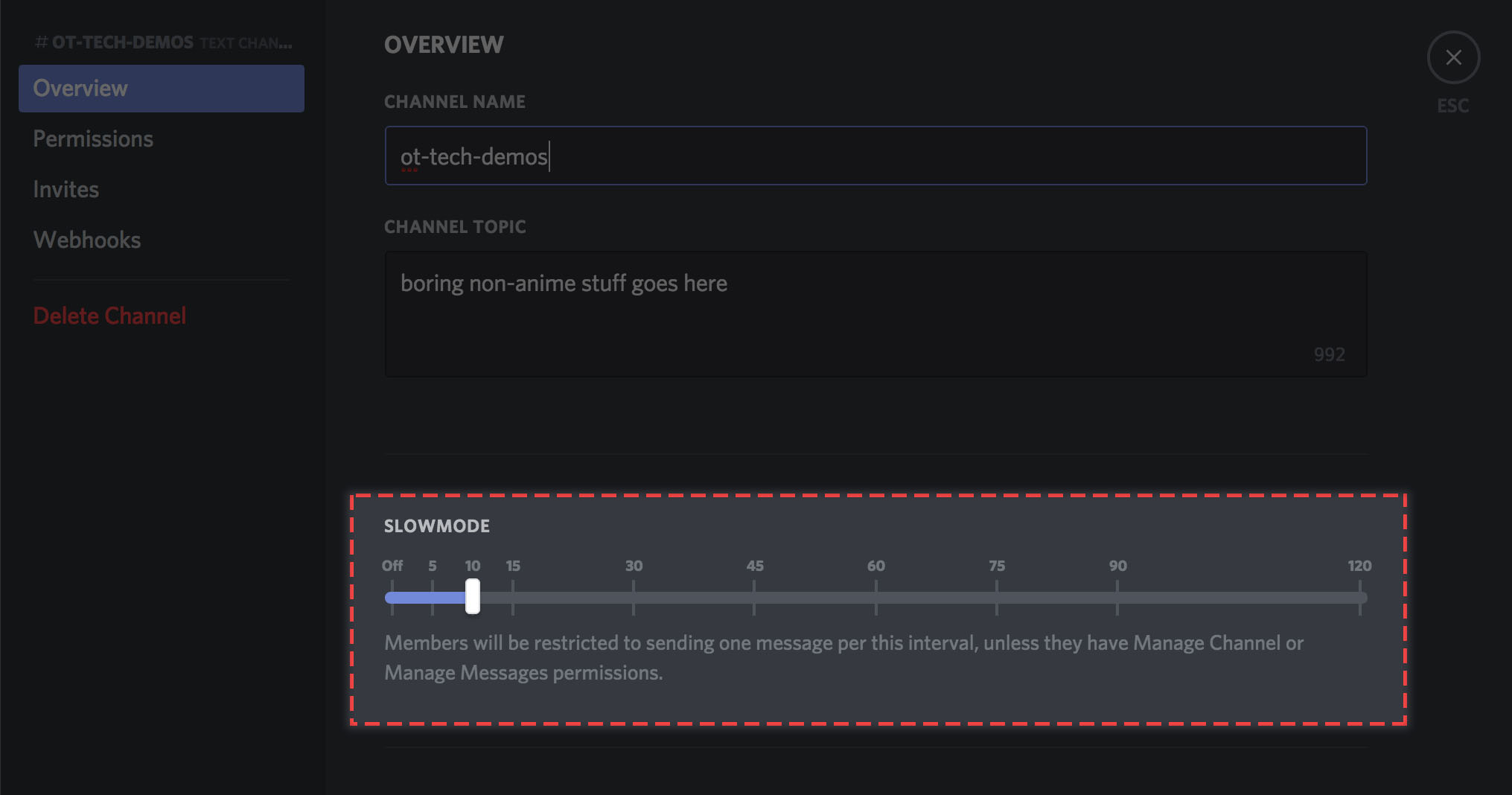
High velocity is not always high engagement. When your text channel moves faster than the human eye can track, you aren’t building a community—you’re hosting a noise factory. Valuable intel gets buried, and thoughtful members get drowned out by spam.
Slow Mode is your throttle. It is the tactical brake system that forces users to prioritize quality over quantity. This is your guide to configuring the flow of information and restoring order to your server.
1. The Mechanic: What is Slow Mode?
Slow Mode acts as a per-user cooldown timer.
If you set a 10-second interval, a user must wait 10 seconds after sending a message before they can type again.
- The Goal: Increase the “Signal-to-Noise” ratio.
- The Visual: Users will see a countdown timer on their chat bar, physically preventing the “Enter” key from working until the cooldown expires.
2. Deployment: Configuration Protocol
You do not need a bot for this. It is a native feature built into the channel architecture.
- Access Channel Settings:Hover over the target text channel and click the Gear Icon (Edit Channel).
- Locate the Throttle:Stay on the Overview tab.
- Engage Slow Mode:Find the Slowmode slider. Drag it to your desired interval.
- Range: From 5 seconds (minor spam control) up to 2 minutes (or higher depending on server level/updates).
- Save Changes:Click Save Changes to apply the protocol immediately.
3. The Immunity Clause: Who Bypasses the Lock?
Slow Mode does not apply to everyone. Understanding the hierarchy is crucial for moderation.
- The Restricted: Standard members and anyone without specific override permissions.
- The Immune (The Elites):
- Server Owner
- Administrators
- Users with Manage Channel or Manage Messages permissions.
- Tactical Note: Your moderators can still spam updates or instructions even while the rest of the server is throttled.
4. Insight Matrix: Interval Strategy Codex
| Setting | Best Use Case | Impact |
| OFF | General Chat / Lounge | Maximum Velocity (Normal) |
| 5 – 10 Seconds | Live Reactions / Stream Chat | Stops “Wall of Text” spam |
| 30 – 60 Seconds | Serious Debates / Feedback | Forces users to think before typing |
| 2 Minutes+ | AMAs / Crisis Management | Severe restriction; high quality required |
5. FAQ Vortex: Operational Intelligence
Q: Will users know Slow Mode is on?
A: Yes. The UI changes for them. They will see a notification bar stating “Slowmode is enabled,” and their text box will shake/display a timer if they try to type too fast.
Q: Can I apply this to just one specific user?
A: No. Slow Mode is channel-wide. To restrict a specific disruptive user, use the Timeout feature instead.
Q: Does this stop Raid Bots?
A: It mitigates the damage, but it does not stop them from joining. For Raids, use Security Actions (Pause Invites) in combination with Slow Mode.
Stabilize the flow.
Don’t let spam kill your culture. Adjust your Slow Mode slider today to match the pacing of your conversation.